

The Odoo 18 Inventory module offers comprehensive tools to enhance and simplify inventory management processes for organizations. It covers essential operations such as managing inbound goods from vendors via 'Incoming Shipments', overseeing outbound logistics through 'Outgoing Activities', and facilitating product movements within the company using 'Internal Transfers'. These built-in processes not only ensure efficient inventory tracking in real time but also support timely invoicing and revenue recording, ultimately improving customer satisfaction and order accuracy.
One key feature, 'Stock Adjustments', guarantees that recorded inventory matches the actual stock levels, which enhances financial transparency and decision-making. The centralized 'Overview' panel presents a consolidated view of all active inventory operations, helping companies streamline workflows, monitor task statuses, and improve supply chain control. Overall, Odoo 18 Inventory equips businesses with powerful tools to master inventory operations and elevate supply chain efficiency.
Operation Types in Odoo are predefined procedures that determine how stock moves within and across warehouse locations. Each type manages a specific flow—be it customer deliveries, supplier receipts, internal movements, or manufacturing logistics. These operation types enable the automation of tasks, improve workflow consistency, and help businesses plan and oversee all stock-related activities seamlessly.
Key objectives of operation types include: defining inventory pathways between locations, streamlining workflows for common tasks like delivery or receipt, and tracking movement-related tasks across warehouse functions. This blog explores the structure, setup, and capabilities of Operation Types in Odoo 18, covering essential features like the Auto-print option, Reservation Method, and various configuration parameters.
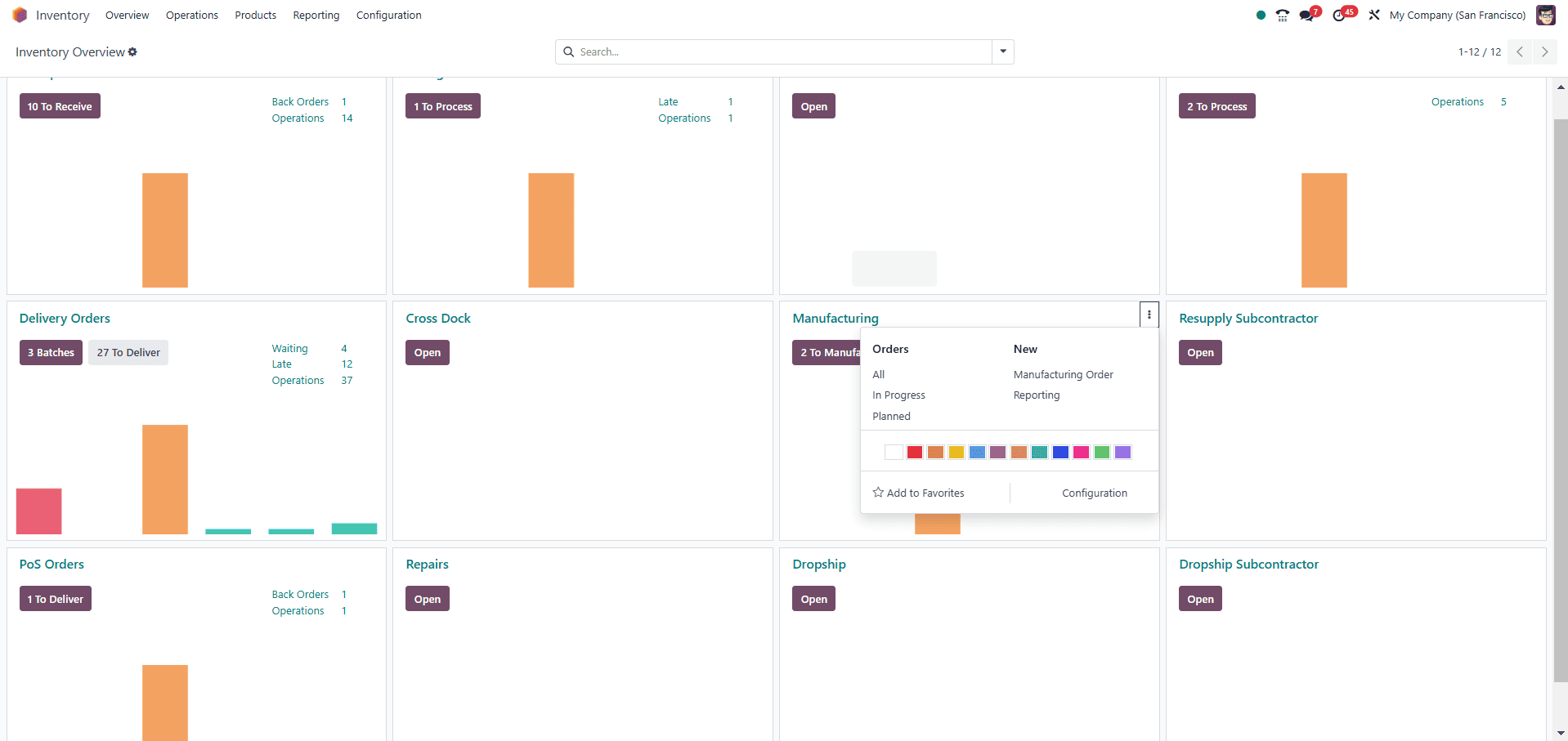
In the Inventory module's 'Overview' dashboard, users can monitor a wide range of inventory operations—such as Receipts, Internal Transfers, Delivery Orders, Manufacturing, Resupply Subcontractor, PoS Orders, Repairs, and Dropship operations. Each operation type is represented in a Kanban-style view, displaying statistics like the number of pending, delayed, or batched tasks. By clicking the menu (three dots) on any card, users can access all related tasks, initiate new operations, or configure specific settings.
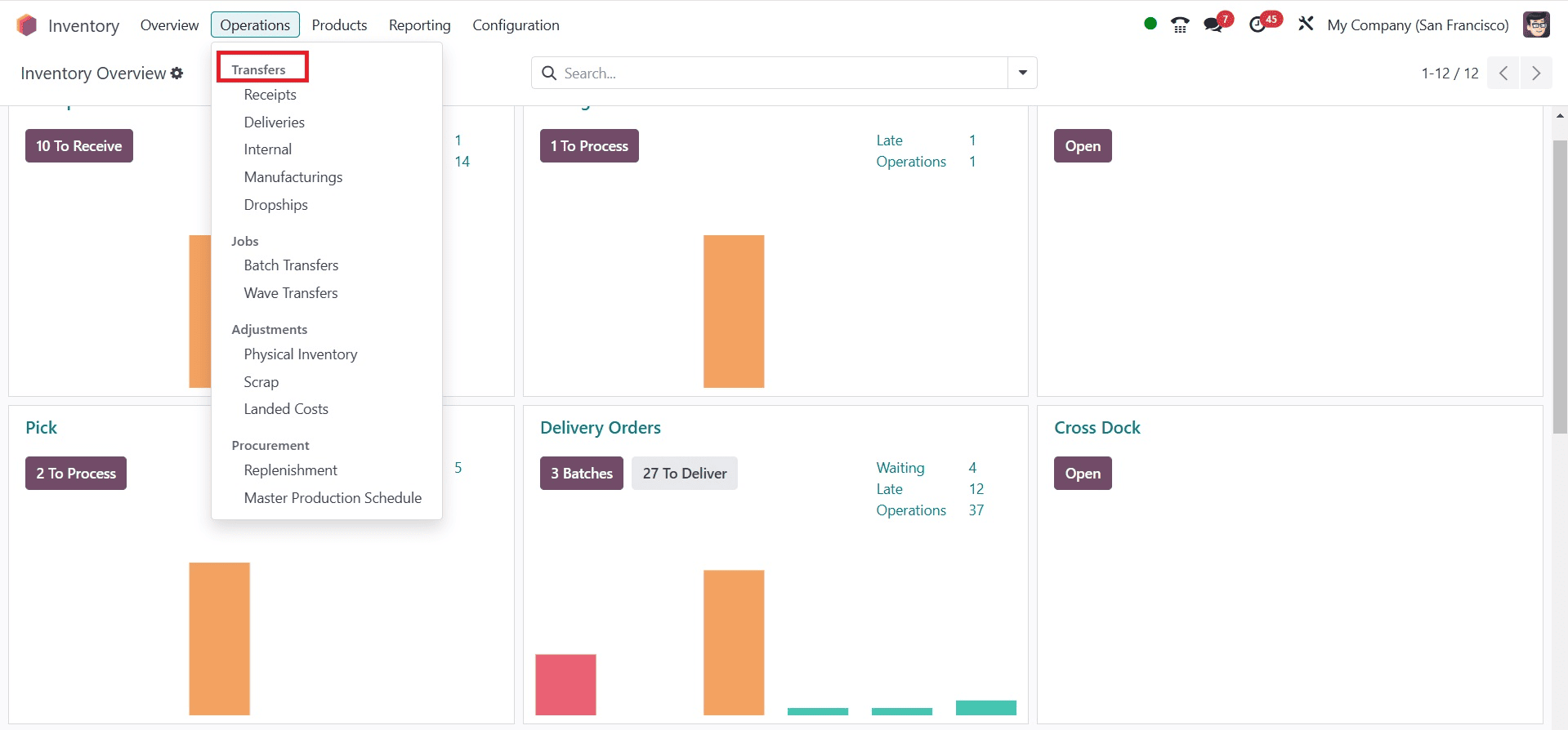
The 'Operations' menu is segmented into four primary categories in Odoo 18: Transfers, Jobs, Adjustments, and Procurements. These categories help in organizing inventory workflows more effectively.
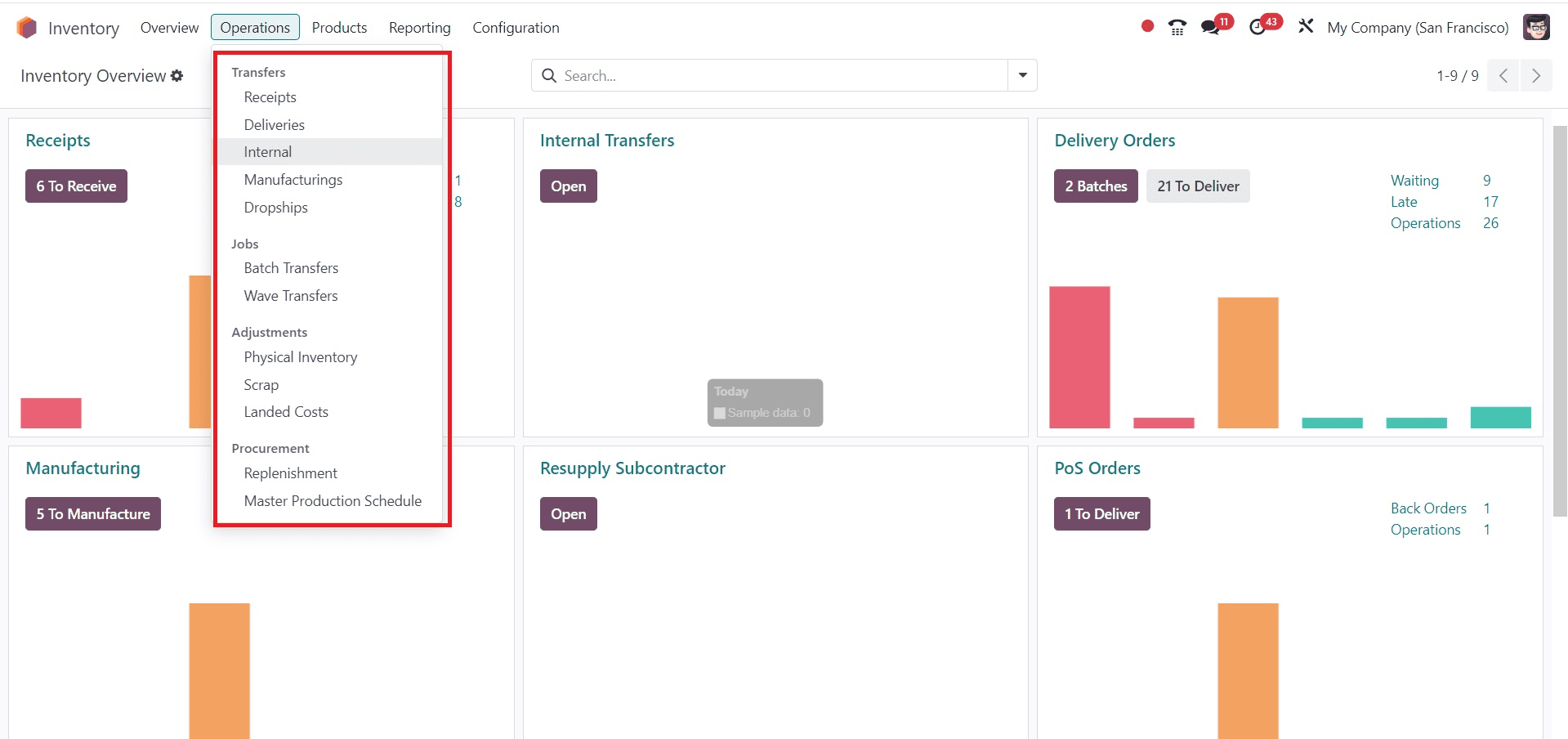
In the 'Transfers' section, users can manage receipts, deliveries, manufacturing movements, batch transfers, and dropshipping processes. These can also be quickly accessed through the Inventory Overview window.
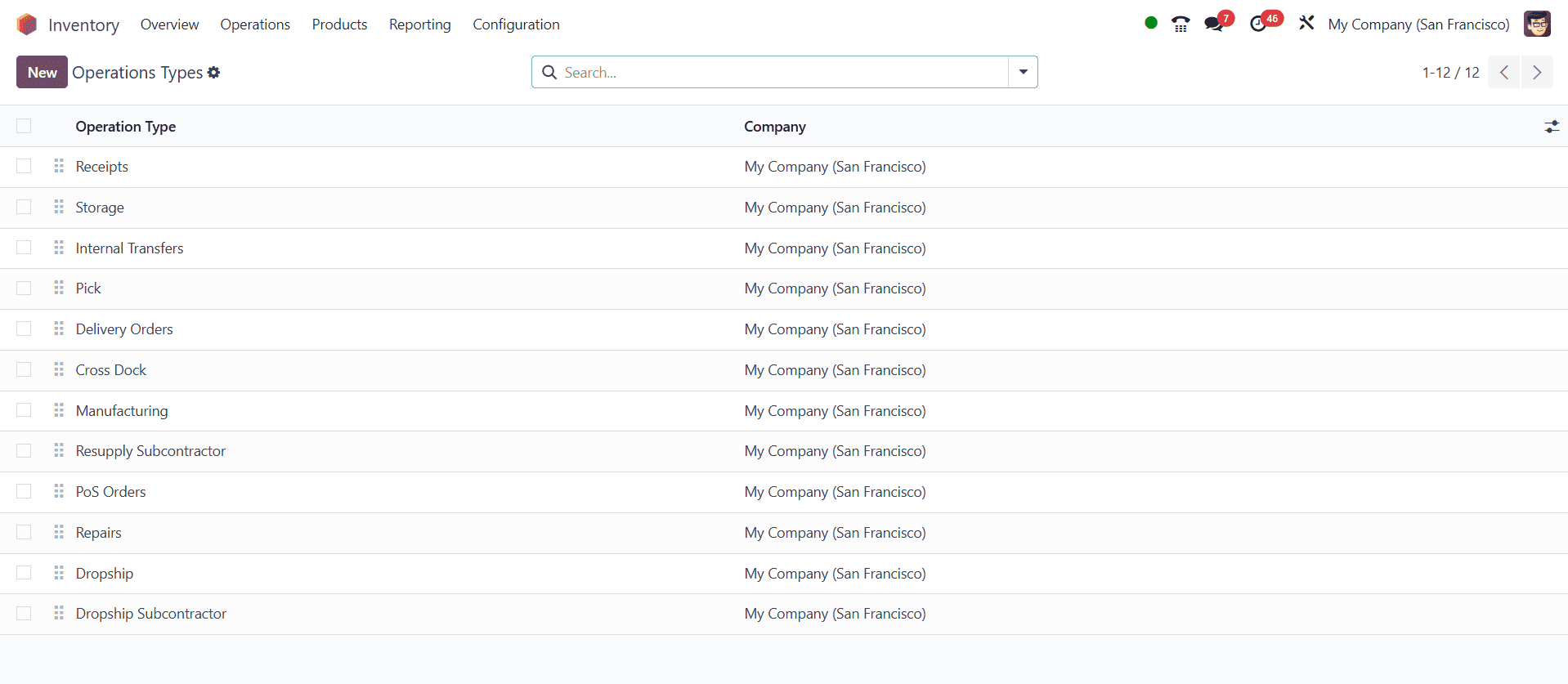
To configure Operation Types, navigate to the 'Configuration' menu and select 'Operation Types'. The dashboard displays all existing types along with their assigned companies. Clicking 'New' opens a detailed configuration form, which consists of three tabs: General, Hardware, and Barcode App.
In the 'General' tab, users define the operation’s name and type — Receipt, Delivery, Internal Transfer, or Manufacturing. Depending on the selected type, fields such as 'Sequence Prefix', 'Print Label', and 'Barcode' will appear. These fields let you personalize label printing, barcode management, and operation numbering.
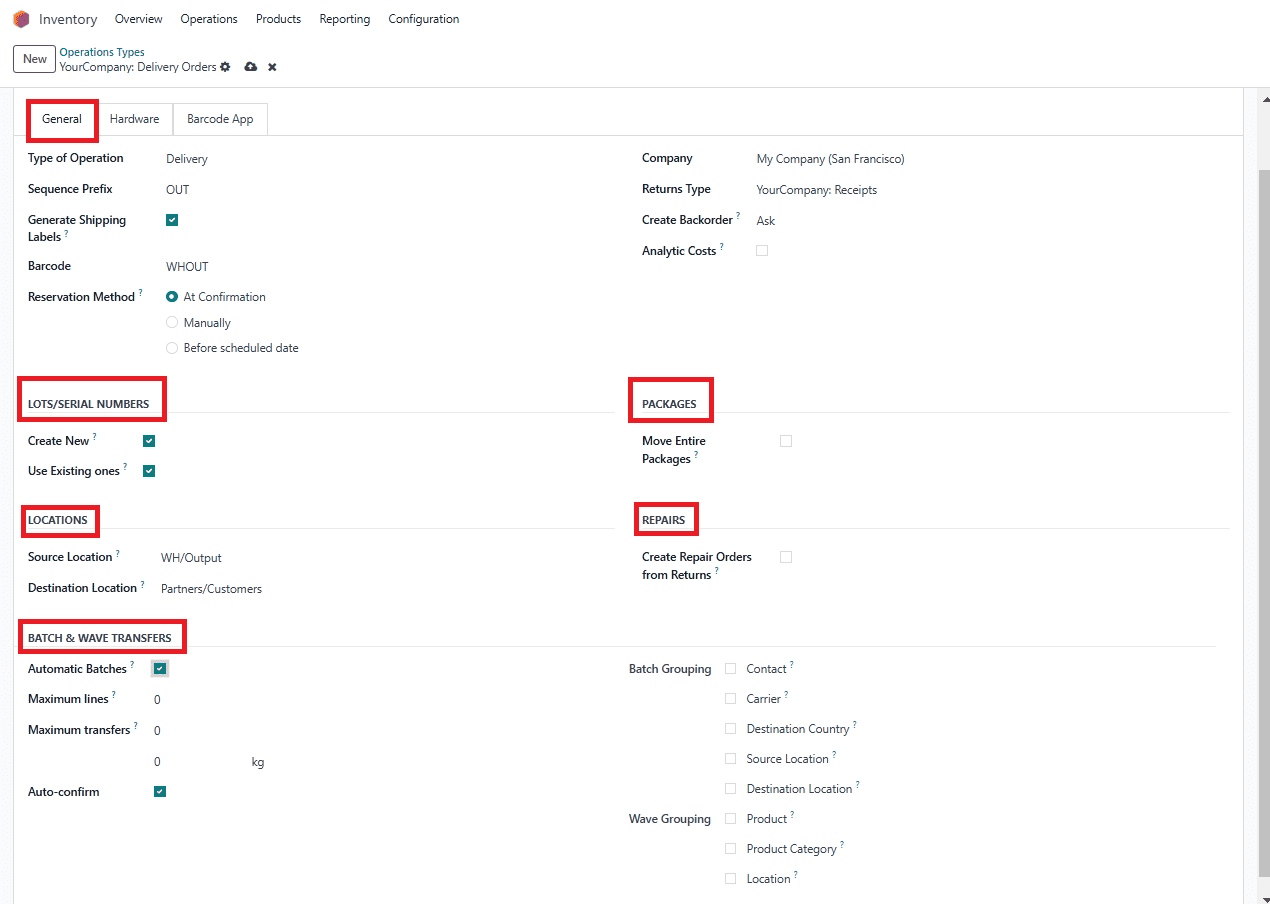
The 'Reservation Method' setting controls how stock is reserved: manually, at order confirmation, or before a scheduled date. Additional fields include assigning the Company, setting return types and locations, and determining how unsold items are handled via the 'Create Backorder' option (Ask, Automatically create, or Never).
Key configuration options include:
- LOT/SERIAL NUMBERS: Choose whether to create new or use existing lot/serial numbers during stock transfers.
- PACKAGES: Enable full package movement between warehouse locations.
- LOCATIONS: Set default source and destination locations.
- REPAIRS: Enable creation of repair orders for returned items.
- BATCH TRANSFERS: Automate batch creation based on destination, source, and customer info. Set maximum line limits and transfer counts per batch. Optionally, enable auto-confirmation of transfers.
The 'Hardware' tab enables integration with IoT devices for automated document printing. Under 'PRINT ON VALIDATION', enable printing of delivery slips, return slips, product labels, and package contents when transfers are validated. Similarly, under 'PRINT ON PUT IN PACK', configure automatic label printing after packing operations, choosing between PDF and ZPL formats.
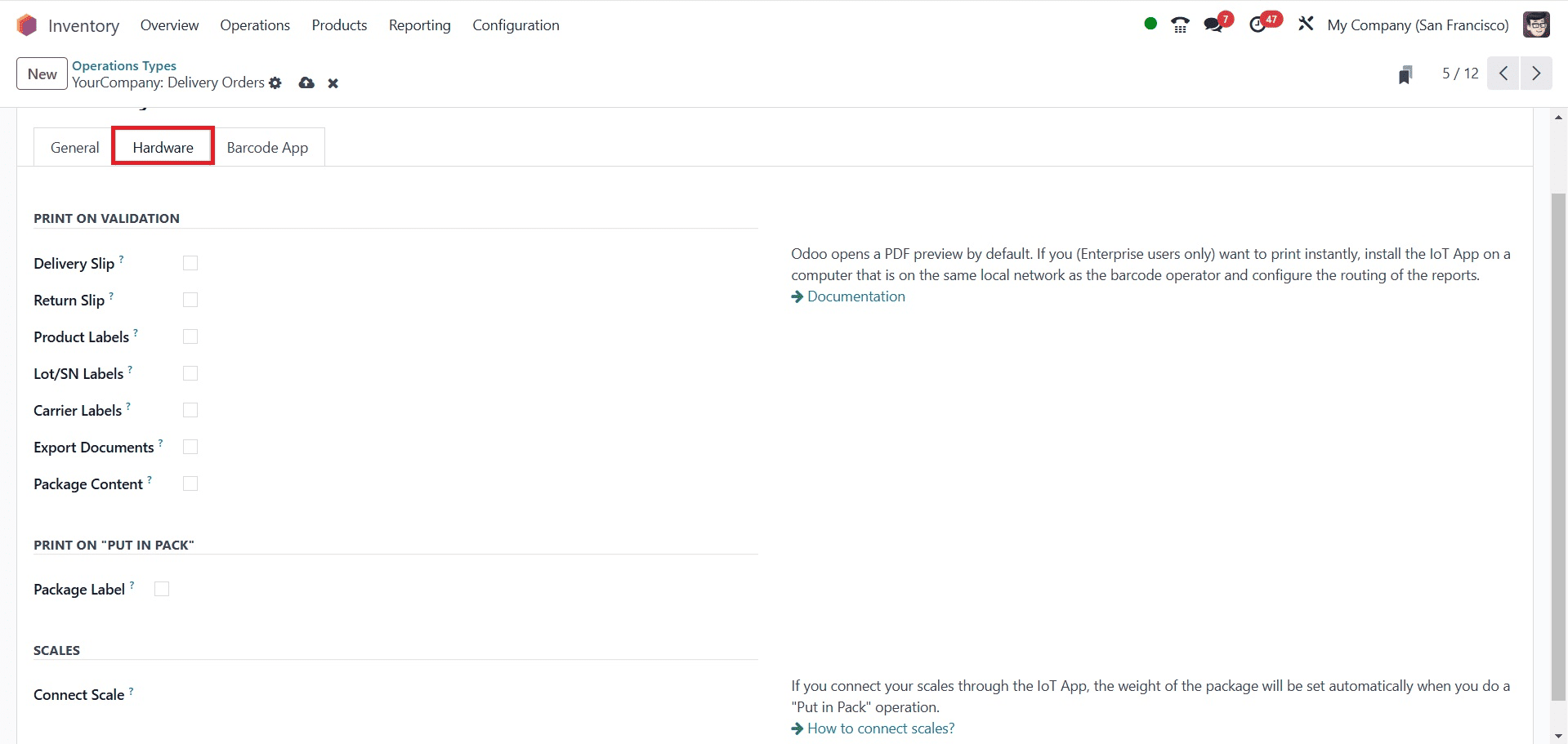
Odoo 18 supports connecting weighing scales via IoT for automatic package weight detection during packing. Users can configure this under the Hardware tab as well.
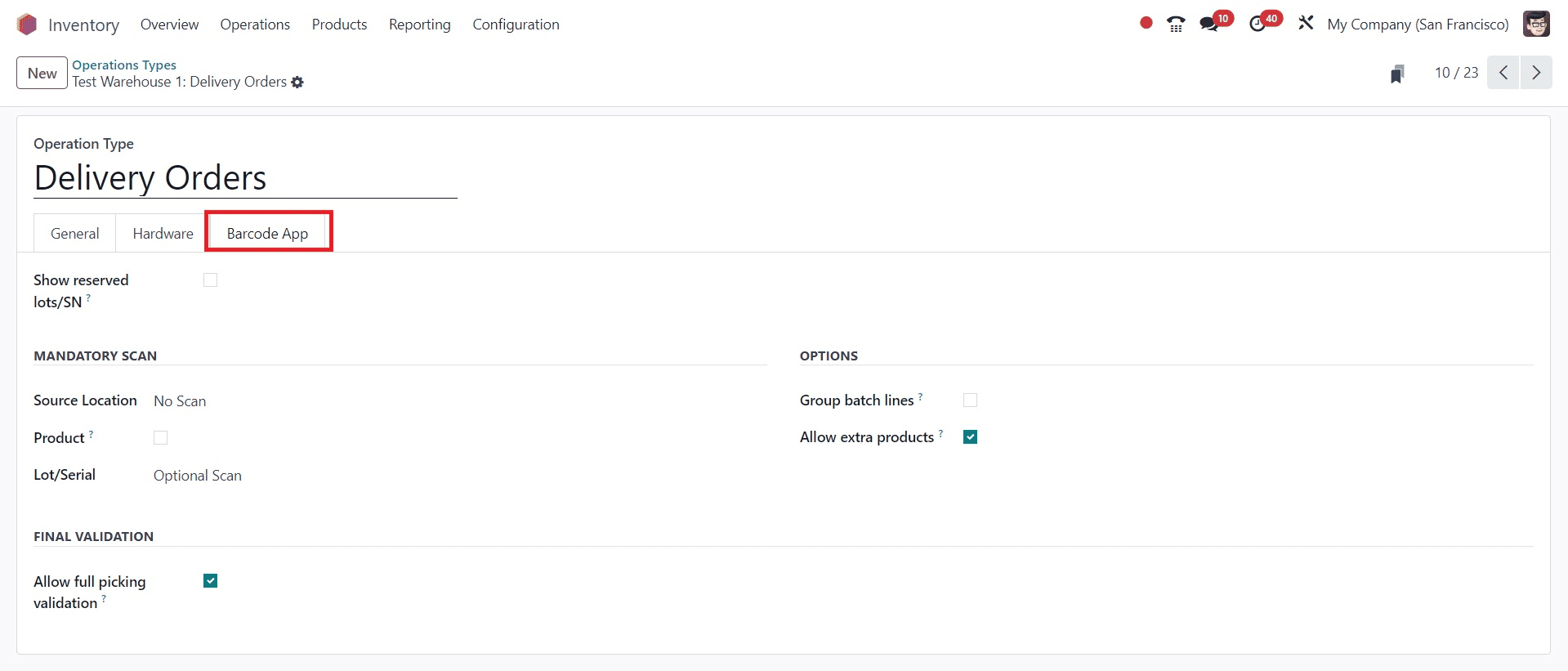
In the 'Barcode App' tab, mandatory scanning rules can be set for source locations, products, lot/serial numbers, and pack actions. You can enforce full picking validation without scanning and require all products to be packed before validation using dedicated toggles.
Additional Barcode App options include grouping batch lines and allowing extra products during operations.
Once all settings are defined, save the Operation Type. The configuration will now apply to all relevant inventory transactions.
Different operation types offer context-sensitive settings. For instance, choosing 'Receipt' reveals lot/serial number fields, while selecting 'Delivery' unveils reservation methods. Internal Transfers enable label printing, and Manufacturing exposes options specific to production flows.
Key Operation Types:
1. Receipts
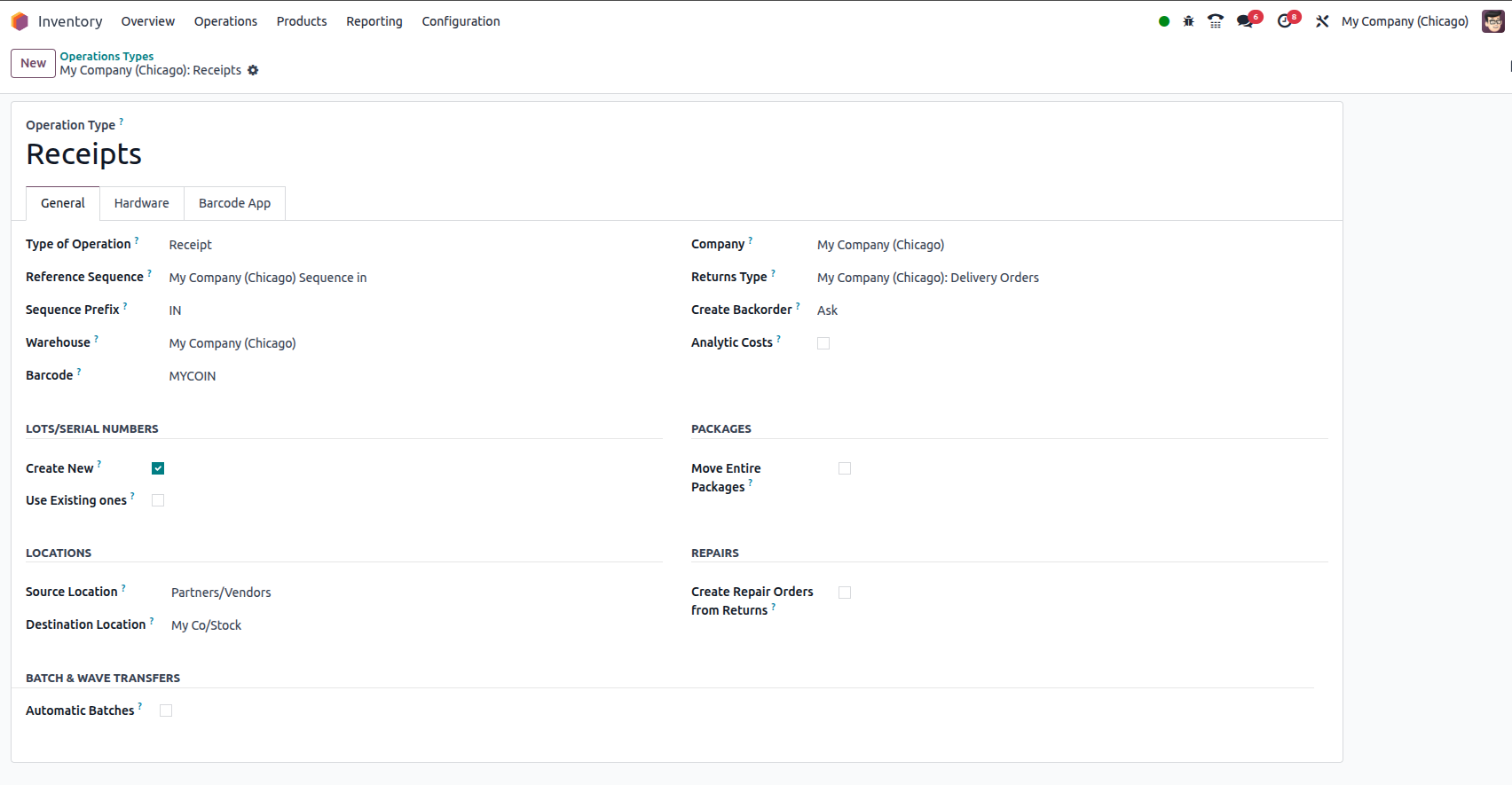
Receipts refer to incoming stock from vendors or suppliers. This operation type is typically configured to move products from a virtual 'Vendor Location' to the company’s stock warehouse. It allows you to track incoming stock, validate quantities, and manage quality control if needed.
2. Delivery Orders
This operation type manages outbound logistics. It moves finished products from the warehouse to customers. It may involve validation steps like picking, packing, and shipping. Delivery orders can be fully automated using barcode scanning and predefined routes.
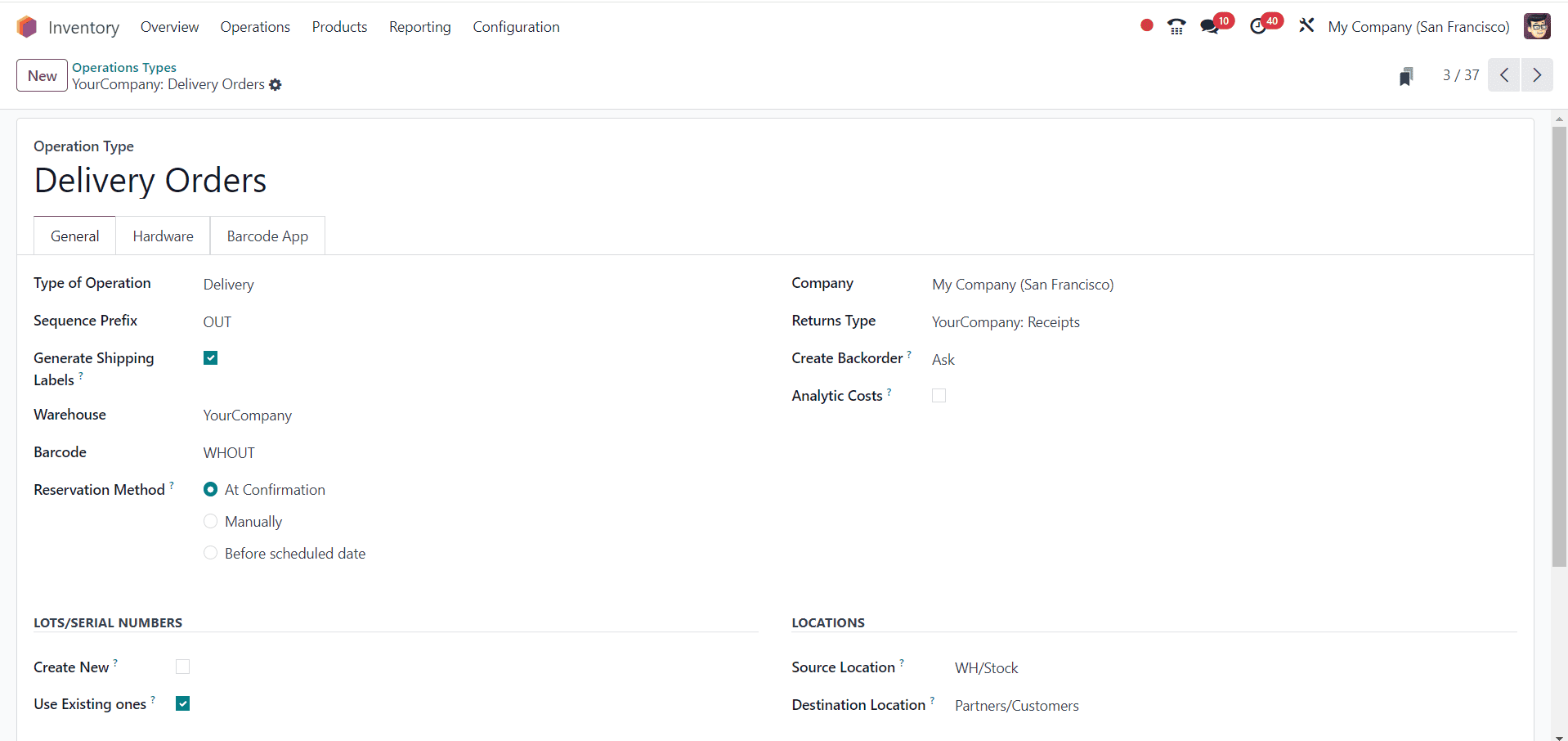
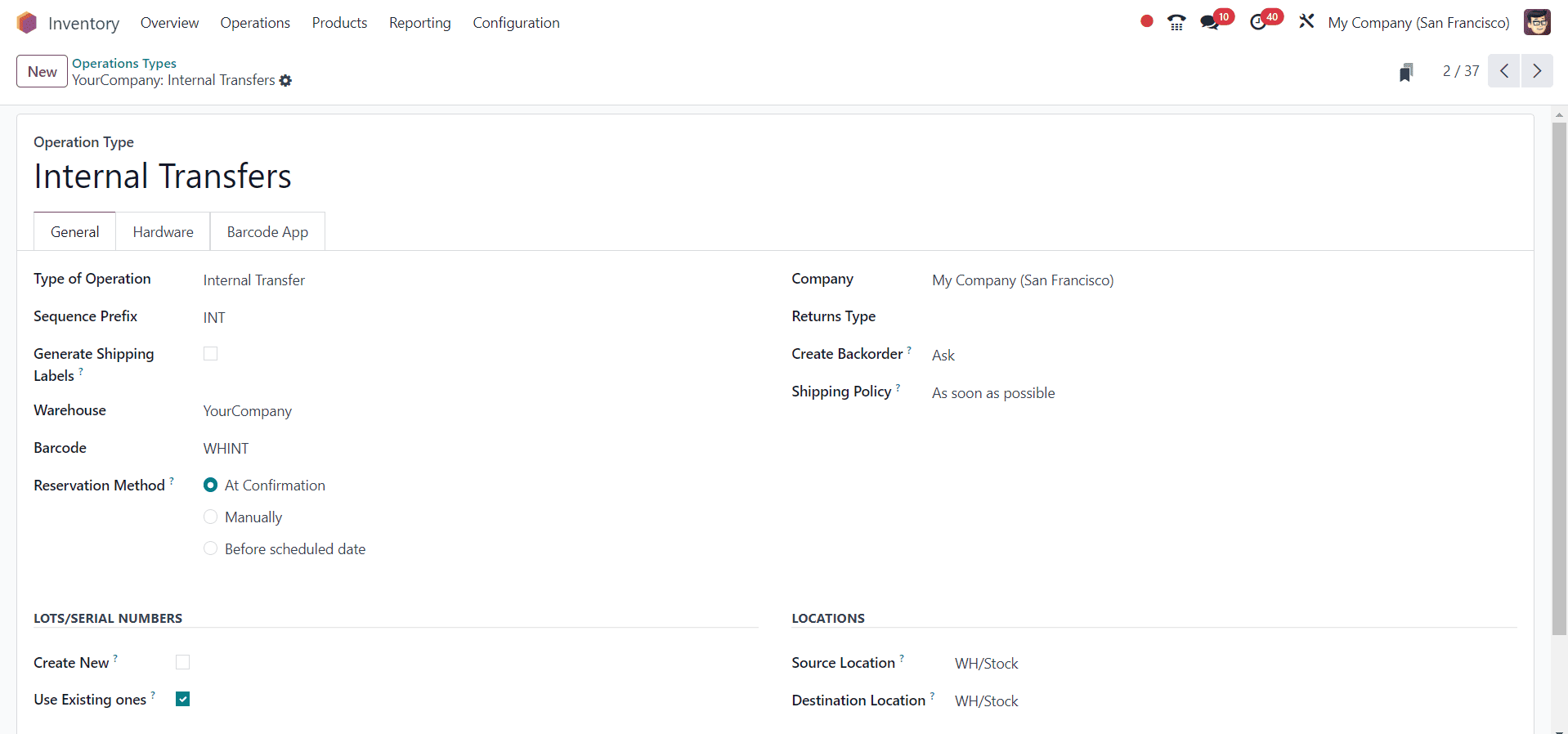
3. Internal Transfers
Used when transferring products between two internal locations—such as moving items from WH/Stock to WH/Quality Control. This helps in organizing inventory within the company.
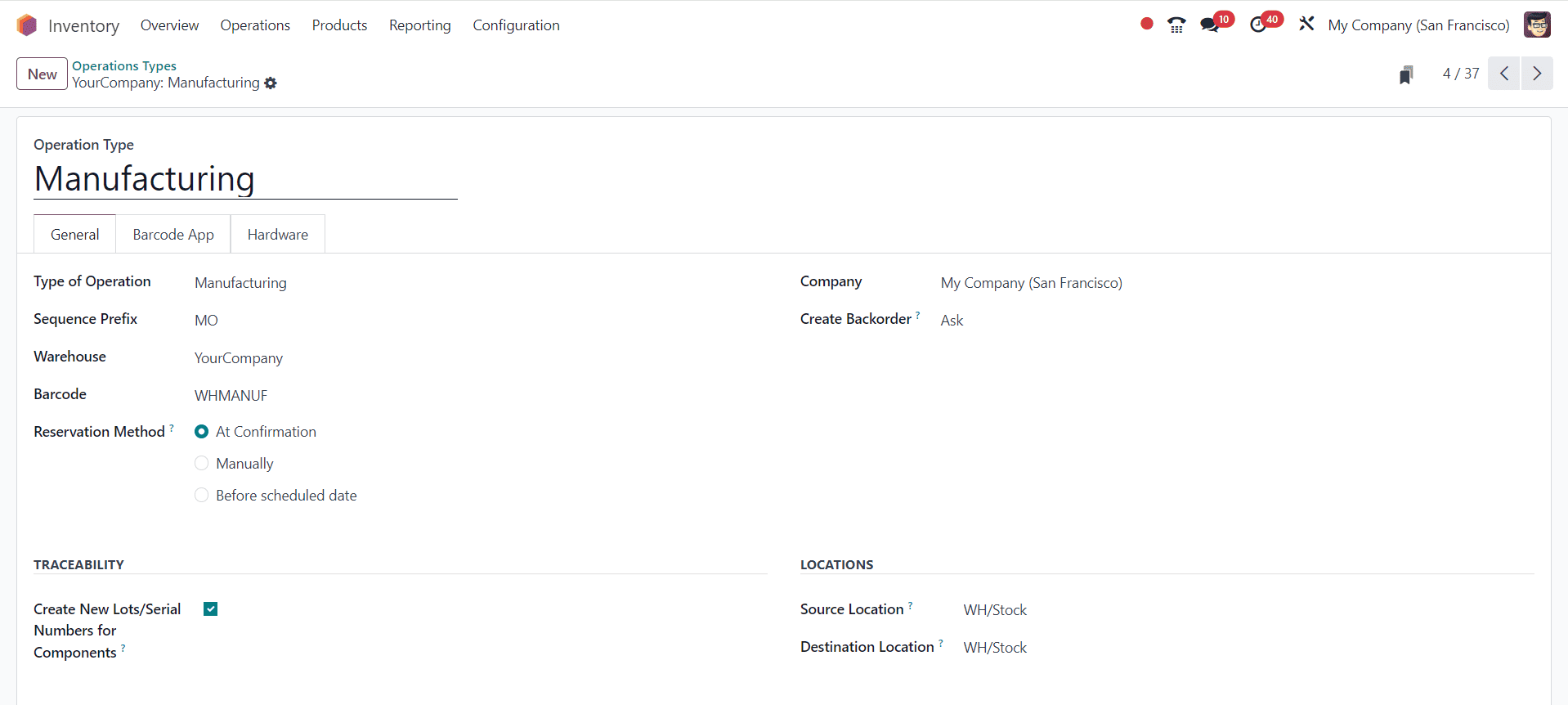
4. Manufacturing
For companies using the Manufacturing module, this operation type moves components from inventory to a production location, and finished goods back into stock. It is tightly integrated with BoM and work orders.
Transform Your Inventory Management with Odoo 18
From automatic stock adjustments to IoT-driven accuracy, Odoo 18 provides the capability to handle warehouse operations with exceptional efficiency for your business. Featuring intelligent Operation Types and entirely customizable workflows, it ensures that every receipt, delivery, and internal shift is handled precisely, helping you reduce errors, save valuable time, and gain absolute control over your supply chain.
At Veuz Concepts, we deliver customised Odoo 18 Inventory solutions that go beyond setup. From integrating automation, analytics, and scalability into your daily operations, we help you with your operations. Whether it’s enhancing your delivery process, syncing barcode systems, or optimising multi-warehouse transfers, our experts make Odoo ERP work for your business goals.
Ready to revolutionise your inventory management?
👉 Talk to our Odoo experts today.



.jpg )


Leave a comment