

Odoo provides a great solution for managing your restaurant or bar business using the Point of Sale module. You can create and manage both retail and restaurant shops using a single Odoo instance. Odoo also helps you to manage multiple companies or multiple branches for your business using a single instance.
Let’s see how you can create a restaurant store in Odoo Point of Sale, how to use self-ordering kiosk using Odoo18.
How to create new POS Shop
For creating a new POS Shop in Odoo open Point of Sale module and go to the configuration menu, under this there will be a menu Point Of Sales, under this menu you can create new Point of Sale shop. After creating one, click on the more settings option Configuration > Settings.
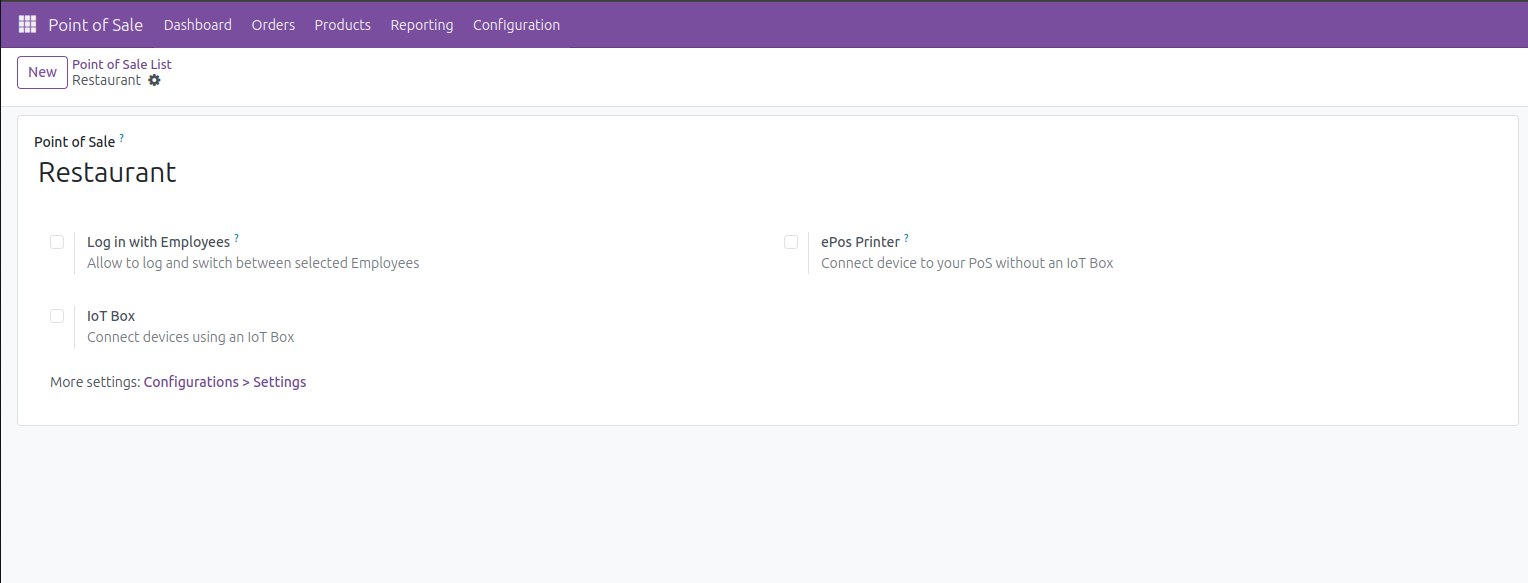
While creating a new shop, it will not be a restaurant or bar by default, inside the setting on the top section you can see an option to enable the restaurant or bar option for the newly created shop. Enable this option.
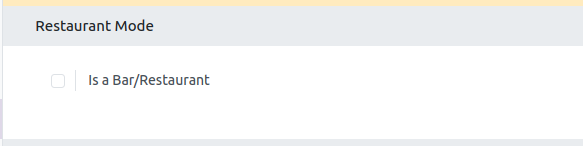
Now more settings based on restaurant option will be visible after saving this form.
Floors and tables
You can configure the floors and tables in your restaurant or bar using this option. For this open Configuration > Floor Plans. Here you can see all the floors of all shops in the Point of Sale module. For creating new floor click on the ‘New’ button and there you can add the details of the floor. Here you can see the table details you can add on the floor form itself.
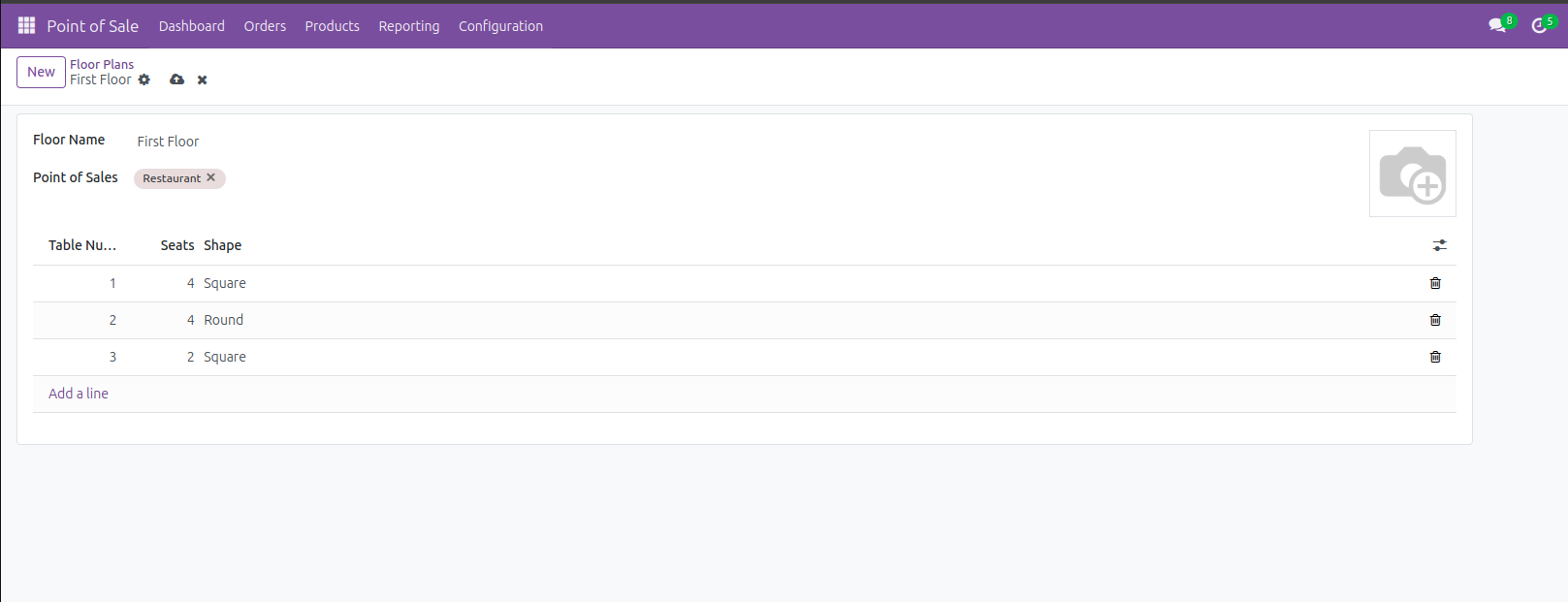
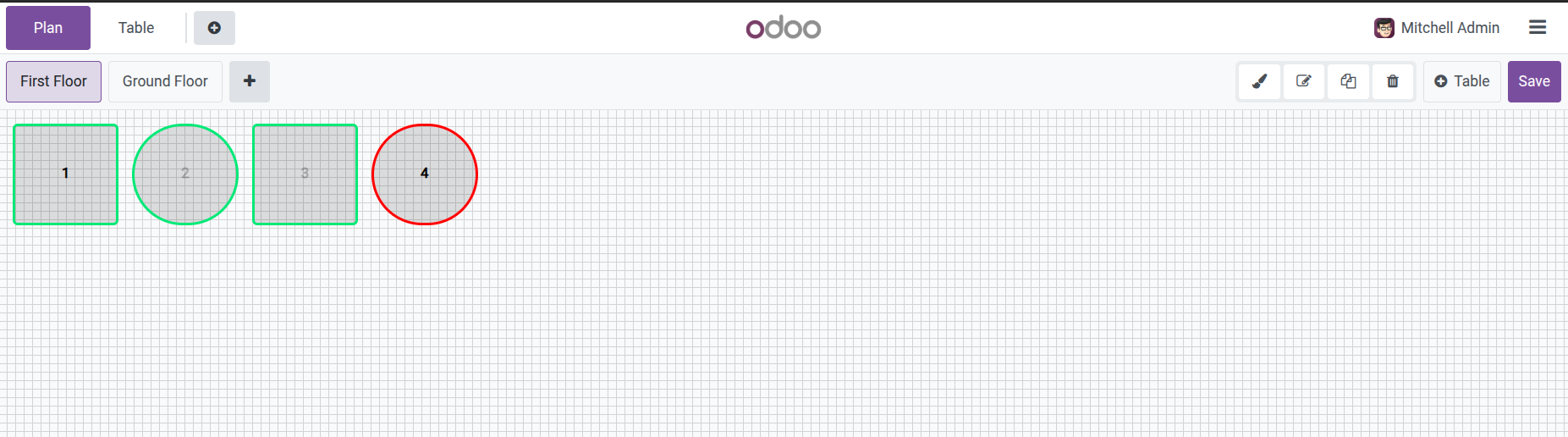
Also, users can even add multiple point-of-sale shops to a single floor plan. You can also add tables from the Point of Sale screen. For adding tables and editing the floor plan open the Point of Sale and click on the plan button in the top left corner. This will redirect you to the floor plan of the Point of Sale. And if you need to edit this plan you can click on the ‘Edit Plan’ button available in the top right corner of the screen.
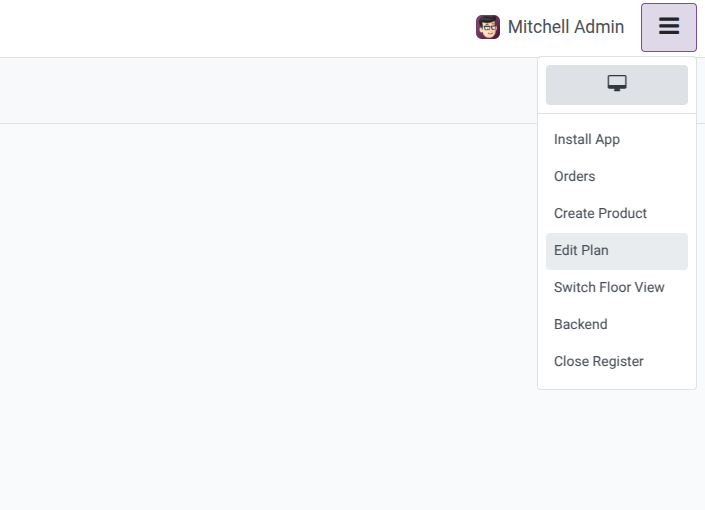
This will redirect to an editor for the floor plan; there you can add or edit the plan and tables.
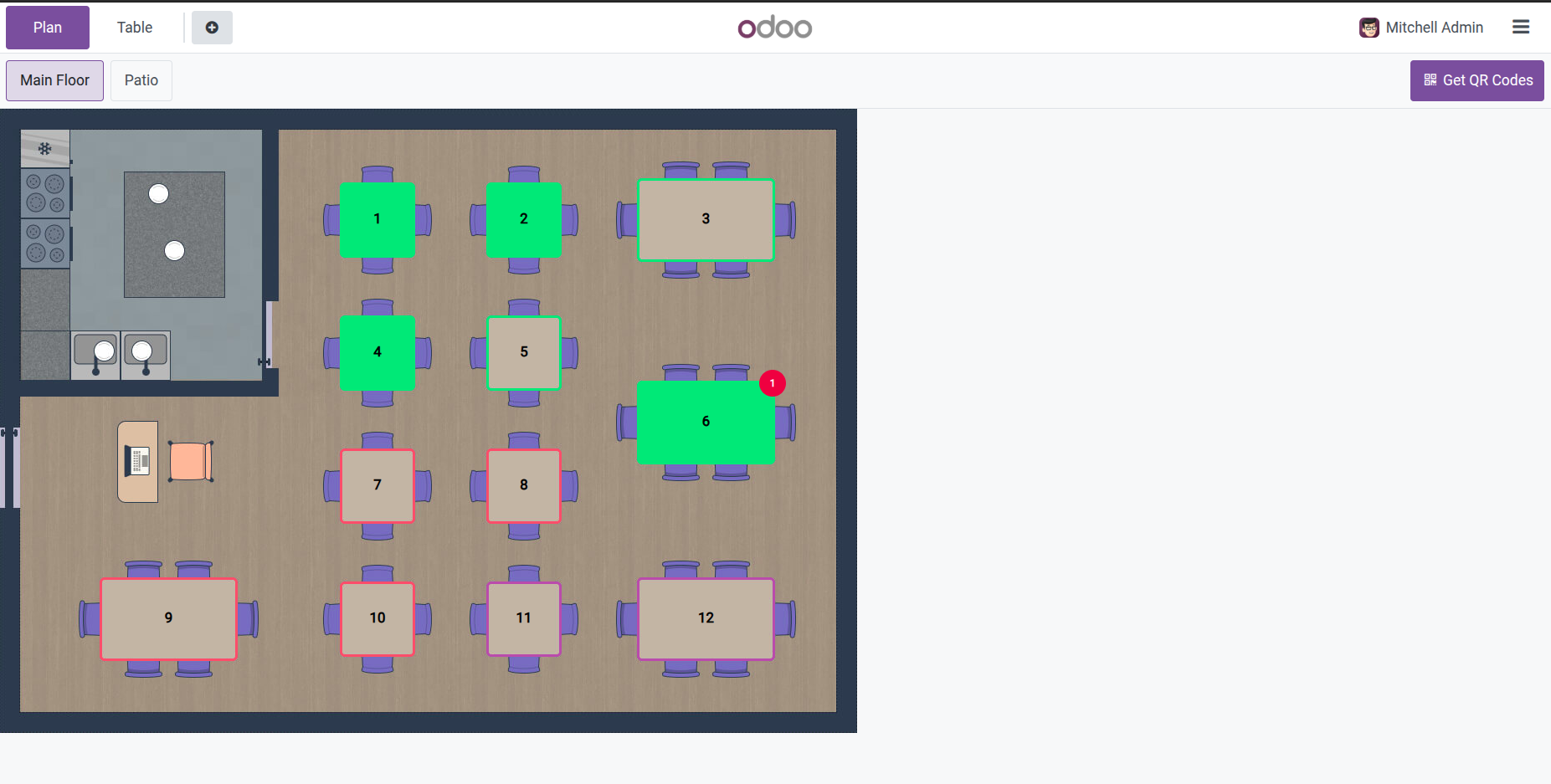
After creating a neat floor plan for the restaurant or bar you can see the floor plan back in the menu. You can also switch the plan using the Switch Floor view menu.
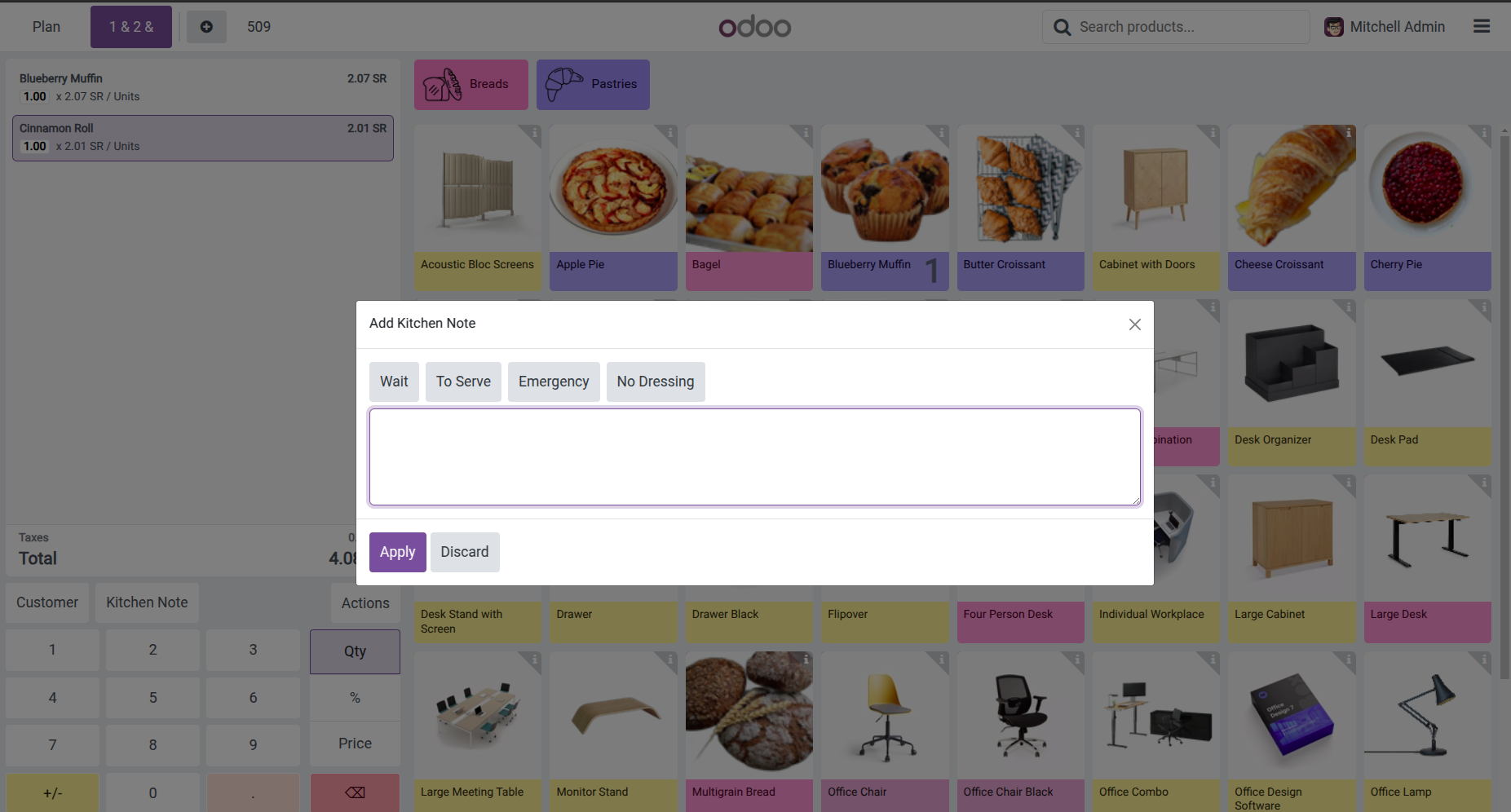
For ordering food to a particular table, you can click on the table shown in the plan and a new order section will open for the table. Also, you can book a particular table for the customer through the point of sale. In the order section you can add the items and click on the order button to confirm the order. Also, there is an option for adding kitchen notes from this ordering section, you can add messages to the kitchen team in using this option.
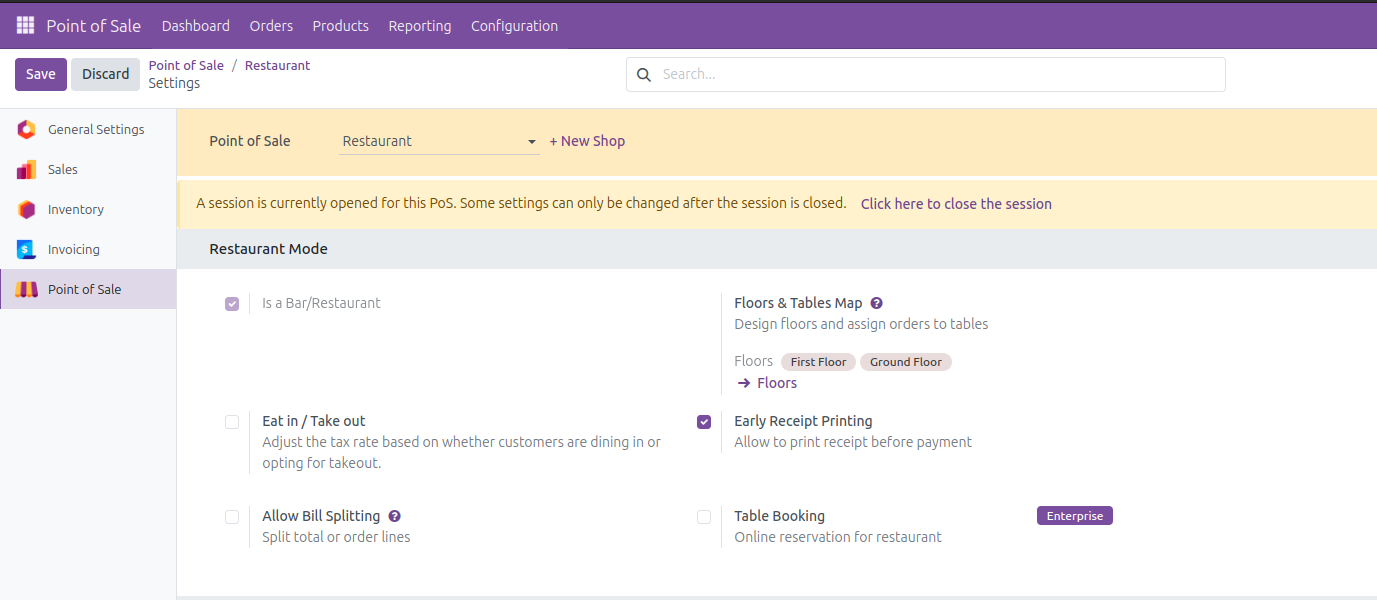
As you are managing the restaurant using the point of sale, you must be needing the bill option to print before customer payment is done, so while using restaurant mode in Odoo, it's easy to print the bill before payment. For this you need to enable this option from the settings. Under Restaurant mode, you can see an option Early Receipt Printing, and enable this option.
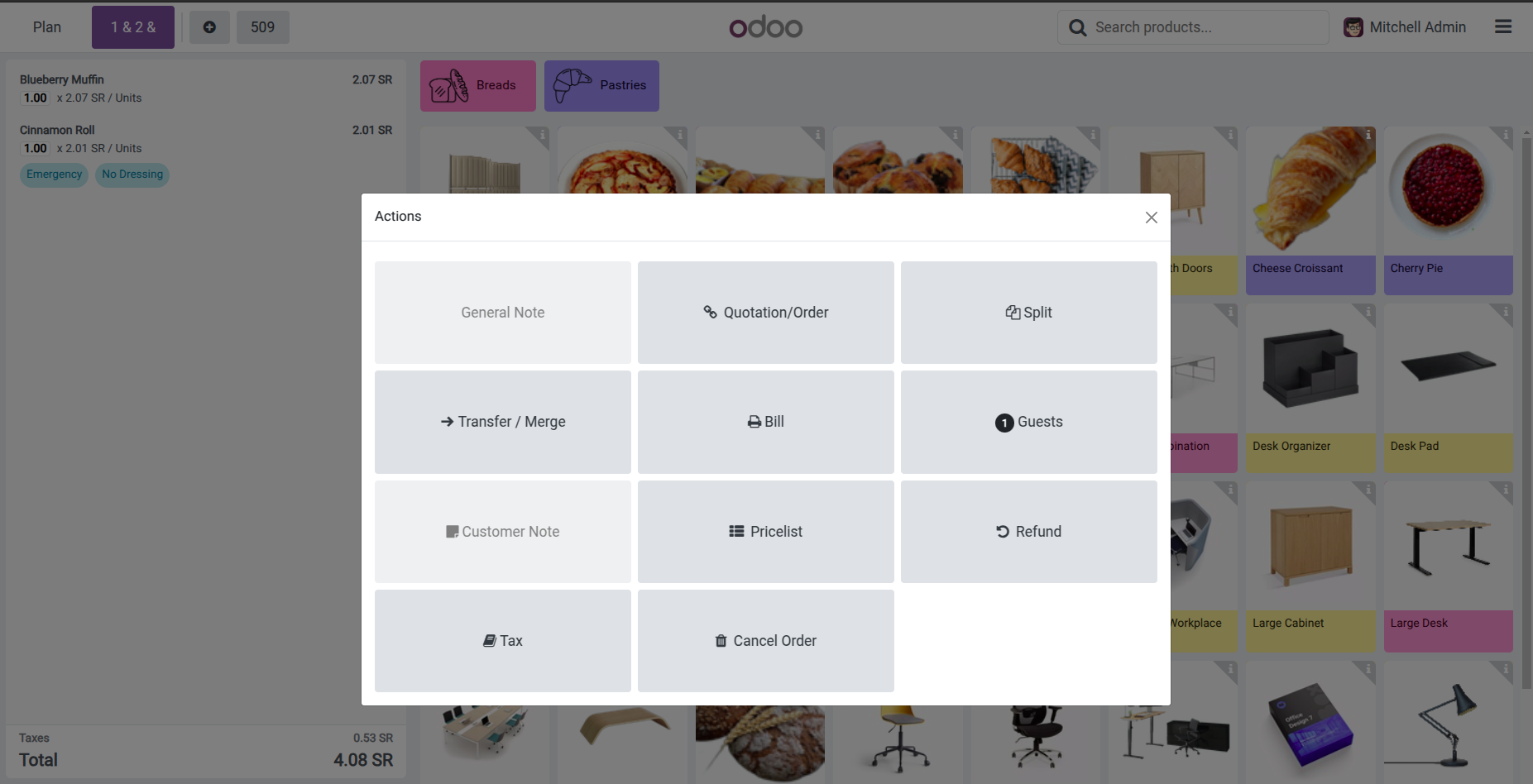
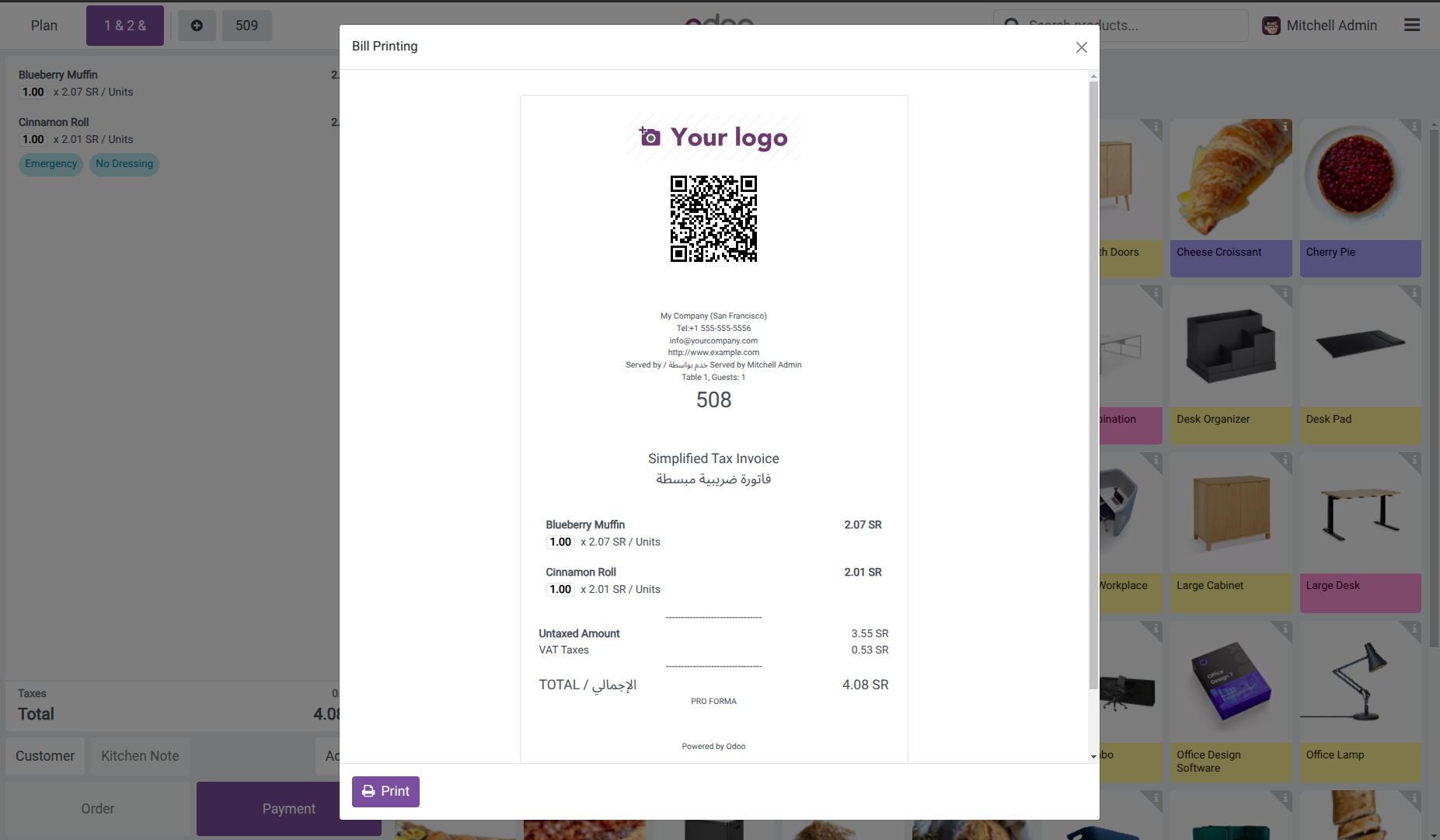
After enabling this option, back in the Point of Sale order screen, click on the ‘Action’ button and there you can see the button to print the bill before payment. Clicking on this button will print the bill for the selected order.
Transfer and Merge
Odoo Point of Sale system allows users to transfer orders between tables. So, you can easily merge the orders between multiple tables together for payment or can transfer one order from one table to another using this feature. For this, first you need to choose the order or table which you need to merge or transfer to another table. Then click on the transfer/merge button, this will redirect to the floor plan of the restaurant. Here you can select a table which already has an order to merge both the order for single payment. And for transferring the order you can simply select an empty table and the order will get transferred.
Guest
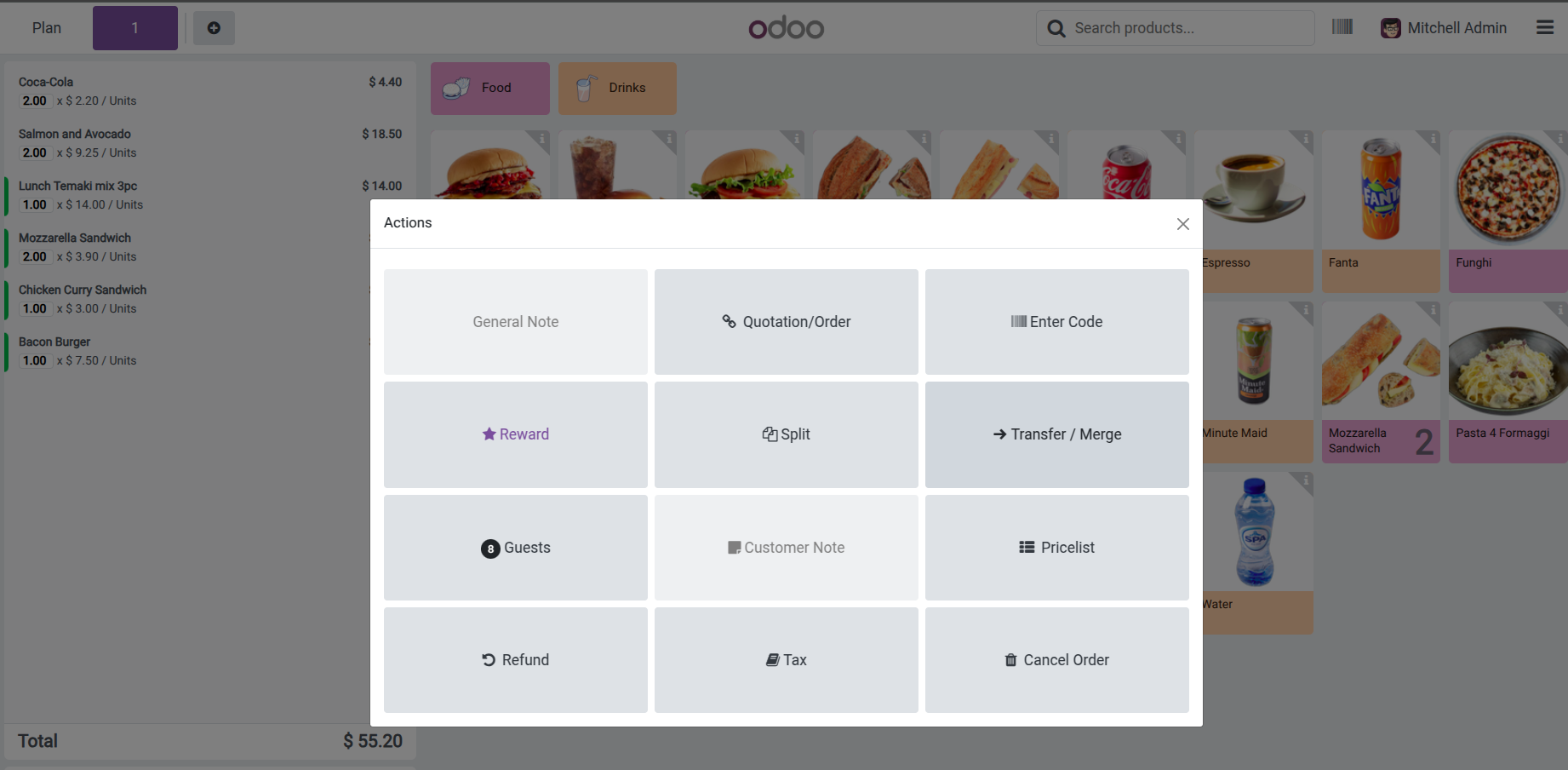
Odoo Point of Sale module allows the user to enter the number of guests at the table while ordering at that table. A button named ‘Guests’ in action button will show the number of guests who are currently in that table and the user can edit that by clicking on the button. This feature can be used while splitting the bill among the customers at a single table.
Self Ordering
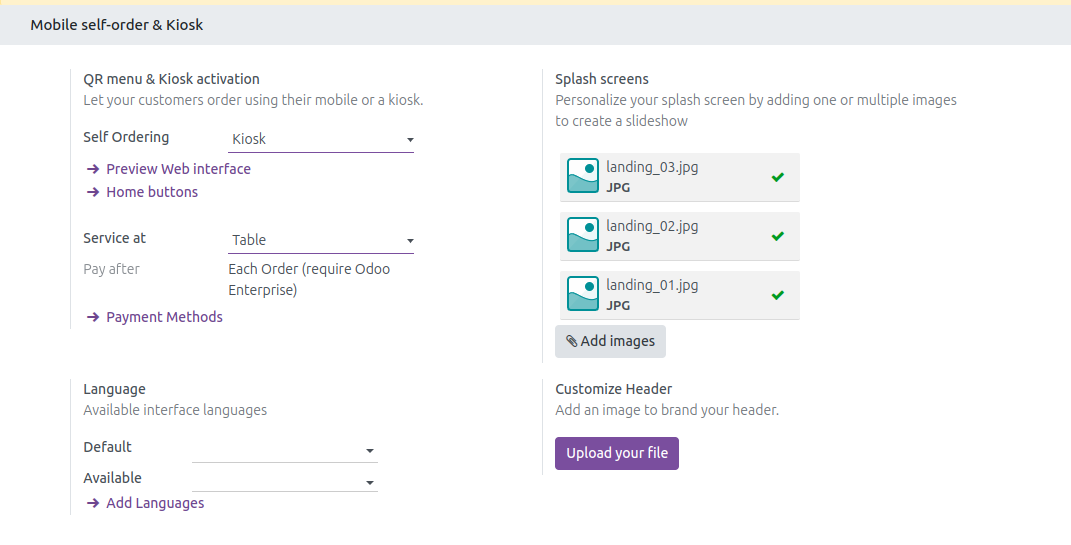
In Odoo Point of Sale you can set up self-ordering systems for the customers. So basically, there are 3 options available in the pos config which you can select as per your requirement.
The first one is in QR Menu, so in this option enabled, the customer will get a printed QR code next to them in the table, and they can scan it with their personal device and can see all the menu available in the shop. This is the basic one.
The next option is QR Menu + Ordering, so this option will have QR code in the table printed and the customer can scan it with their personal device and also can place an order and make payment from their personal device.
And the third one is Kiosk. So, while using this option customer can go through the menu, products, and place an order from a Self-Ordering kiosk from the restaurant or shop.
Future Ready Operations
Odoo’s Point of Sale module can streamline restaurant and bar operations and an in-depth overview of how can help you understand from configuring POS shops and managing floor plans to enable self-ordering kiosks and flexible order transfers. With Odoo’s comprehensive platform that is designed to enhance efficiency, it also offers an improved customer experience.
With a custom solutions partner, you can ensure your Odoo implementations are designed to match your unique business needs. At Veuz Concepts, we make sure to help you get the most out of every feature, from the first setup to continuous assistance, thus helping you work more efficiently and offer better customer satisfaction.
If you’re ready to elevate your restaurant management with innovative Odoo solutions, Veuz Concepts is here to guide you every step of the way.
Looking to modernize your restaurant with the latest in Odoo POS technology? Connect with Veuz Concepts today and take the first step towards a more efficient, customer-friendly operation.



.jpg )


Leave a comment