

The Odoo Point of Sale module helps users to run their retail / restaurant business more efficiently. Odoo ERP supports both online and offline working modes in POS. Users can manage multiple stores or shops using a single database. Also, Odoo supports multiple payment methods and can manage multiple companies using a single database. Let’s now dive deep into the features of Odoo Point of Sale. For the start, let’s go with the basic configurations to be done in the Odoo point of sale module before using it.
Product Configuration for POS
So, let's imagine that you're running a bakery business and let's configure a product together in the Odoo 18.0 Community.
First, you need to open the Products menu in the POS module. And click on the New button, after entering all basic details including name, sales price, product type and all, you need to make sure that the checkboxes named Sale and Point of Sales, under product name, are checked.
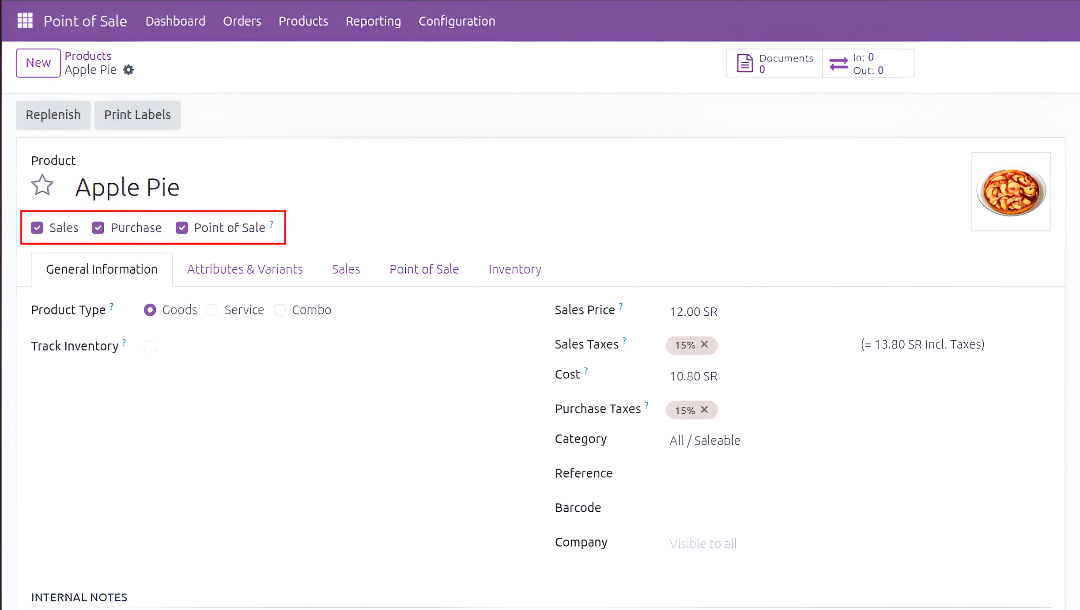
Now this product will be seen from the point-of-sale interface.
Now let's see how to create a point-of-sale shop. For this head towards the configuration menu and under this menu you will find another menu named Point of Sales. Click on this and create a new shop by adding a name. For all the remaining settings, head towards the Configuration > Setting directly from the Point of Sales form.
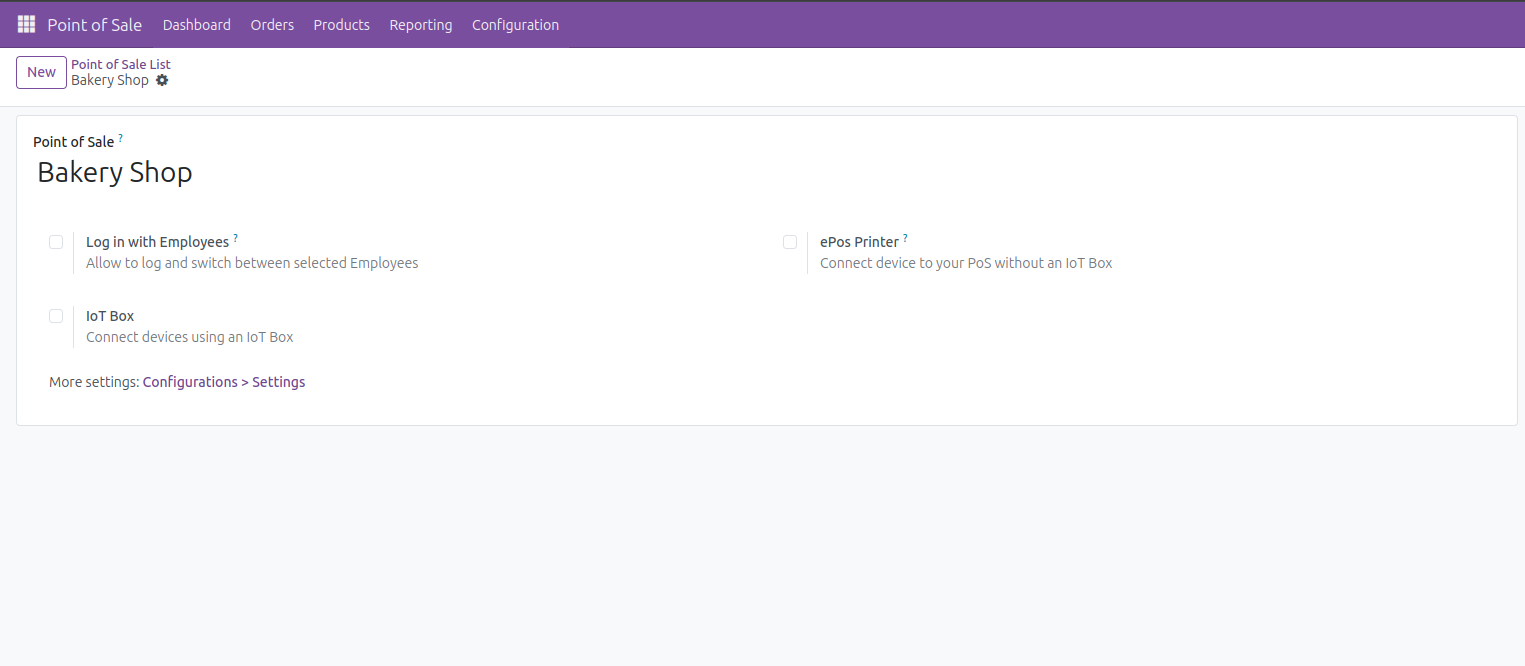
Payment Methods
Now we need to configure payment methods for this store. Odoo point of sale can manage multiple payment methods in a single POS order. For this go to the Configuration > Payment Methods. Now you can create any of the available payment methods in your store. For example, let’s say I have a card, cash and a customer account, and I have created all these methods here with corresponding journals.
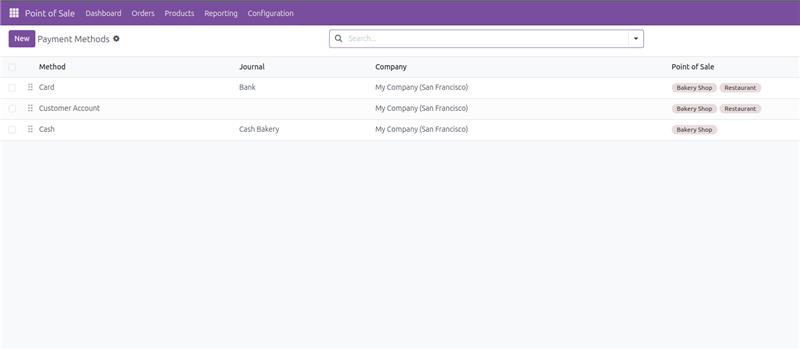
Add these newly created payment methods into your store through settings. Now this configuration is also done.
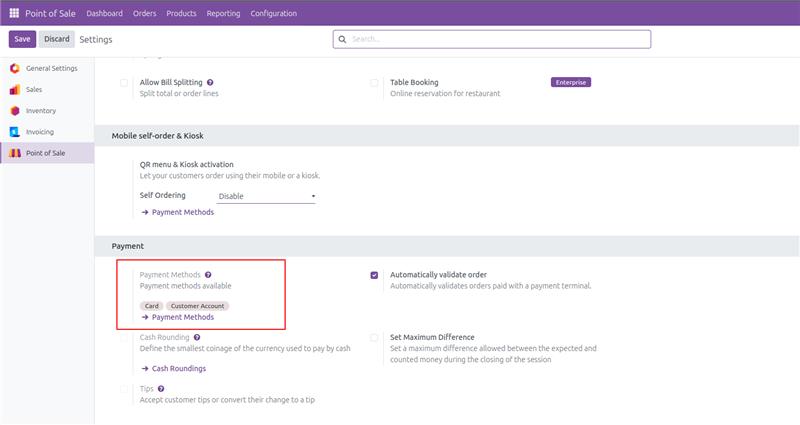
As you can see there are a lot of options that we can use in this store from configuring it in these settings, I will explain some of the important ones in this blog.
Default Journals
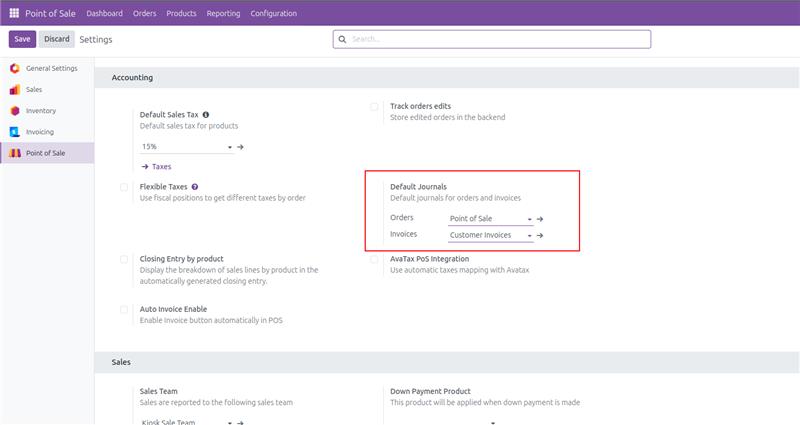
Under Accounting settings in Point of Sales configuration there you need to set the default journal for POS orders and invoices
Cash Rounding
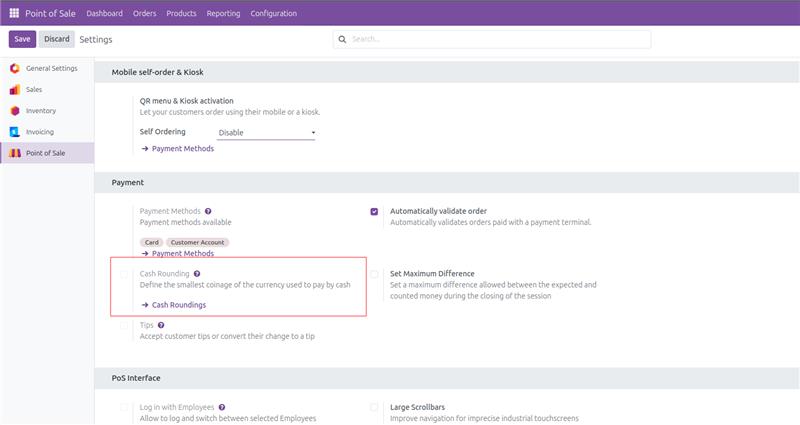
Odoo point of sale allows to configure to apply cash rounding to the total amount of the bill. For this enable cash rounding in POS settings and redirect to its form. You need to add the profit and loss accounts to create a new rounding. You can also choose rounding methods like Up, Down, and Nearest for your rounding.
Payment Terminals
For an efficient payment process for your store, you can always connect your Odoo POS with any of the payment terminals which will allow you to manage payments through debit cards or credit cards of the customers. In the Odoo 18 community, there is a wide collection of payment terminals which you can use directly for connecting. Also, Odoo allows to integrate third party payment terminal integrations through code customizations. These are the available payment terminals in the Odoo 18 community.
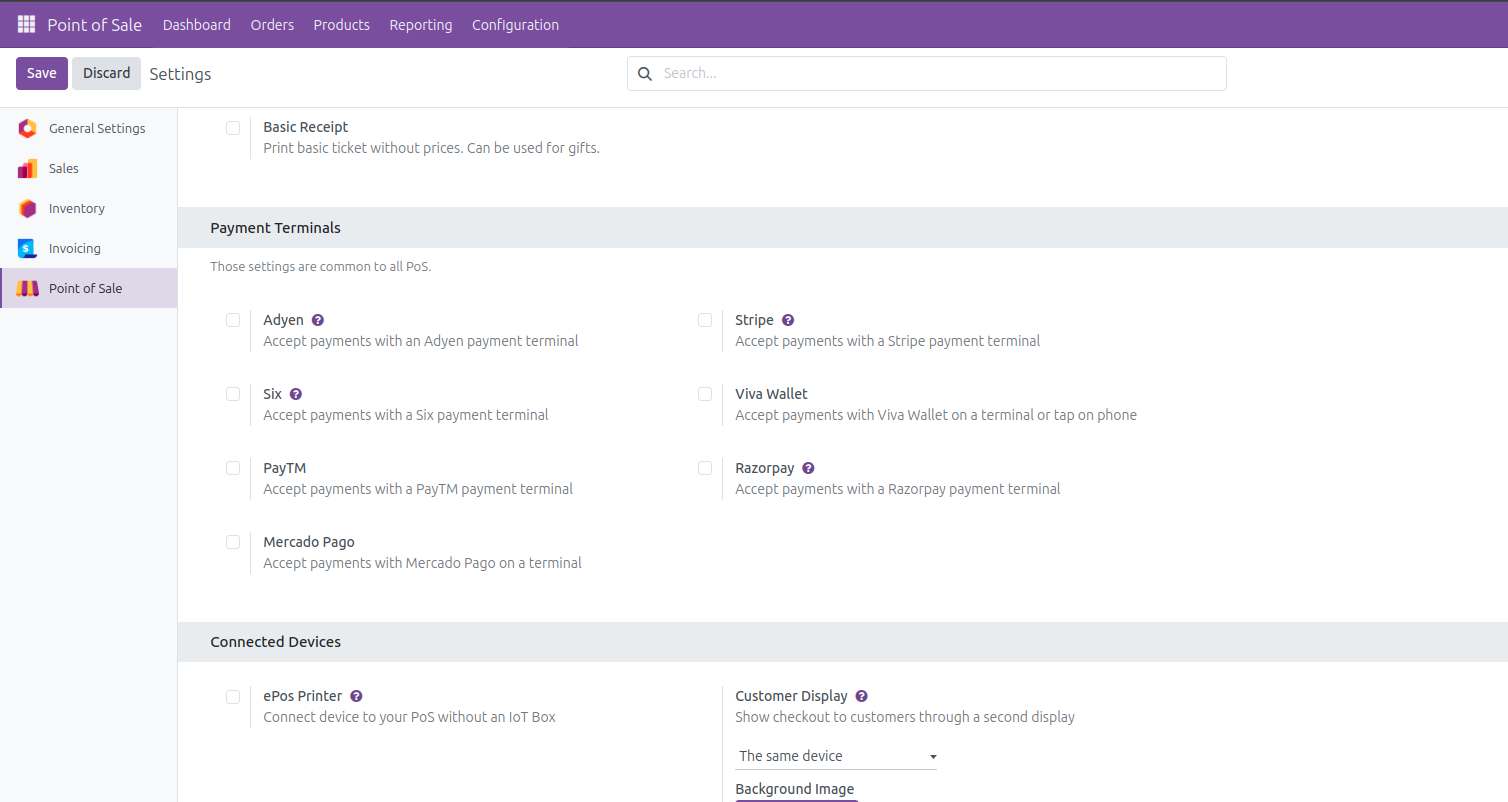
You can follow the official documentation for each terminal by clicking the question mark above each of them and can connect with your device to use.
Product Prices
In Odoo POS you can manage tax included and tax excluded prices in POS interface and in the receipts. For this, there is this option for Product prices on receipts. You can set it as either tax included or tax excluded.
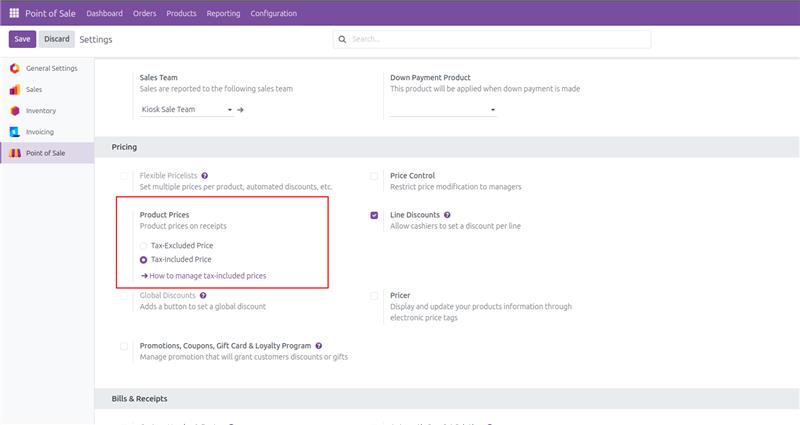
Let's say that my product’s sale price is 100 SR with a tax of 15%, and I have enabled tax included price in my settings.
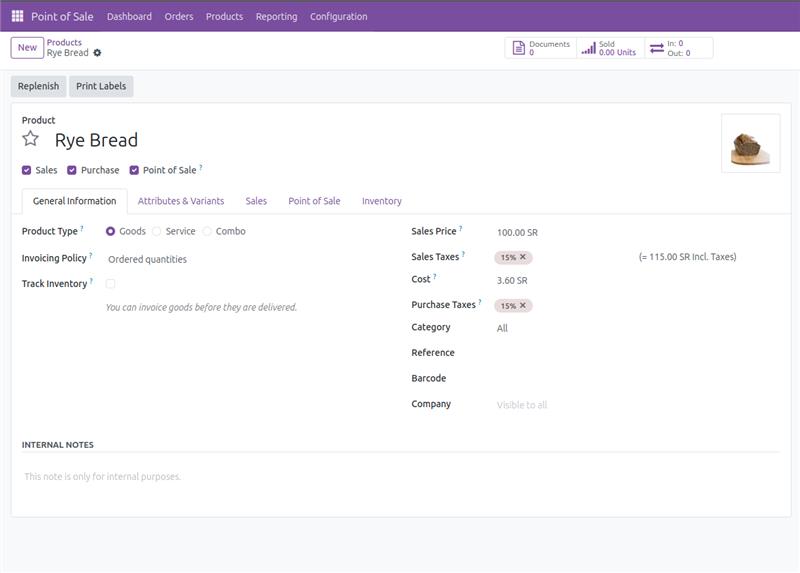
So, if you open POS you can clearly see that the product price shows 115 SR on the POS screen.
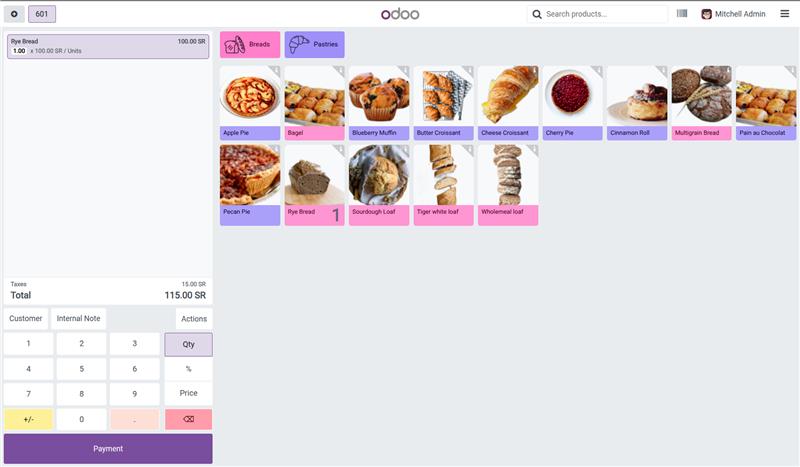
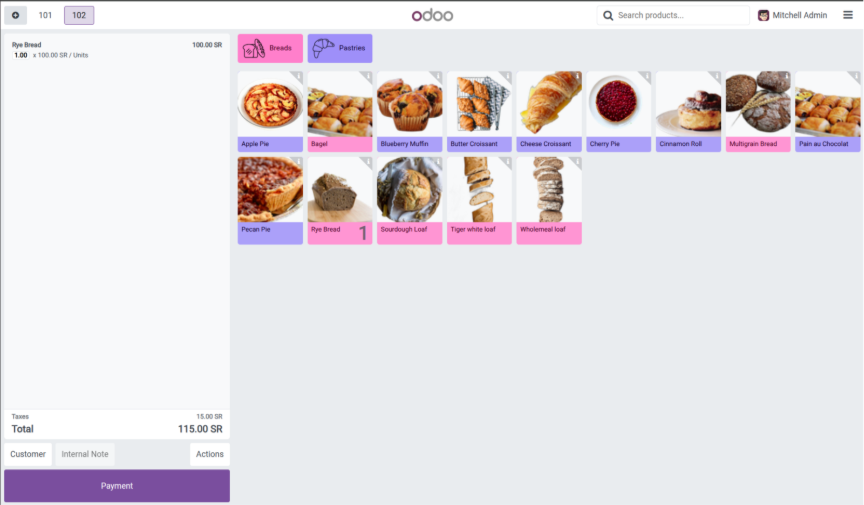
Now let's check what happens if we set tax excluded from the settings. See the price shows as 100 SR and total as 115 SR with tax of 15. This will be also reflected in the order receipt. This is how you can use these settings to manage B2B and B2C environments in your Odoo Point of Sales.
Custom Header and Footer
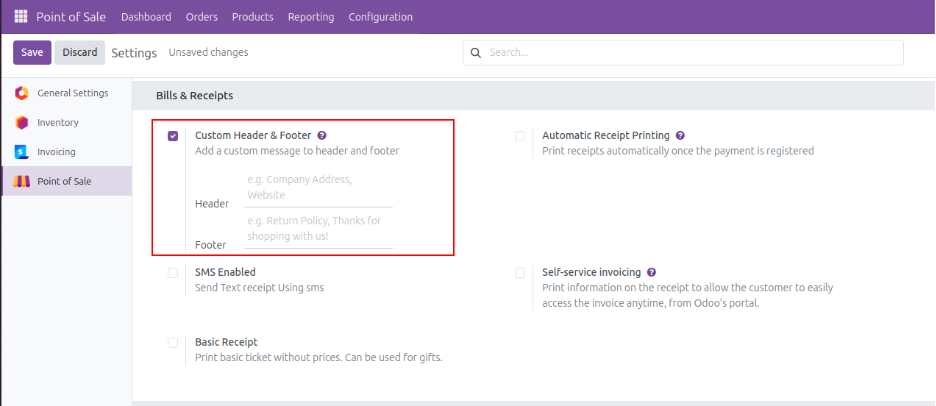
Users can easily add their custom header and footer to their receipt from the settings itself. For this you need to enable the option under Bills and Receipts from the settings and fill out the data to be printed on your receipt for both header and Footer.
Inventory Operation Type
You can set a specific operation type for your pos order moves in inventory, for this you need to create a new operation type in the inventory configuration and then head back to pos settings, here under the Inventory configuration you can choose the newly created operation type for your order moves.
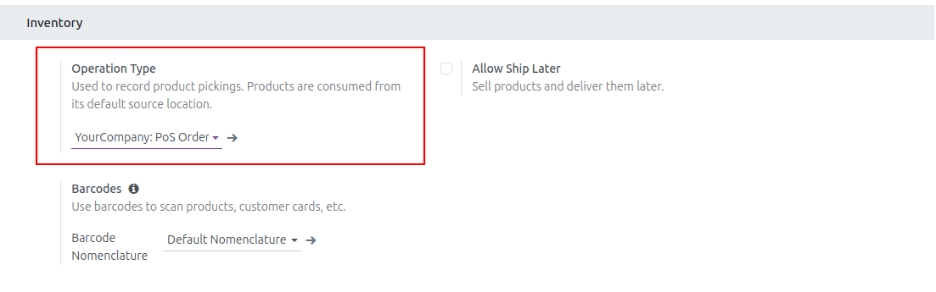
And in the inventory, you can see the newly created operation type and the pos order created against them. That’s how you can set a new operation type for your POS orders.
Barcode
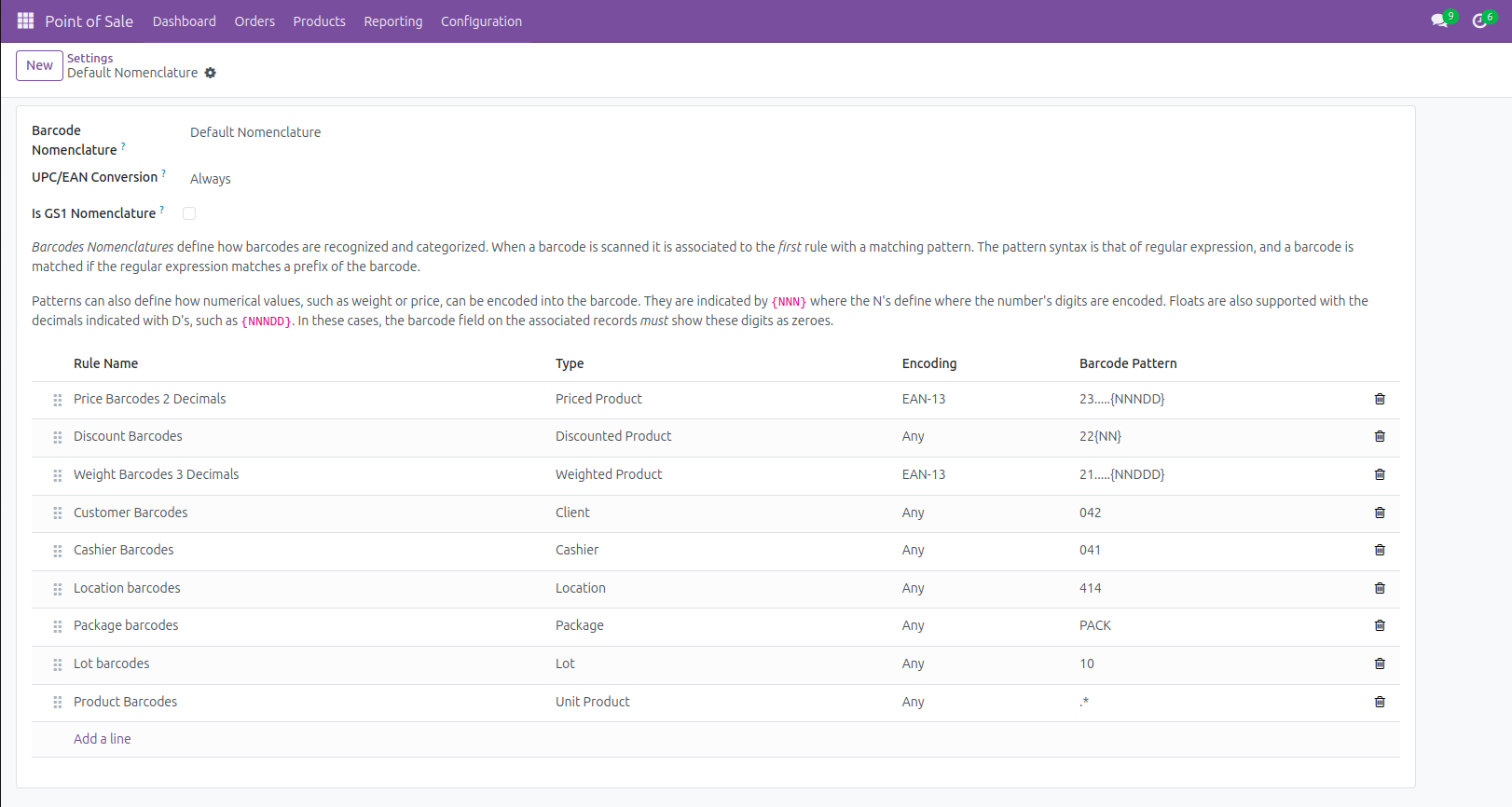
You can use barcodes for scanning products, customer cards etc. in your Odoo Point of Sale for an easier business workflow. For this you just need to set a Barcode Nomenclature in your POS settings.


.jpg )


Leave a comment