

Master data is essential for establishing order in a company's operations and producing efficient business results. Core master data are records such as identifying entities of a business customers, vendors, products, employees and the chart of accounts. Master data does not change nearly as often as transaction data so it creates the basis for the day-to-day operations and will be used when creating financial statements. Creating and maintaining master data properly can remove duplicate records, provide consistent information and improve process efficiencies. In this blog post we will examine how master data has been defined in Odoo 18 and how to effectively create and maintain it.
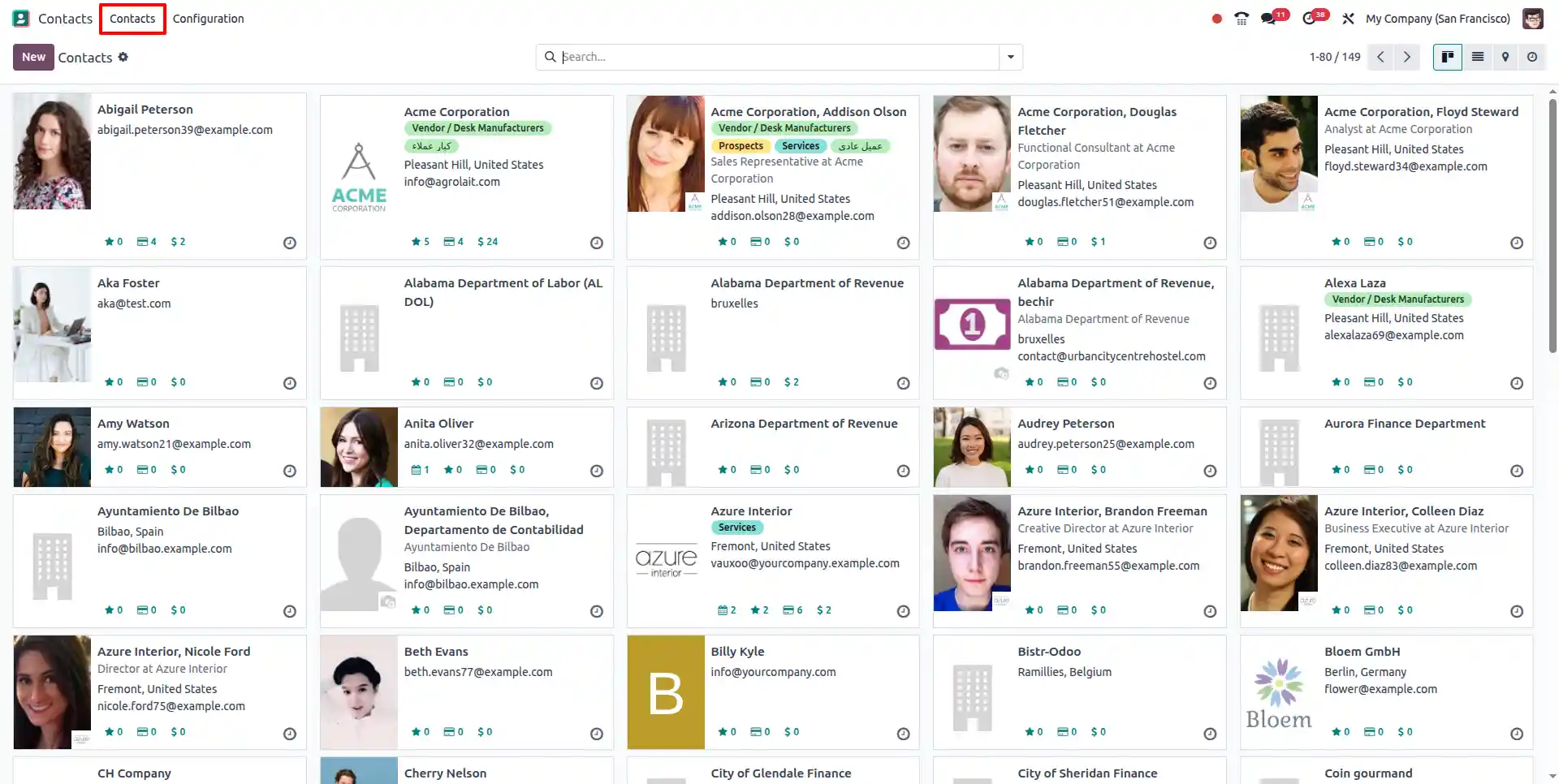
Text Wrapping Break]All of a business's customers, vendors, and partners can be managed from one single place, the Contacts menu in Odoo 18.Contact records are displayed in a card format with the main details including name, email address, company name, and tags.
With multiple teams using the Contacts menu, having access to a single source of accurate contact information can save time and ensure accuracy across departments.
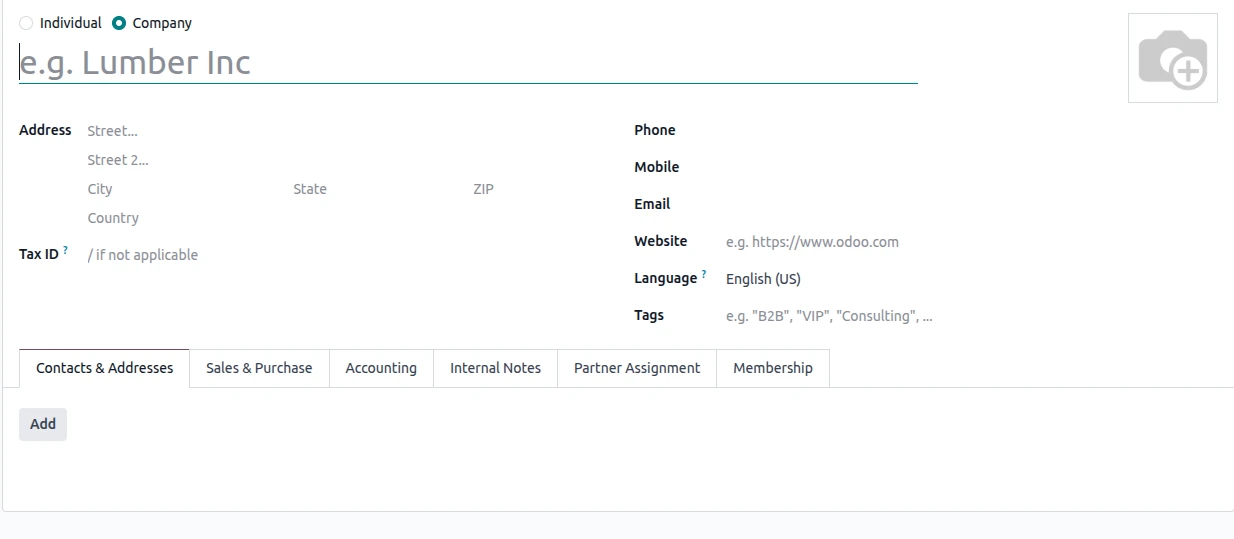
The Contact Creation form in the Odoo 18 interface allows you to create either a new Person or a new Company within Odoo 18.
You enter all of the primary contact details on this screen, including mailing address, telephone number, email address, sales tax ID number (if applicable), company website, local language preference, and any associated tags to identify the contact.
You have access to other tabs for Sales/Purchase, Accounting, and Internal Notes to assist you in managing all aspects of the business relationship with the particular Contact.
Products
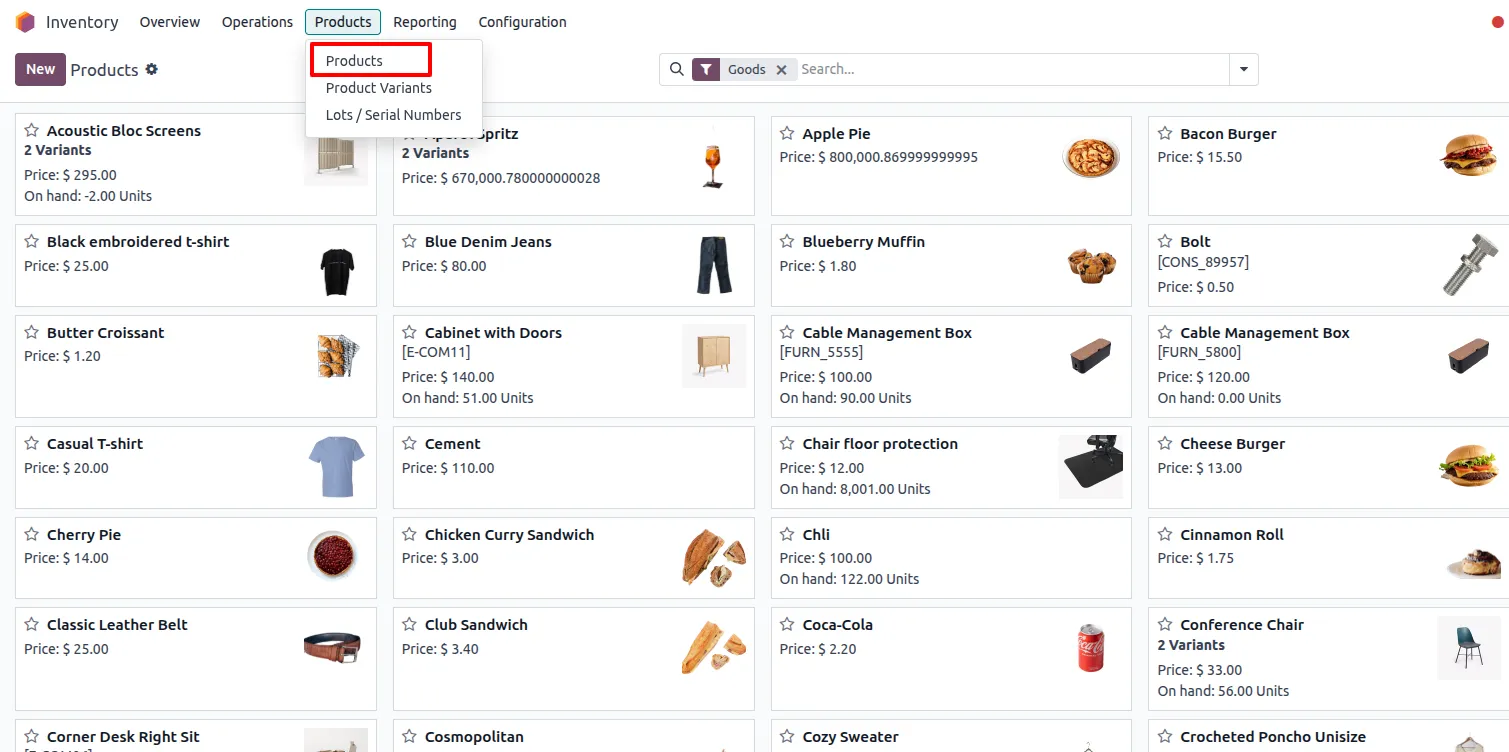
To create a New Product, go to the Inventory App → Products → Products and click on the New button.
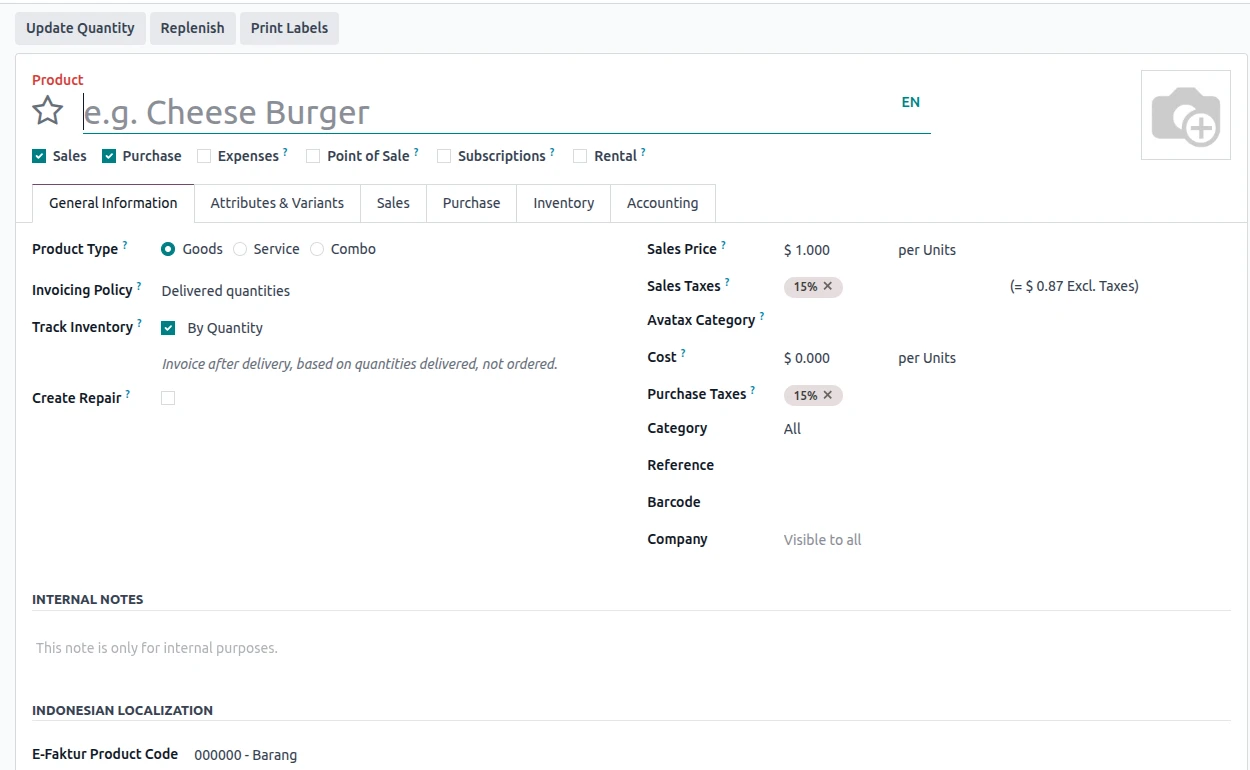
Sales : You can enable this if this product is available for sales.
Purchase : You can enable this if this product is to be purchased.
Expenses : You can enable this if the product can be selected in an expense.
Point Of Sales : You can enable this if you want this product to be shown in POS interface.
Subscription : You can enable this option if you want to create a subscription when sale order conataining this product is confirmed.
Rental : You can enable this to allow renting for this product.
General Information Tab :
- Product Name - This is how the product is identified on sales order forms, purchase order forms, and other inventory documents.
- Product Type - Select one from Goods (stockable), Service or Combo. The selection of this option has an impact on how Odoo will process stock and shipment of this product.
- Invoice Policy - Determines how the customer is invoiced for the product based on either the total amount ordered by the customer, or the total amount actually shipped to the customer.
- Selling Price - The price at which you will sell this product to your customers.
- Cost - The cost incurred to the organisation to purchase or create this product for valuation and profitability assessment.
- Sales Taxes / Purchase Taxes - These are the default tax rates that will apply when selling or buying the product.
- Category - Categories allow you to group, or sort products, and connect to your accounting rules.
- Barcode - Barcodes can be scanned into the inventory or point of sale.
- Company - In a multi-company environment, the Company field will define which company the product is assigned to.
When a product contains multiple versions or attributes, the Attributes & Variants tab will allow you to define those attributes so as soon as they are defined in Odoo, it will automatically create all combinations of product variants available according to these attributes.
The Sales Tab outlines how the products will be presented and sold to customers, which may include both an item's description and the ability to provide additional products suggested by the seller.
The Purchase Tab provides the vendor information associated with each Product; which contains vendor information such as supplier pricing, lead times, and purchase descriptions, as well as any specific requirements regarding the product.
The Inventory Tab defines how inventory is managed by establishing routes, rules for how products are stored, and methods for tracking large items or individual serial numbers.
The Accounting Tab defines how to manage the finance for each product; it contains the accounts for both income and expenses, methods for determining the value of the product, and how inventory and sales transactions will be tracked.
Employees
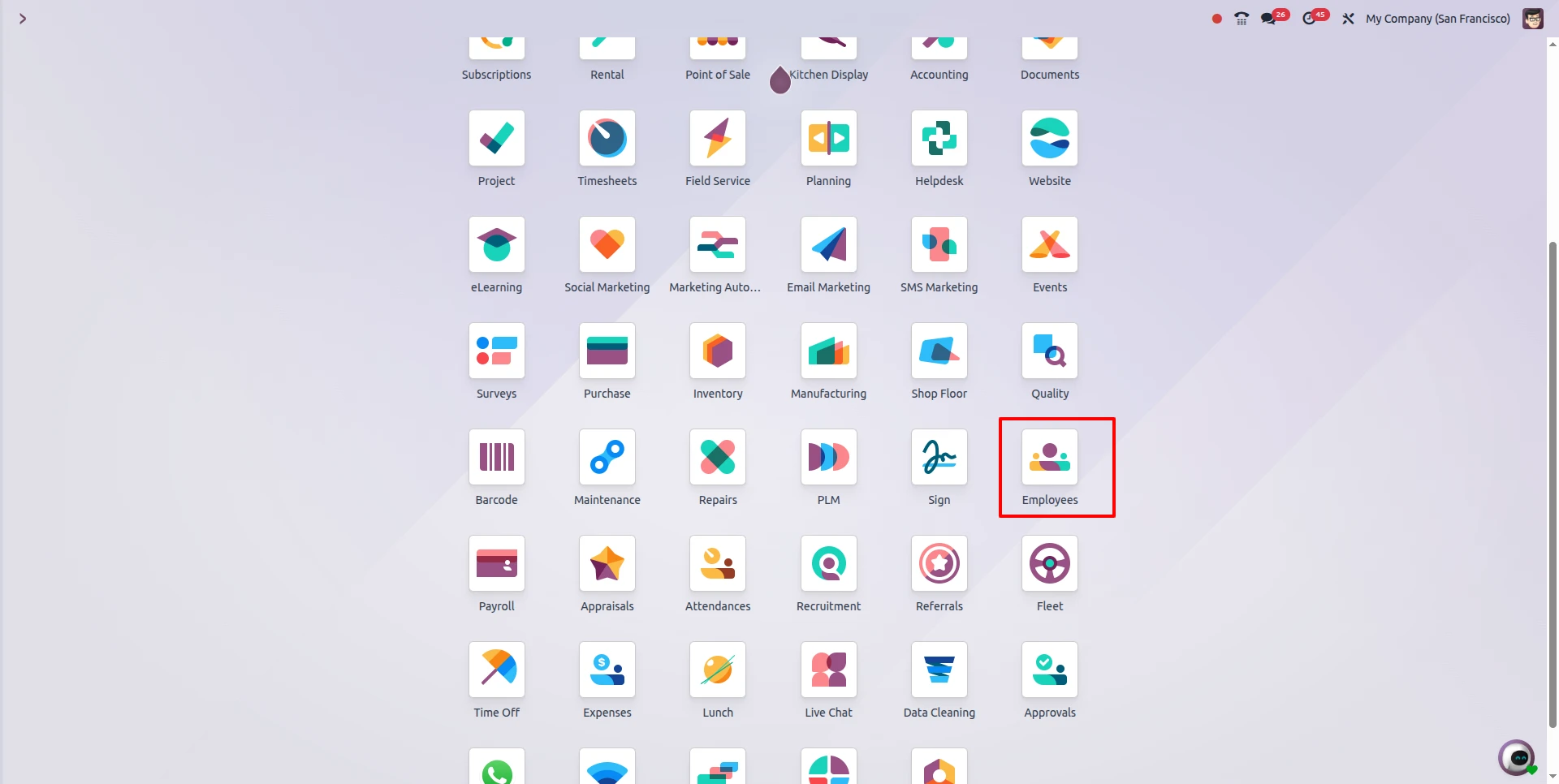
To create a New Employees, go to the Employee App →click on the New button.
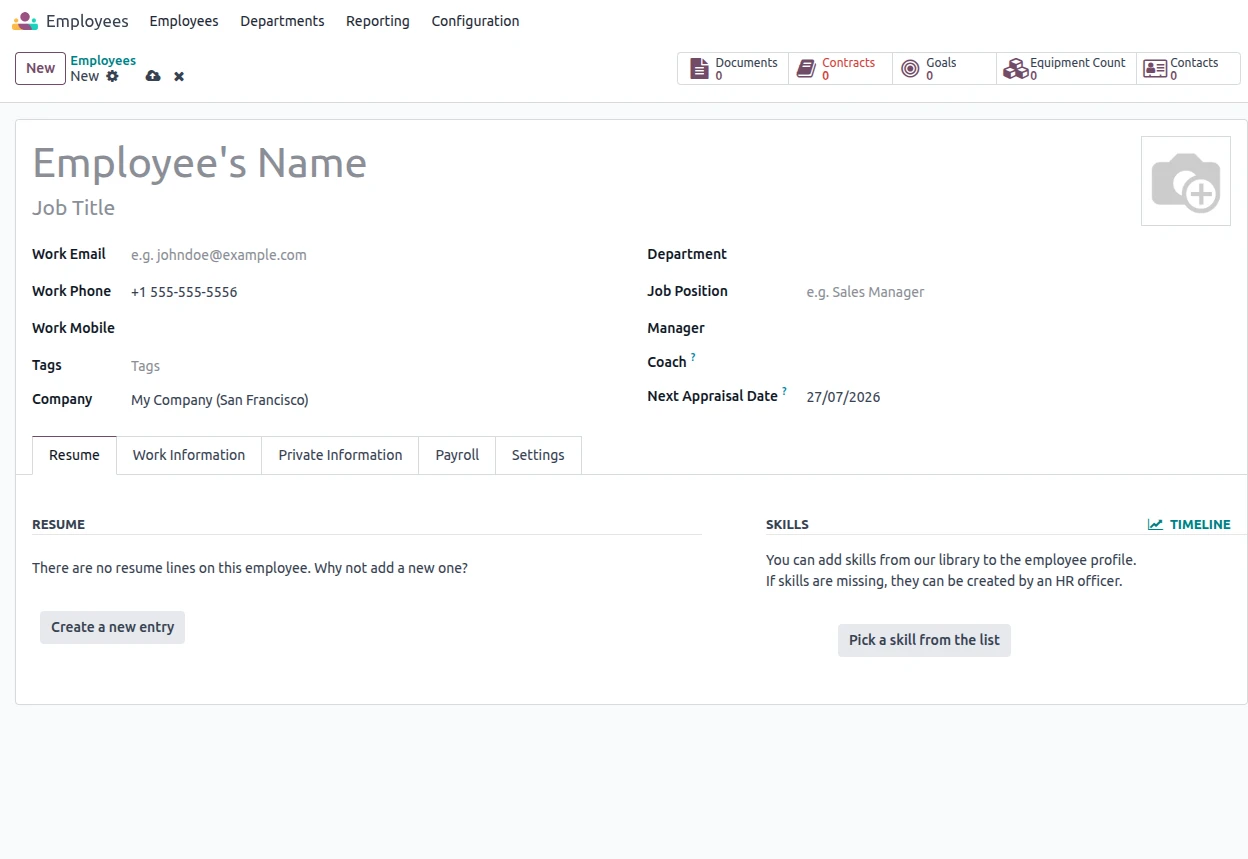
The Employee Form within Odoo 18 contains all the key information regarding an employee. The top area contains the following basic information: name, job position, contact details for work, department, manager, company, date of next performance review, and profile photo.
The Employee Form also has tabs to make it easier for you to organize the information: the Resume tab (consisting of your experience, education and certifications), Work Information, (consisting of your workplace, work schedule, and Job Position), Private Information (your residential address, ID numbers, emergency contacts), Payroll (salary and contract), and Settings (access to the system, Attendance, and Timesheets). Additionally, the Skills Section on the right side gives managers a place to record employee skills, skill levels and to plan for workforce performance evaluation.
Chart Of Account
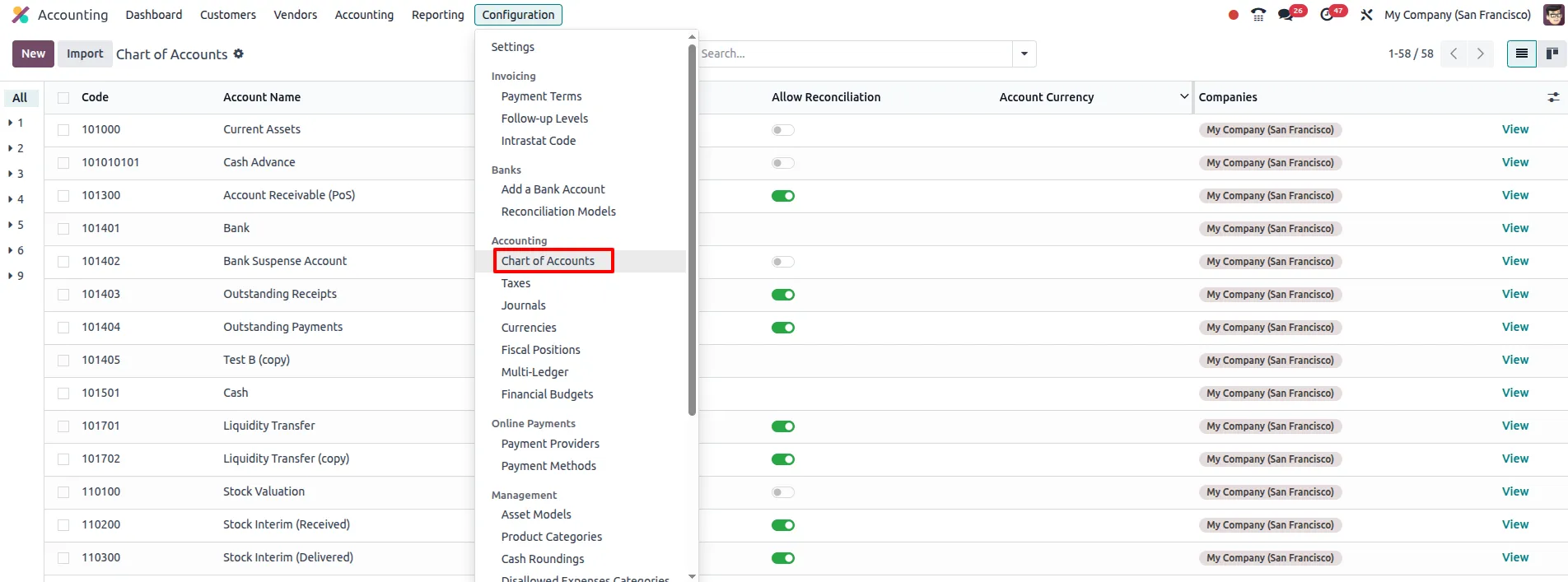
To create a New COA, go to the Accounting App → Configuration → Chart Of Account and click on the New button.
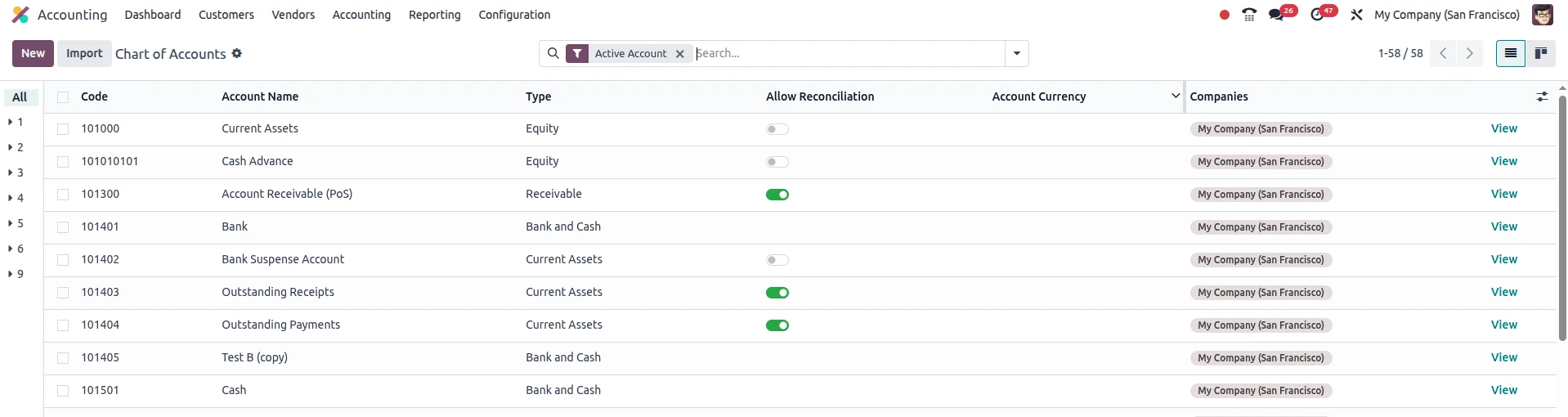
The Chart of Accounts located in Odoo 18 sets up the structure used to record your company’s financial activities. Each transaction recorded will have an associated account type, e.g. : asset, liability, revenue, or expense, and every account will also have a code and name that is unique to that account.
Users are able to create, edit, and search for accounts whenever required. Setting up a properly configured Chart of Accounts will enable reliable financial reporting, accurate calculations of taxes, effective usage of invoices and bills, and appropriate application of bank reconciliations.



.jpg )


Leave a comment