

Odoo point of sale allows your customers to go through your product catalogs, order the products or can even make payment through their mobile device or with a self-ordering kiosk. This feature in point of sale will be very useful for business like restaurants/retail stores etc. Where customers will be interacting with the system directly without a business user. So now let’s check how to activate this feature in Odoo18 point of sale and configure this.
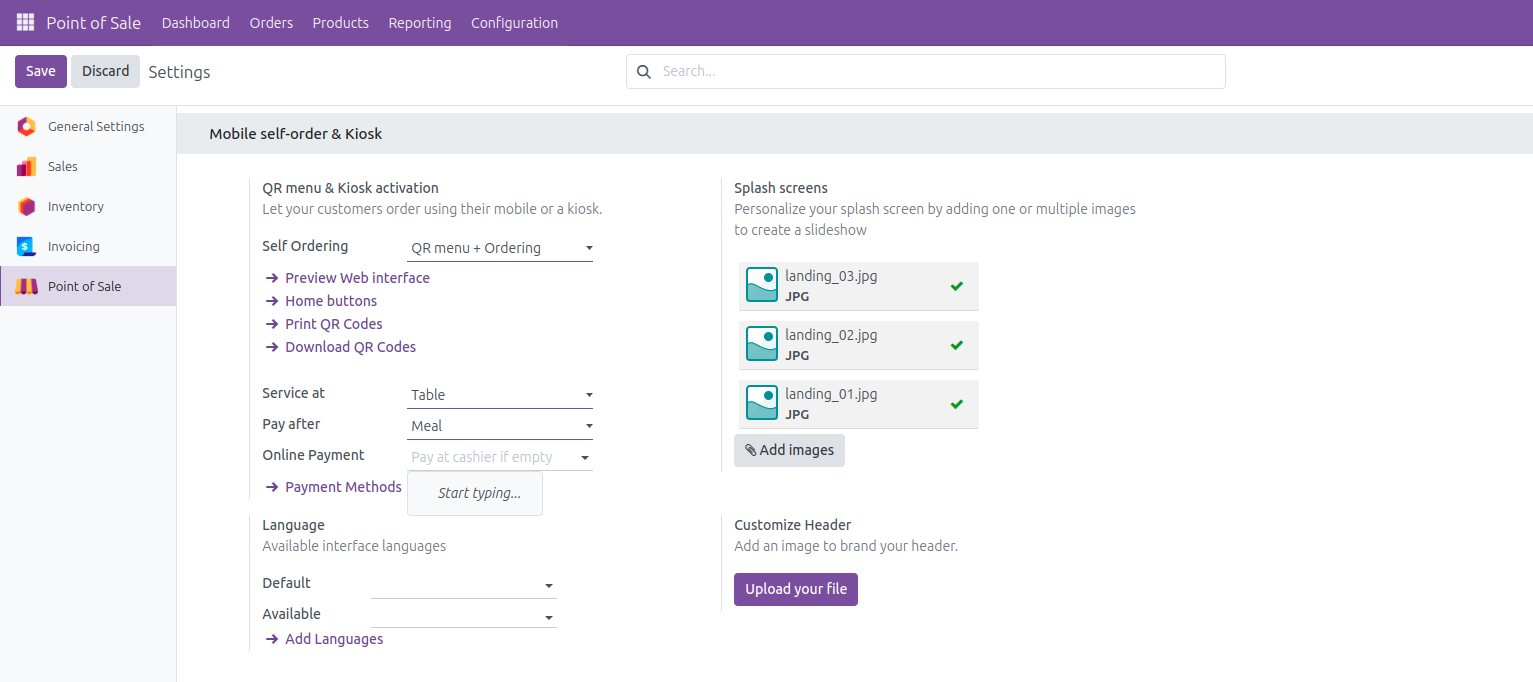
Odoo 18 has 3 options available for self-ordering, and they are QR Menu, QR Menu + Ordering and Kiosk. By default, all of these will be disabled. But you can easily enable this from the point-of-sale settings page. For this, go to settings page and choose your point of sale and there you can see the tab named Mobile self-order & Kiosk. Under this you can see the option QR menu & Kiosk activation. Choose the option you need for your business requirement, here I will be explaining all three of the options, so first I'm enabling QR Menu option and saving the settings.
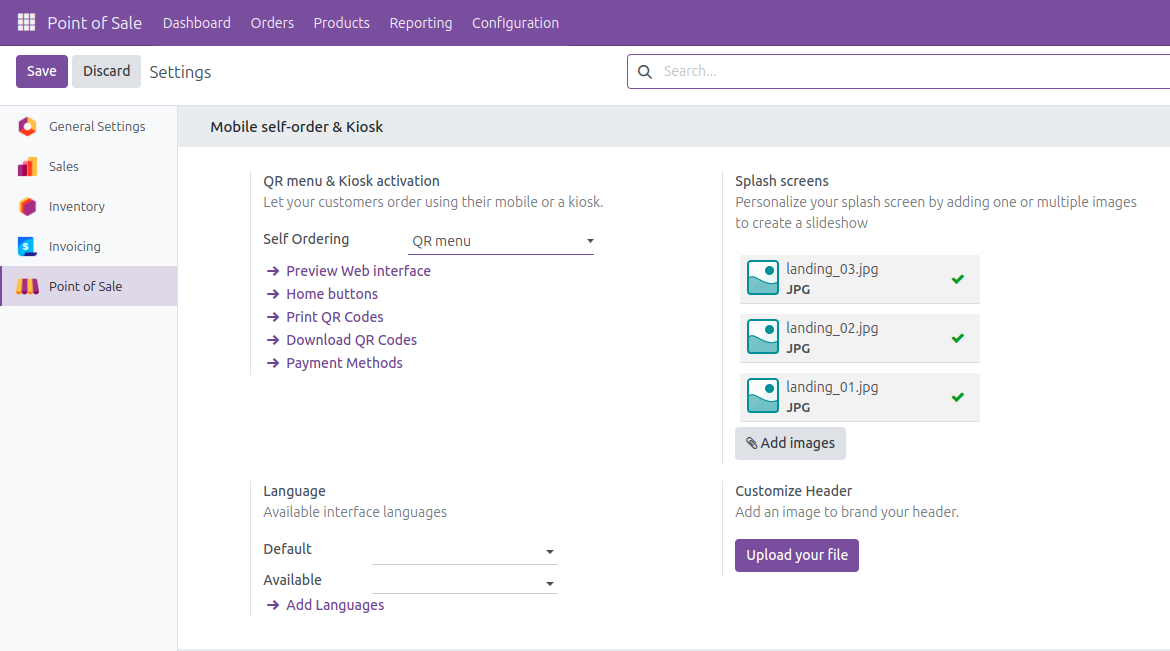
After enabling this you can see many more options will be available. You can choose the default language for the page and can also configure all the languages that are available in the system for the customer's convenience. Also, there you can see an option to configure custom splash screens for your system which will be the customer seeing, this option will help you to promote your brand much more clearly in the market. You can set a custom header image also for your menu; after configuring all these basic settings for the menu you can click on the preview option to see what the customer will be seeing while using the menu. Also, you can customize the buttons on the home page of the menu using the Home Buttons options.
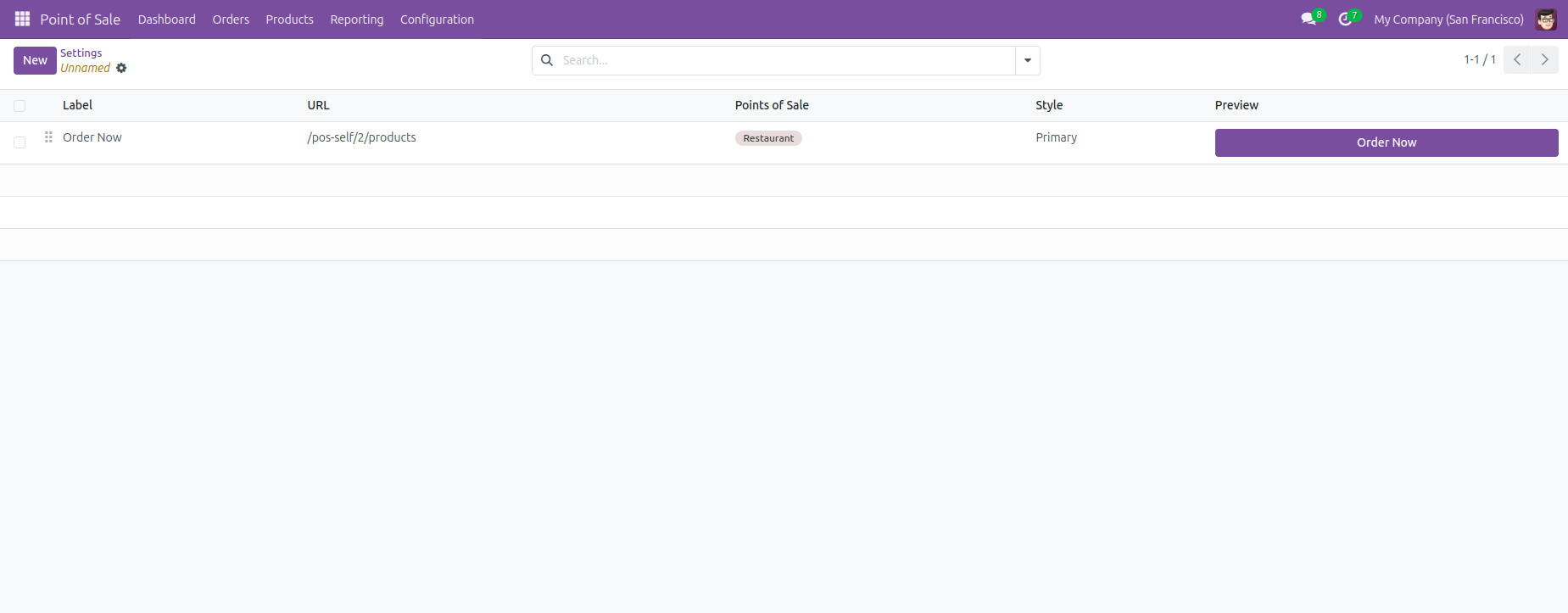
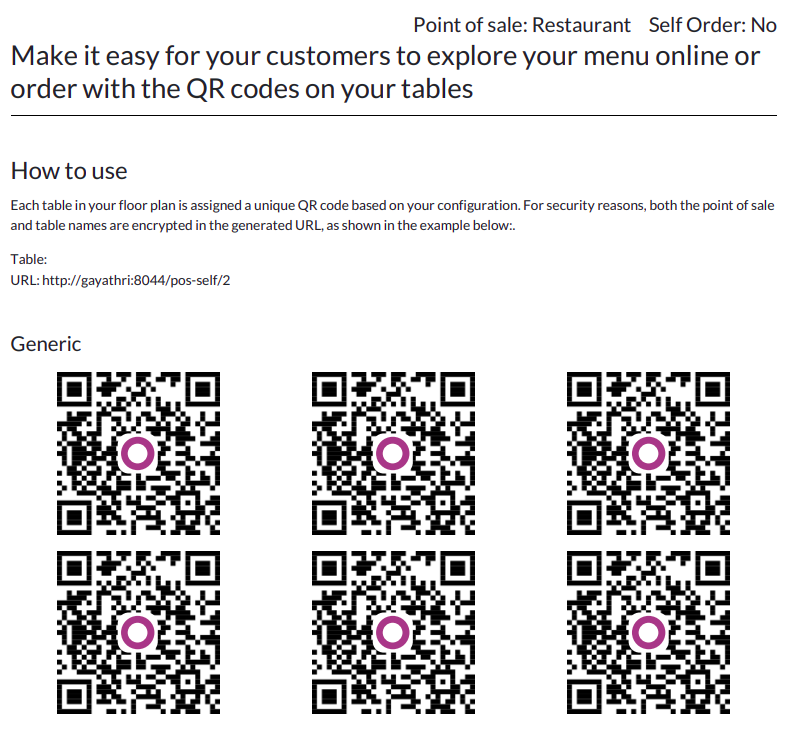
There are also options available for printing, downloading and resetting QR codes for this menu. You can set a default user for this from this settings page itself and can configure payment methods available.
Now let’s open this QR Menu by scanning the printed QR Codes and it will redirect us to the menu interface.
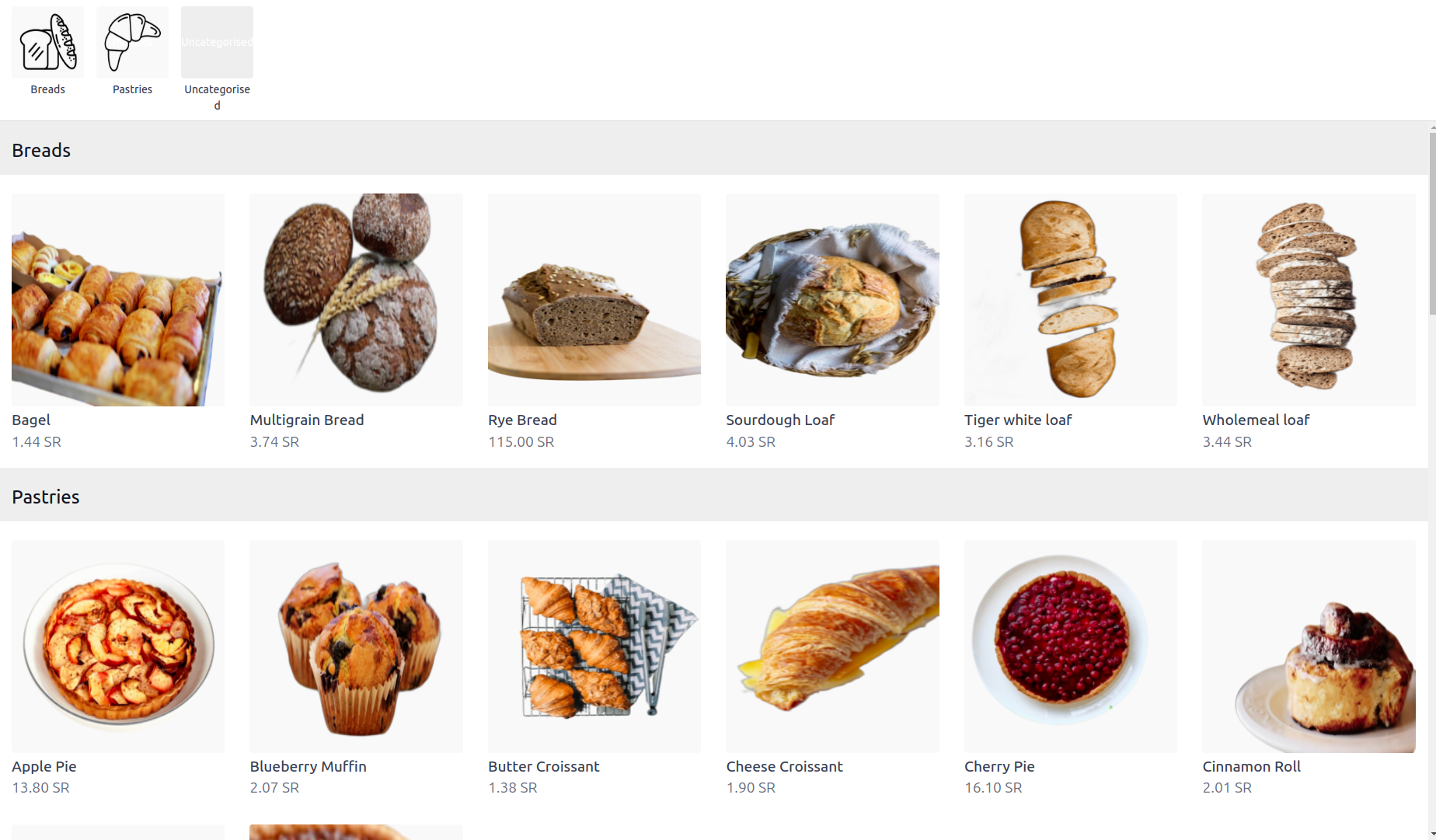
You can see the splash screen images that we have configured and the buttons we have added in the home screen. There you can see all the available products that you have added to this menu. Users can only check the products and order through the salesperson using this option.
So, if you need to allow your customers to order their products through their devices using this menu itself you need to enable the second option in the settings. That is QR Menu + Ordering. If this enables you to get a few more settings options to configure. First you can select the service option, 2 options are available which are service at table and service at pickup zone. There is an option for payment mode, like you can choose to pay after meal or pay after order, but the second option needs an Odoo enterprise version. So here we can select the first option as we are using community version right now. Also, there is this option where you can choose any online payment methods if needed. If no options are configured this will be default as pay at the cashier option.
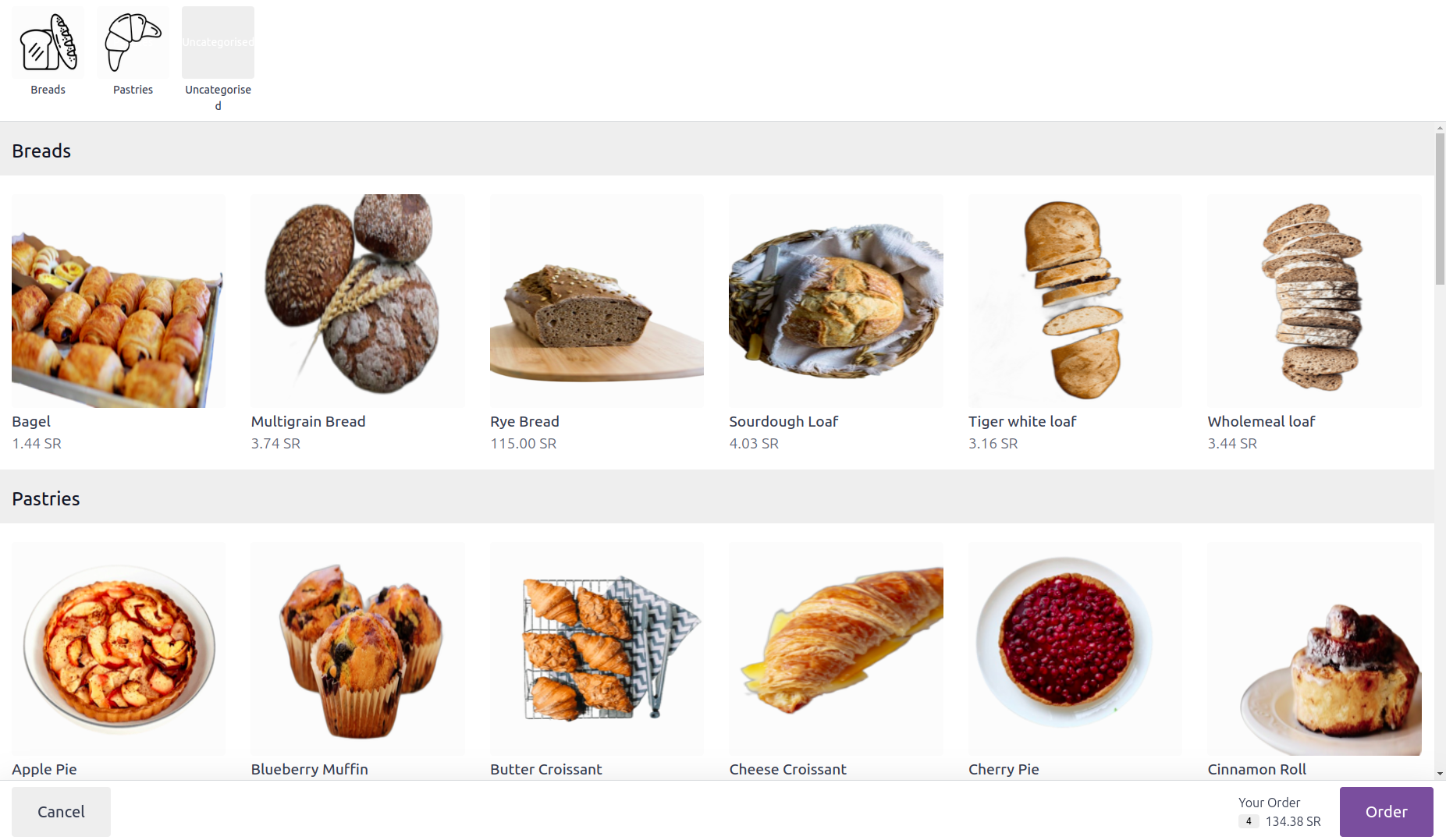
After configuring and scanning the QR you will be redirected to the same interface of home screen, and when opening the menu there you can see new options for adding products to cart and proceeding the order. Clicking on a product will add those to the cart and you see the order total and cancel button there. Also, to proceed with the order you can click on the Order button.
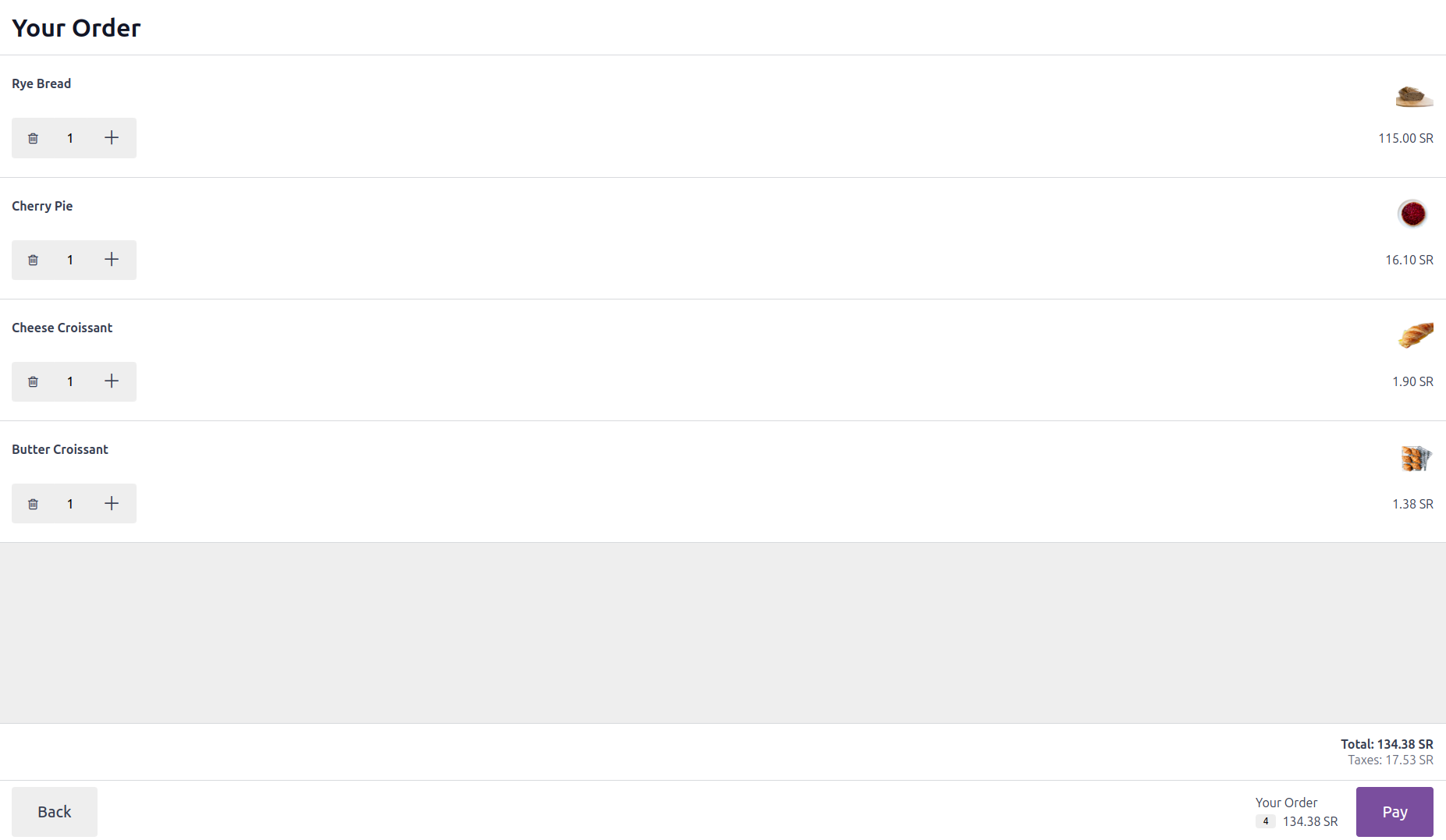
This will redirect you to the cart page and there you can re-check your order and can edit it if needed. All the details will be seen here.
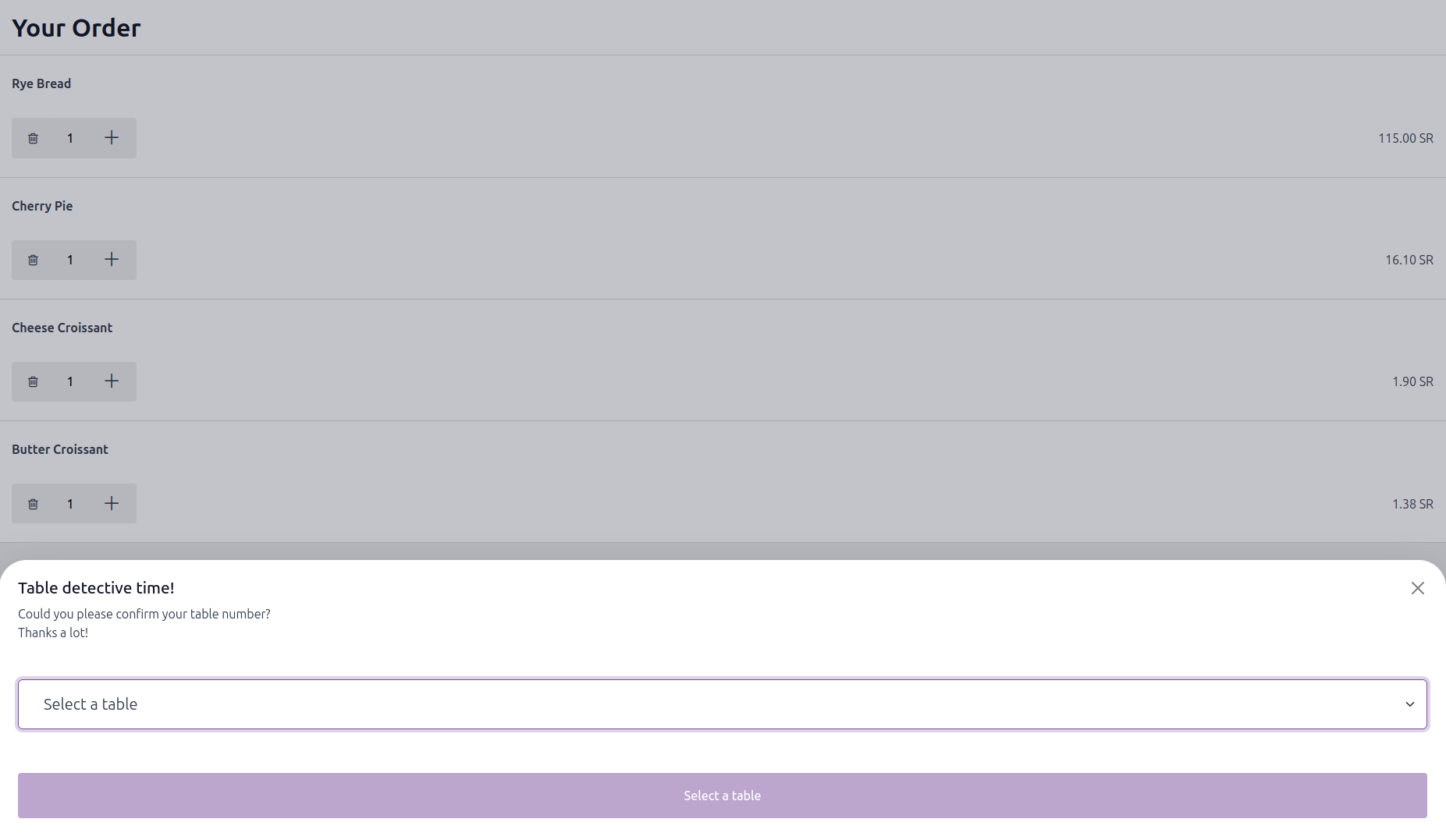
After this you can click on the pay button, where you will be asked to choose the table number. You can choose this and place the order simply.
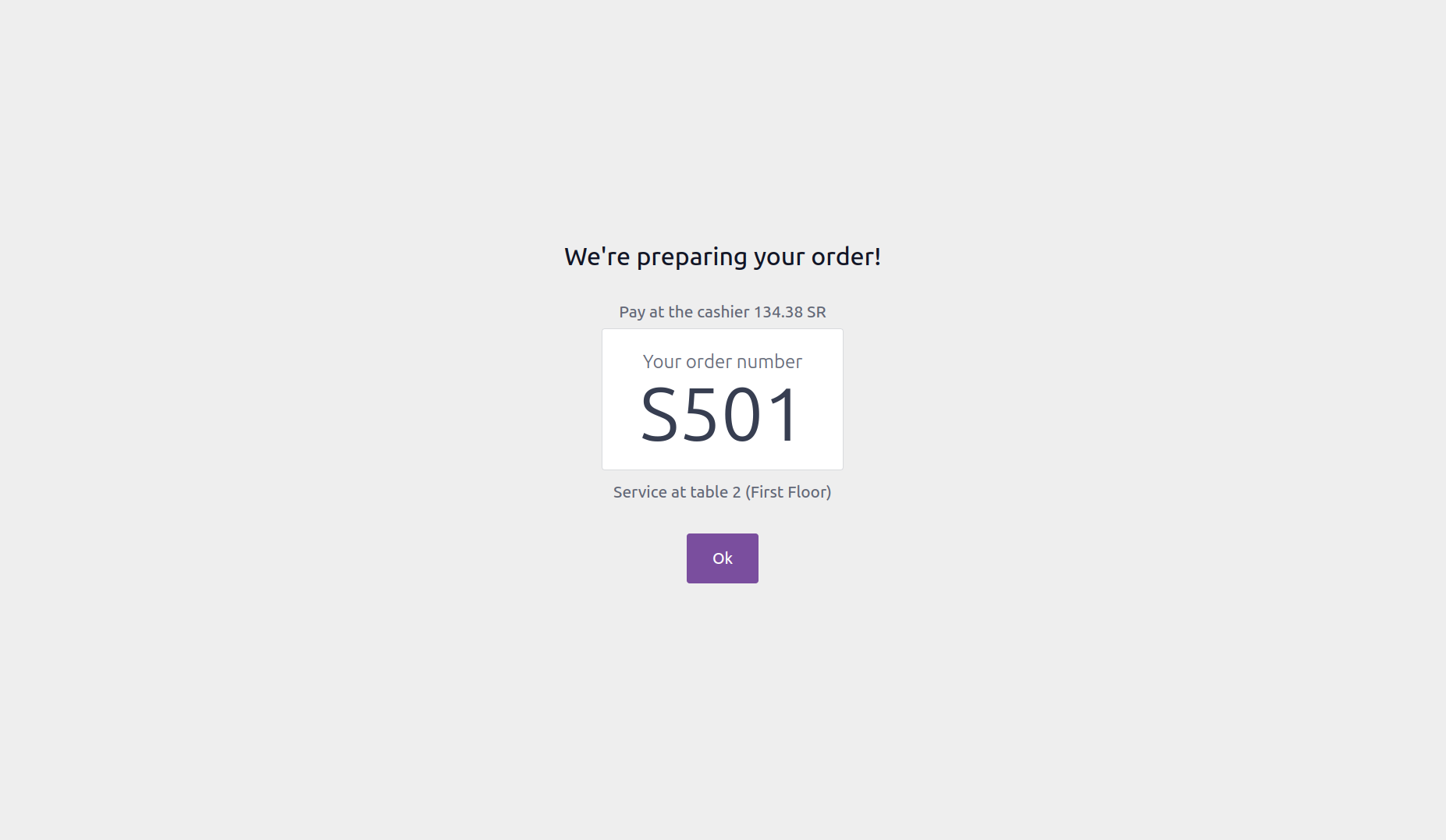
After completing it your customer will get the order number from the next screen itself. This is how the QR + Ordering options works.
And the last option available is Kiosk. For this option there will be no QR codes available. A point-of-sale shop will be converted to a kiosk, and you can use your company devices as kiosk to make the orders. Let’s check how this works. After changing the configuration to Kiosk, the selected point of sale shop will become a kiosk. Now the user can open this kiosk with the company device.
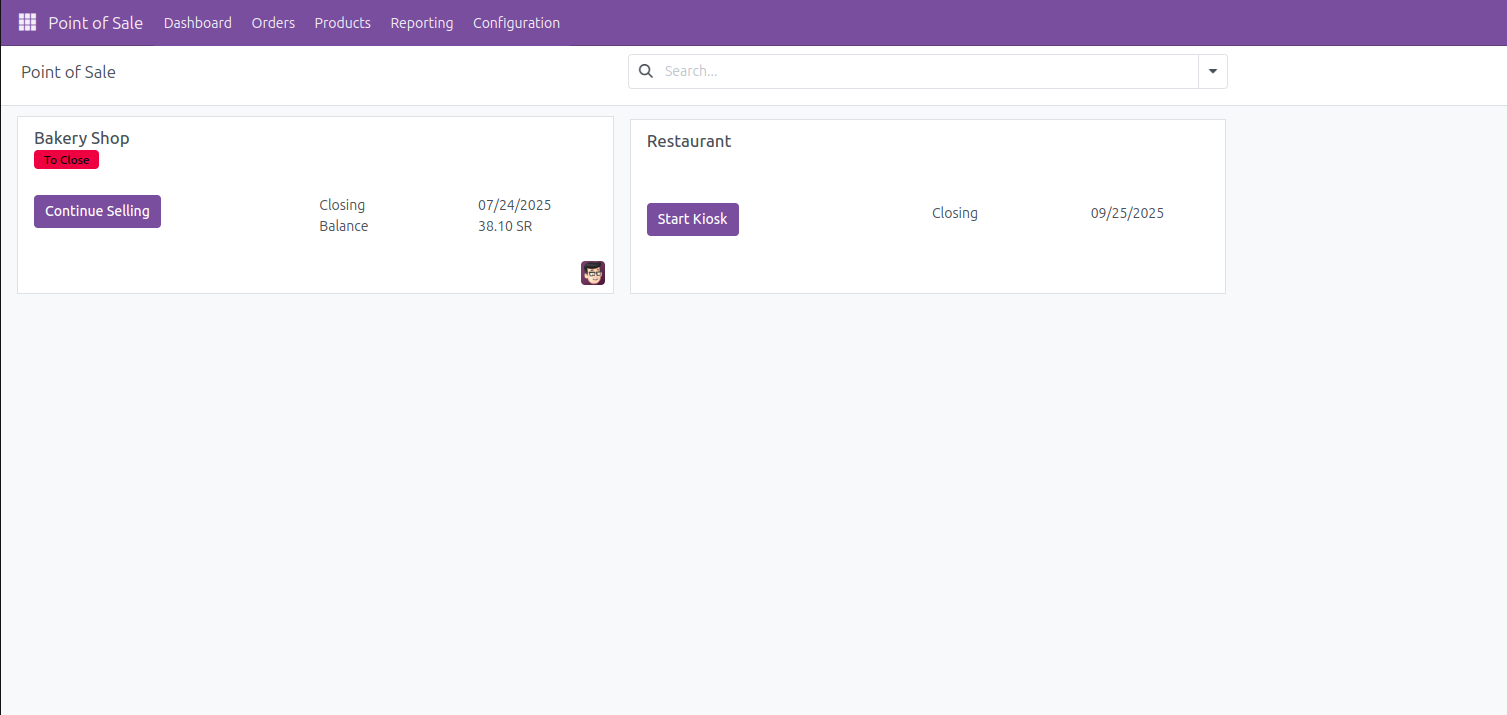
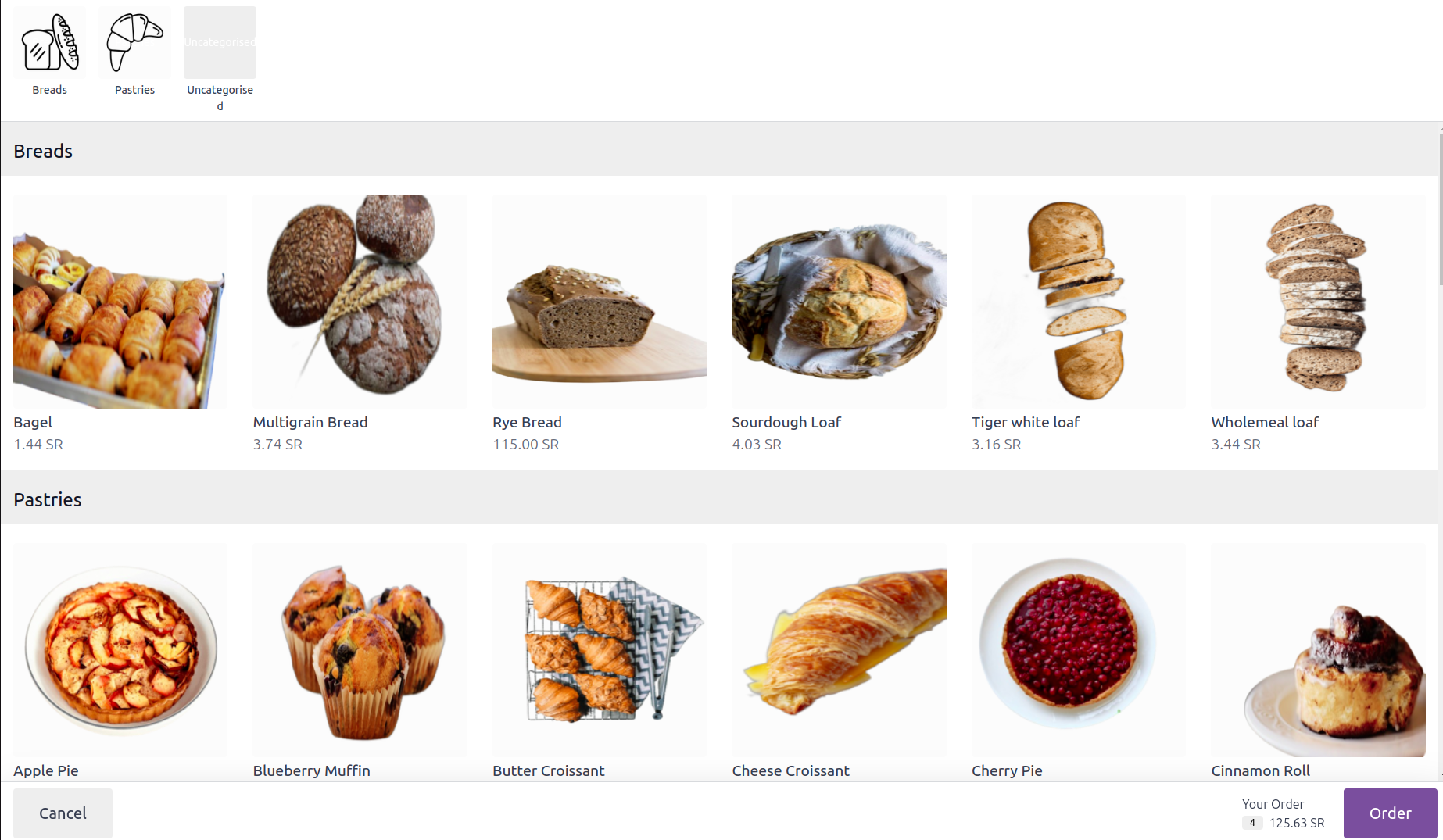
Here you can see the option as start kiosk. Click on that you will be redirected to the kiosk using a new URL. After opening this kiosk, you will be seeing the same interface as the QR Menu ordering interface. There you can click on selected products and add them to cart and can proceed for ordering.
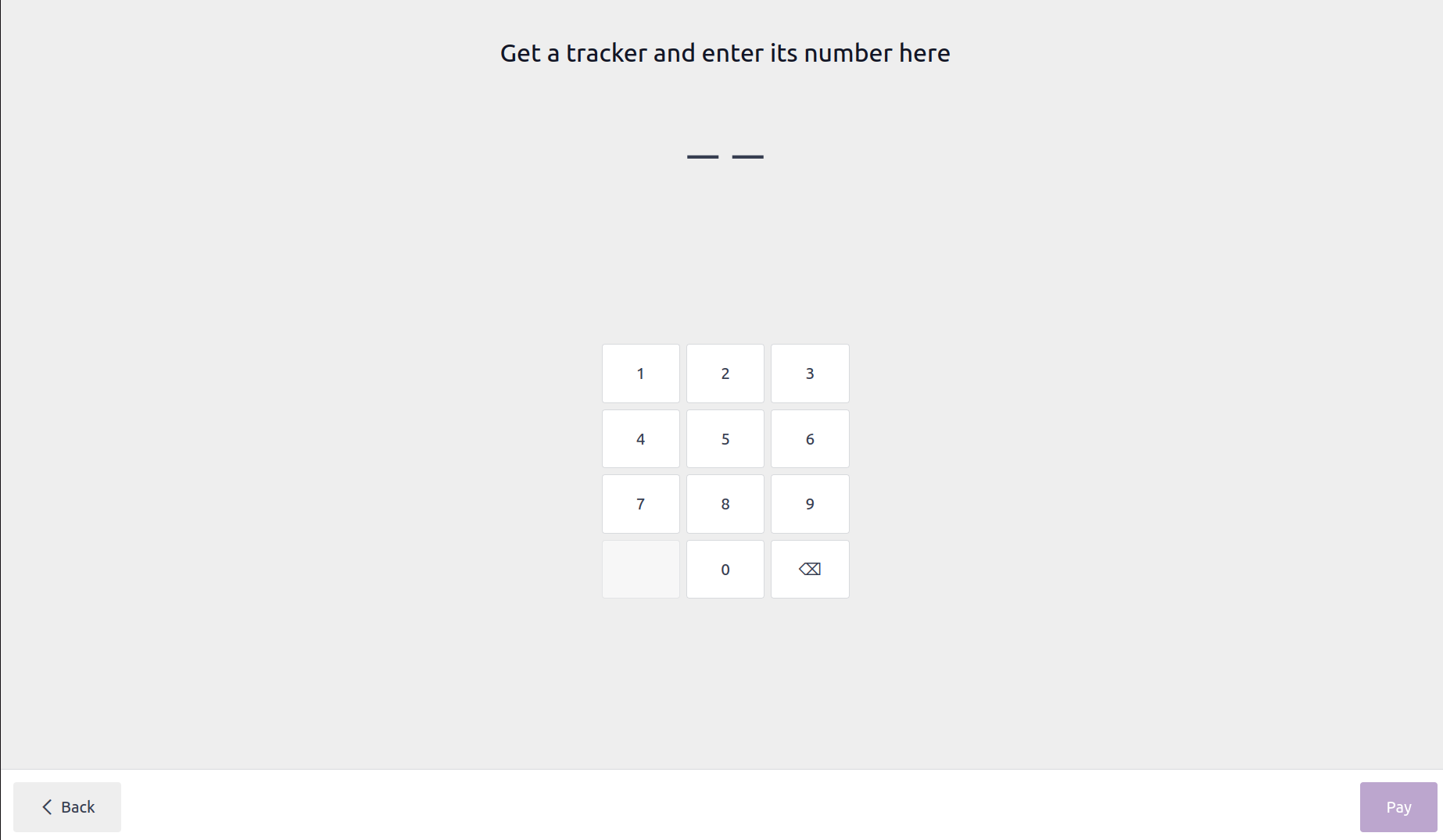
Clicking on the order button will redirect to the cart page same as before, then click on pay button which will redirect to a new page where the salesperson needs to enter the tracker number and proceed. The tracker number here represents the number for tracking the table. The order will be confirmed and redirected to the confirmation page.
This is how the new point of sale self-ordering feature works. All the three options available in the point of sale will be very useful for the restaurant or bar business.
Powering Modern Customer Experiences with Odoo 18
The Self-Ordering feature in Odoo 18 Point of Sale redefines how businesses interact with their customers. Whether it’s through QR-based menus, mobile ordering, or dedicated kiosks, with Odoo you are offered with a seamless, contactless, and efficient service experiences that align perfectly with today’s digital-first expectations.
By automating order placement and payment processes, businesses especially in the F&B and retail sectors so that you can reduce wait times, and thereby improve accuracy, and thus create a smoother operational flow for both customers and staff.
With a reliable provider like Veuz Concepts, you can implement and customize these Odoo 18 capabilities to fit your exact business model. From configuration to integration, our team offers you with POS systems that are intelligent, scalable solutions designed to enhance customer satisfaction and operational efficiency.
If you’re ready to elevate your business with Odoo 18’s Self-Ordering system, Veuz is your trusted partner in making that transformation seamless and impactful.


.jpg )


Leave a comment