

Products are a crucial part of any type of business. In Odoo, both the goods and services are set up as products. Odoo provides various features for handling everything related to products and their related.
In this blog we will discuss how to create and configure products in Odoo.
Product Creation
To create a New Product, go to the Inventory App → Products → Products and click on the New button.
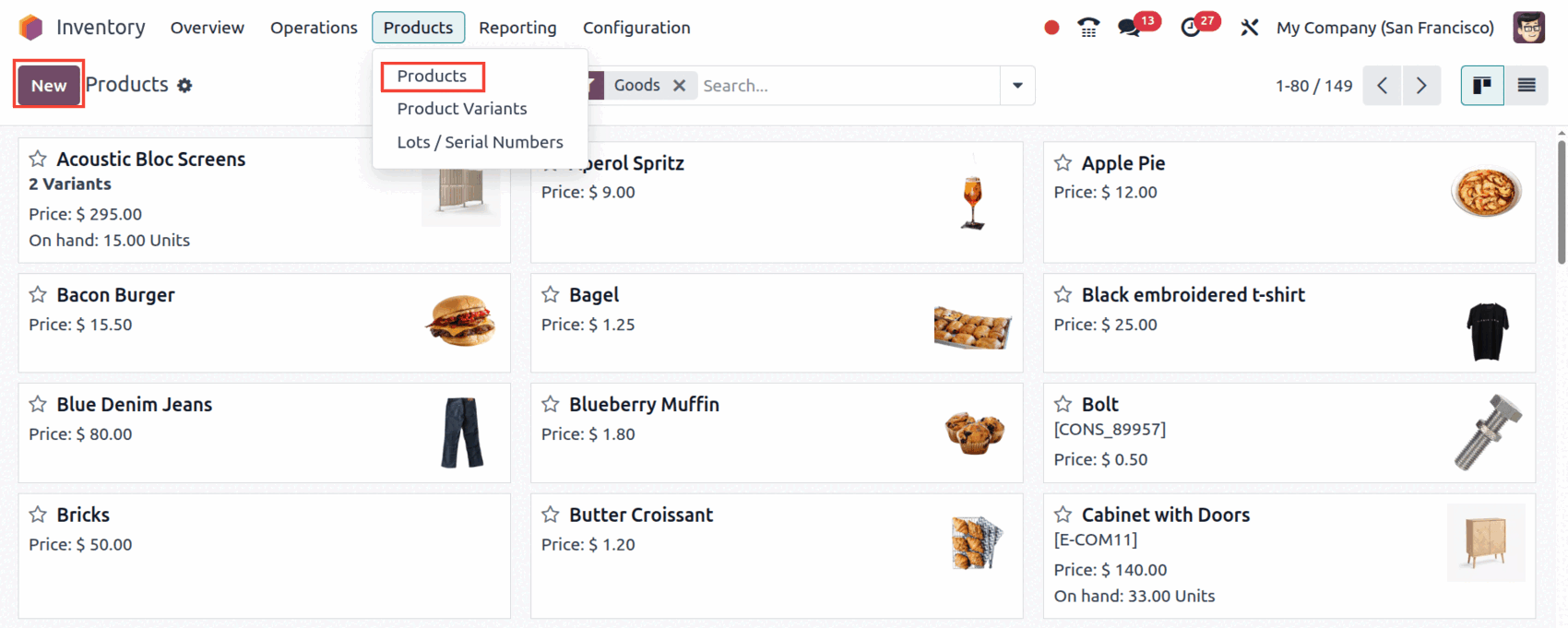
When you click the button, you will be redirected to a form of view for creating a new product.
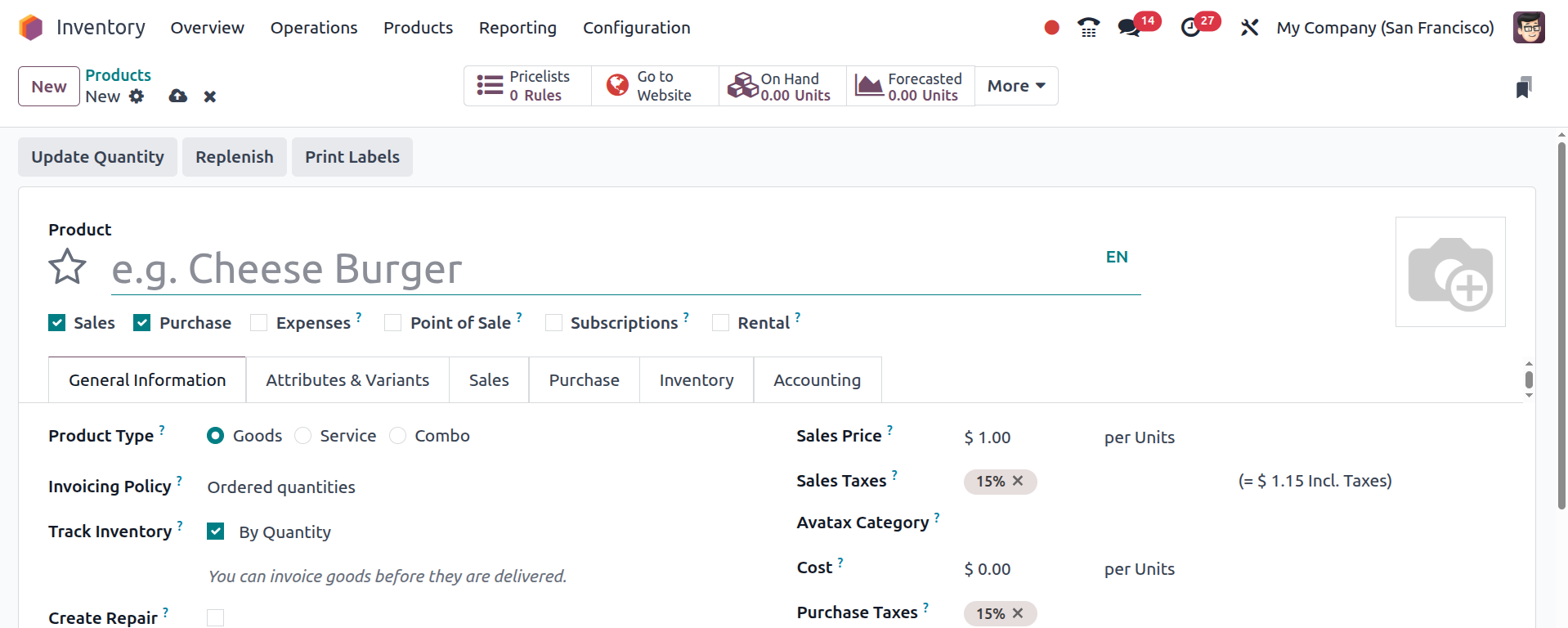
The products can be configured according to your needs. Let’s take a detailed look on the product configurations.
Product Configuration
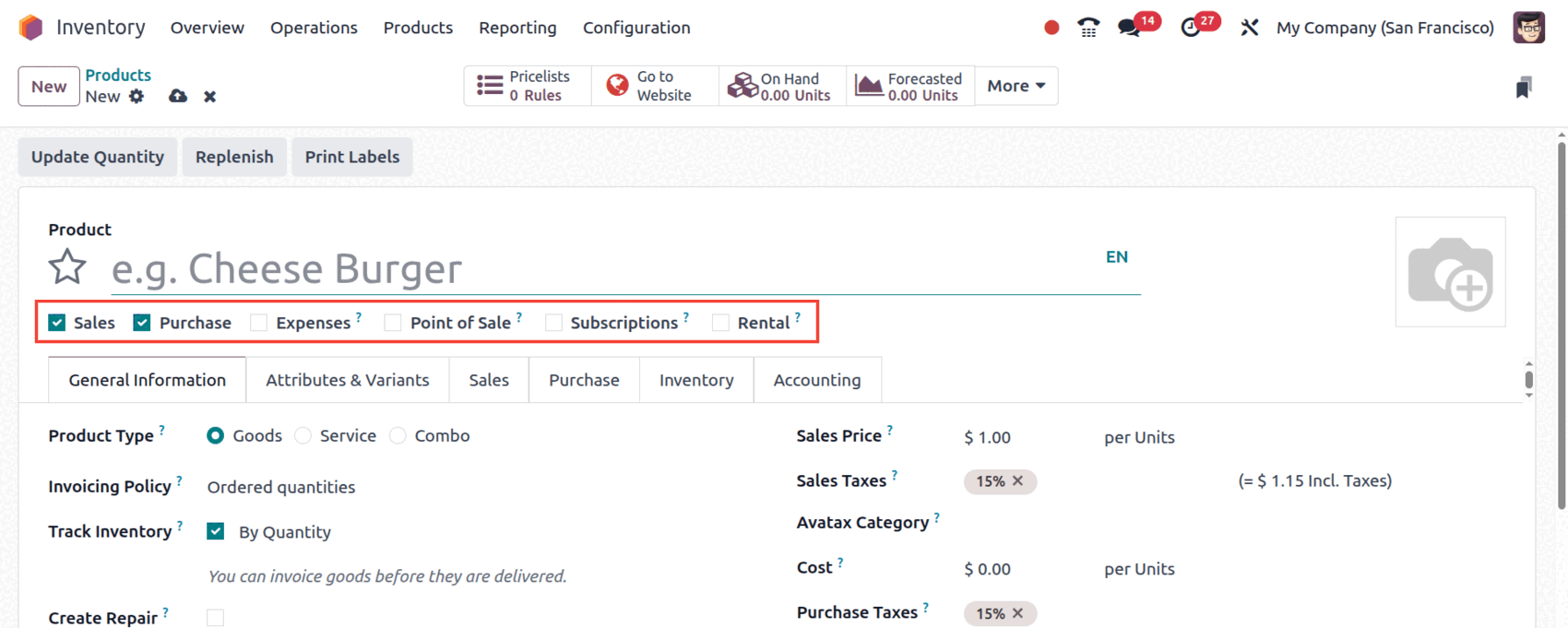
Sales: You can enable this if this product is available for sales.
Purchase: You can enable this if this product is to be purchased.
Expensed: You can enable this if the product can be selected in an expense.
Point Of Sales: You can enable this if you want this product to be shown in POS interface.
Subscription: You can enable this option if you want to create a subscription when sale order conataining this product is confirmed.
Rental: You can enable this to allow renting for this product.
General Information Tab
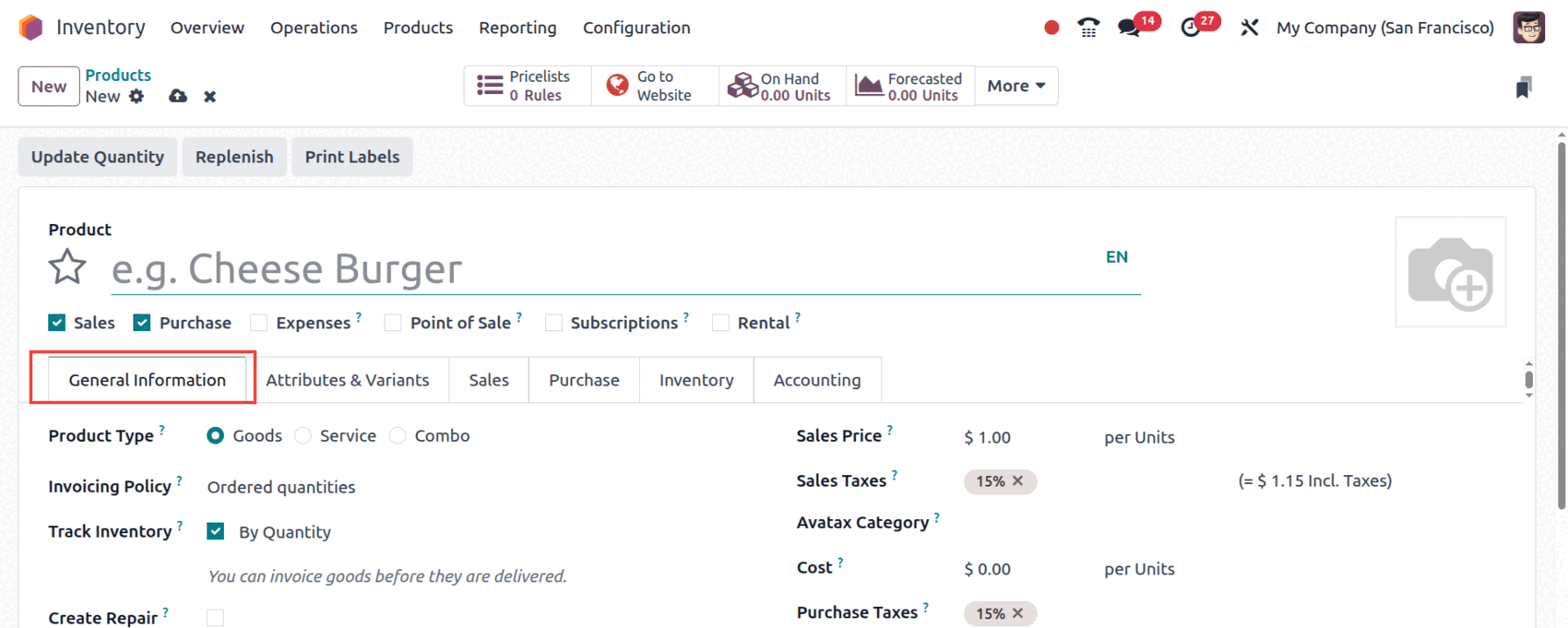
Product Type: 1.Goods: For Material product.
2.Serveice: For Non-material/ service product.
3.Combo:For Combination of both goods and service
Invoicing Policy: Choose accordingly for goods and services the following types,
1.Ordered Quantity: Invoice quantity ordered by the customer.
2.Delivered Quantity: Invoice quantity delivered to the customer.
Track Inventory: Choose if you need to track the inventory of this product.
After choosing this you can also select how the tracking must be done as:
1. By Quantity
2. By Unique Serial No.
3. By Lots
Create Repair: Choose this if you want to create a repair order on confirmation of sales order having this product.
Sales Price: Define the Selling price of product.
Unit Of Measure: UOM of this product.
Sales Tax: Default sales tax of this product.
Cost: Define the Value of the product.
Purchase Taxes: Default purchase taxes of this product.
Category: Give the Product category.
Reference: Define Reference code of the product.
Attributes & Variants Tab
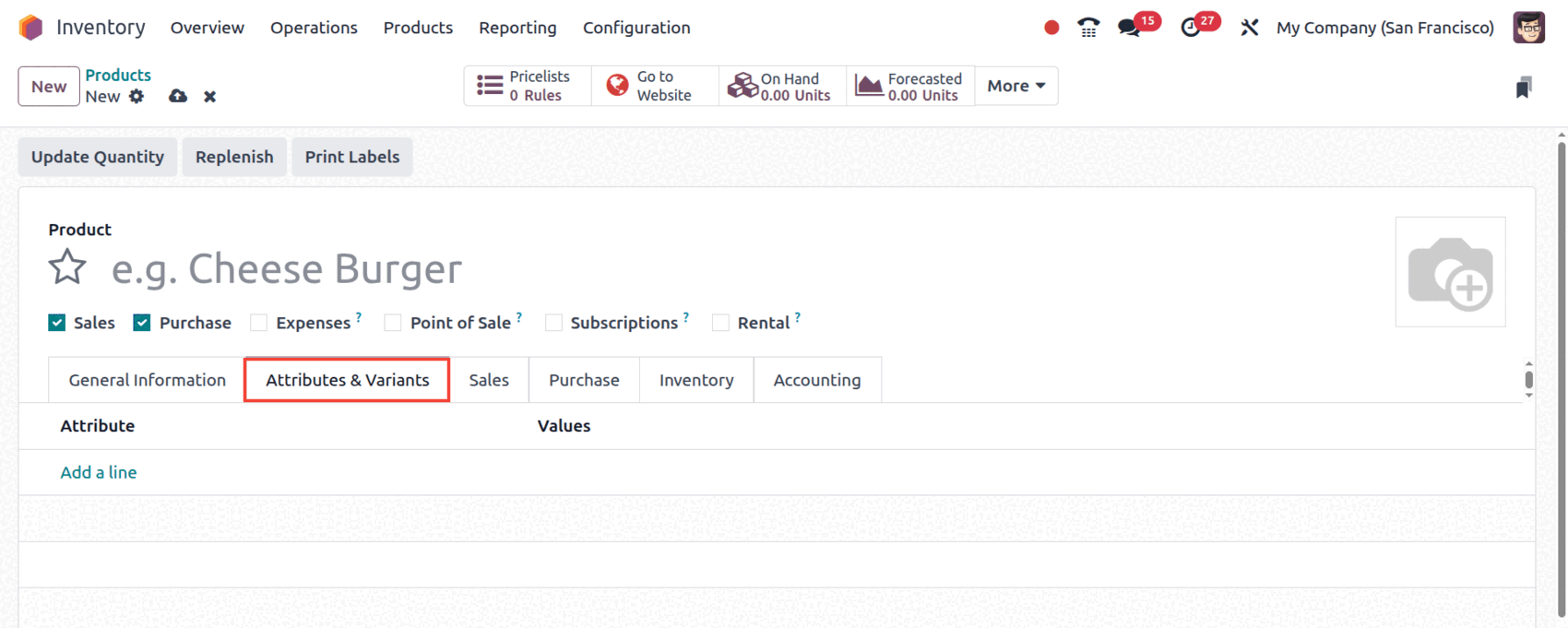
You can add different variants for this particular product by clicking on Add a line button.
Sales Tab
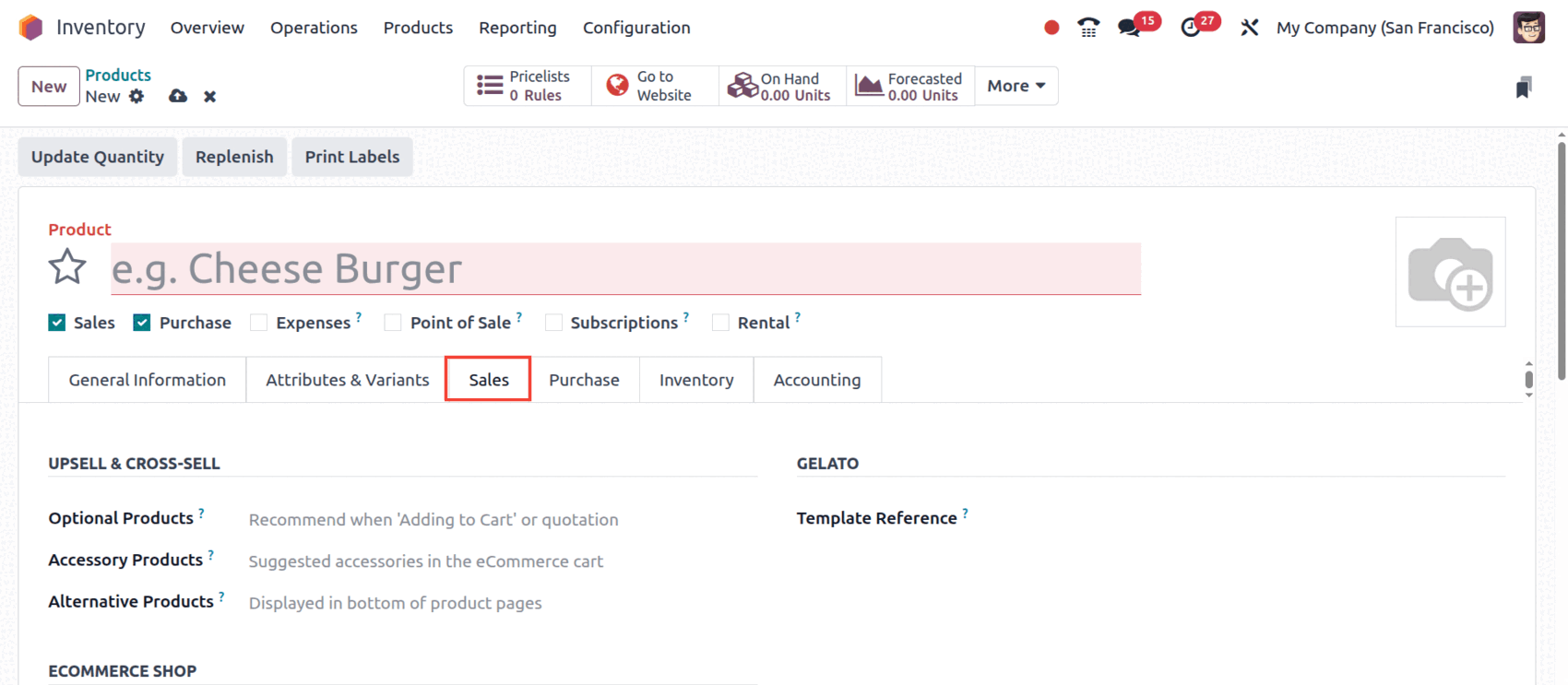
Optional Products: Suggested product when this product is added to cart while using e Commerce.
Accessory Products: Products shown while customer reviews the cart before payment.
Alternative Products: Products that are shown as the alternatives.
Out of Stock: You can enable this option if you want to continue the selling of this product even if it is out of stock.
Quotation Description: Note shown in Sale order and Invoices.
E Commerce Description: Detailed description to be shown in the website.
Purchase Tab
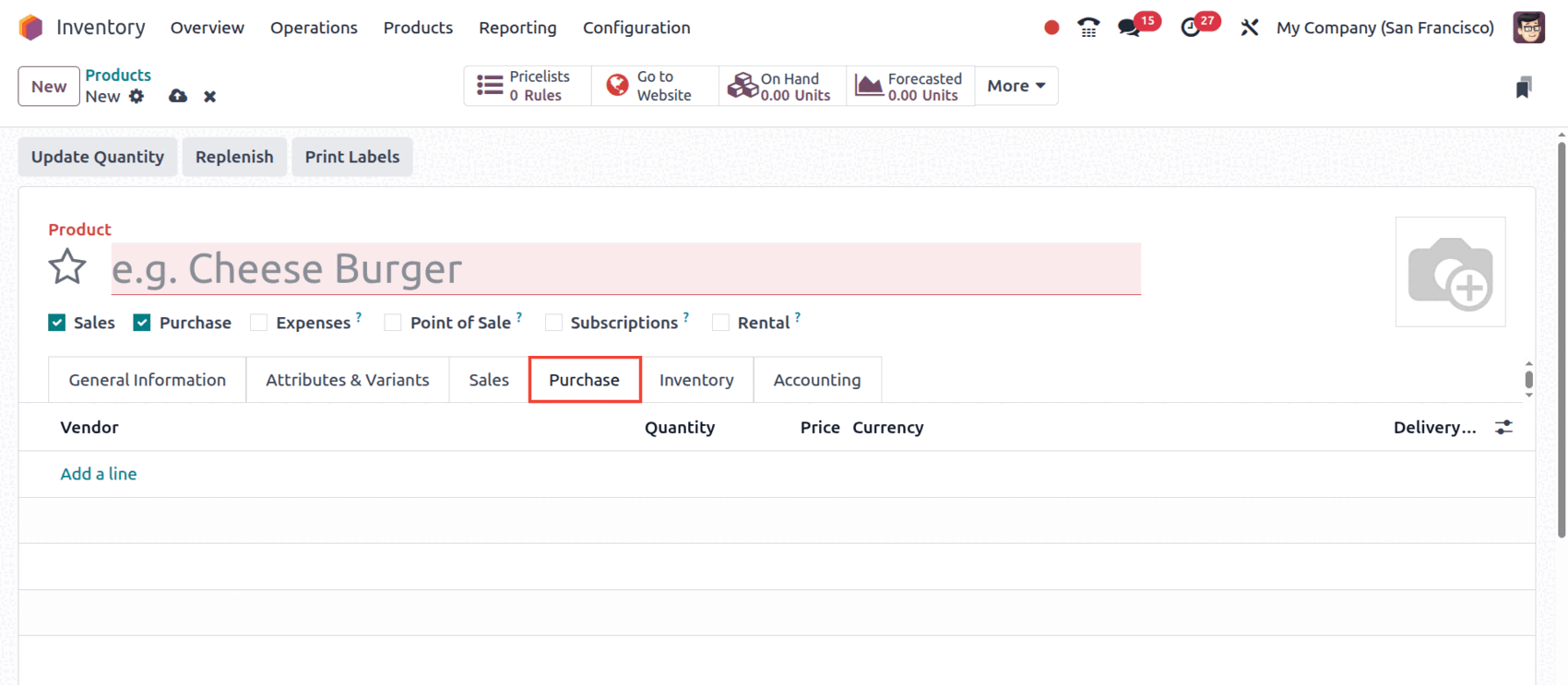
Vendor: Add vendors for this product by clicking on Add a line and provide details such as vendor name, quantity, associated price and the Delivery Lead Time of that vendor.
Purchase Unit: Default UOM associated with purchase orders of this product.
Control Policies: 1. On ordered quantities: Bills based on ordered quantities.
2. On received quantities: Bills based on received quantities.
Purchase Description: Note shown in purchase orders.
Inventory Tab
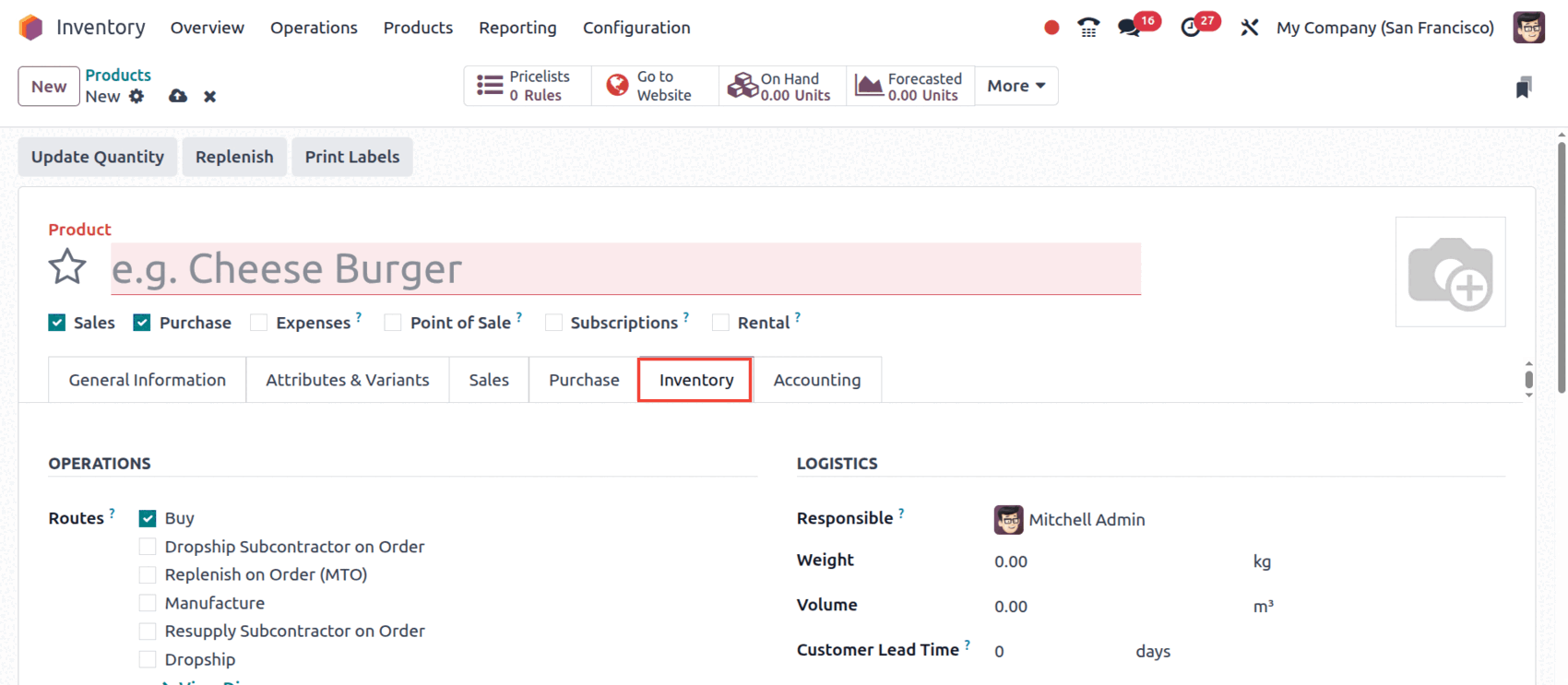
Routes: It defines the routes of the product, for example, whether it is bought, manufactured etc.
Responsible: Responsible user for the next logistic operation of this product.
Weight: Weight of one unit of the product.
Volume: Volume of one unit of the product.
Customer Lead Time: Delivery lead time.
Version: Current version of the product.
HS Code: Code used for international shipping and goods declaration.
Origin of Goods: Specifies where the goods have been produced or manufactured.
Production Location: This location is used as source location for moves generated by manufacturing orders.
Inventory Location: This location is used as source location for moves generated when you do Inventory.
Packaging: Configure the product packaging options here.
Description For Receipts: Add a note that should be received in receipt of orders.
Description For Delivery Orders: Add a note that should come in delivery orders.
Description For Internal Transfers: Add a note that should come in internal transfers.
Accounting Tab
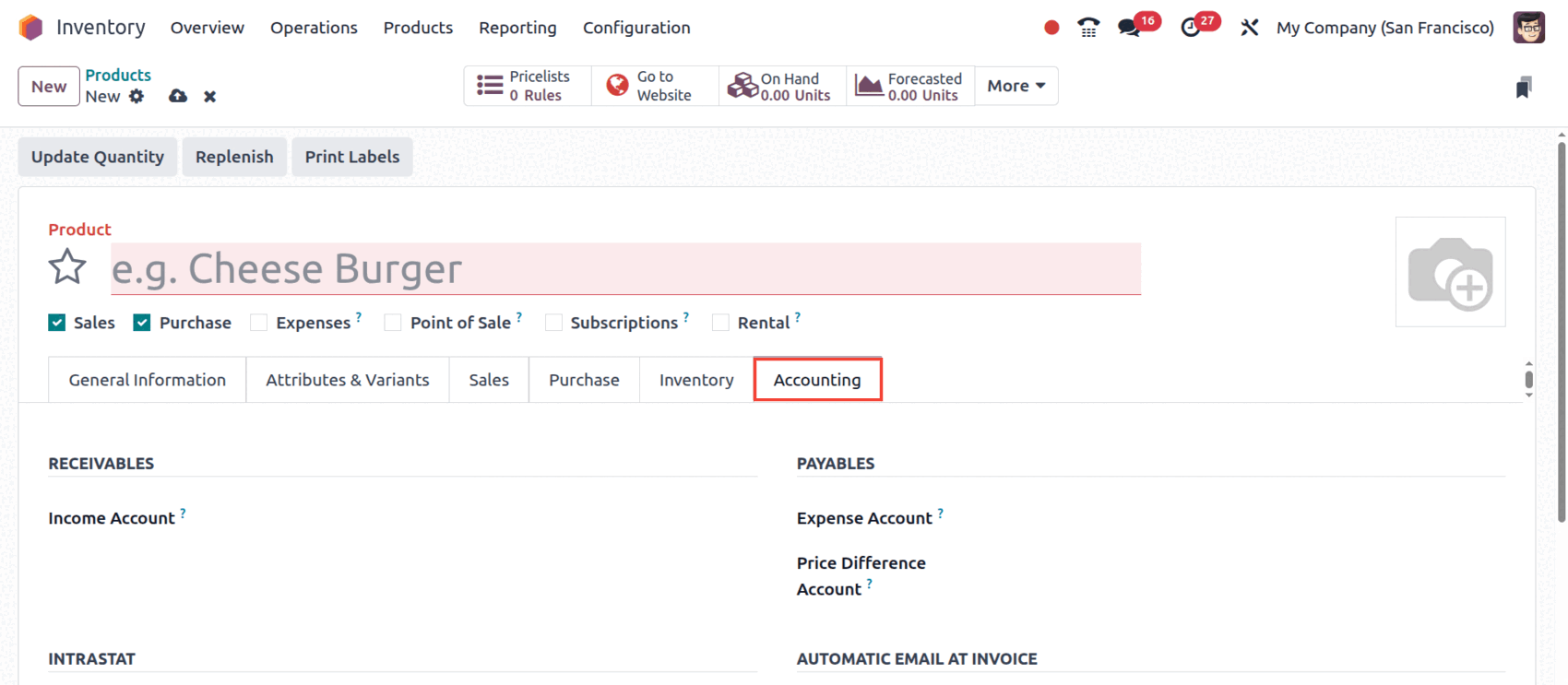
Income Account: Configure where the revenue of this product must be reflected. Leave empty if you want to use an account from the product category.
Expense Account: Configure where the cost of product ios to be recorded. Leave empty if you want to use an account from the product category.
Price Difference Account: The account to be used in automated inventory valuation to record price difference between a purchase order and its related vendor bill when validating this vendor bill.
Commodity Code: Specify the internationally recognized reference numbers used for classifying goods depending on their nature.
Country of Origin: Specify the country of product’s origin.
Email Template: Configure the email template to be send when the invoice with this product is validated.
Expert Product Configuration & Implementation
Setting up products in Odoo, therefore, lays the foundation for efficiency in business operations. Defining product types and taxes, setting up inventories, sales information, purchase details, and accounting details-the configuration and settings all play a very important role in aligning the system to meet the requirements of a business. With the power of Odoo, companies can ensure that from simple product listings to complex, variant-driven catalogs, any specific needs are met seamlessly as one moves from sales through to delivery.
At Veuz, we ensure to help you empower your organization to realize the full potential of Odoo by customizing its product management features with respect to their operational goals. Our team guides you through everything from setup and migration to customization and training so that you can focus on growth while we take care of the technical complexities. Whether implementing Odoo for the first time or seeking to optimize workflows for your products, Veuz ensures your system works as effectively as your business demands.



.jpg )


Leave a comment