

The product packaging plays a vital role in a product’s success. The packing of products is necessary for ensuring a secure and efficient transportation. It plays a significant role in protecting products from damage and delivering them in a good condition. Odoo inventory module provides various features for product packaging to improve the management of products.
Odoo provides two types of packaging:
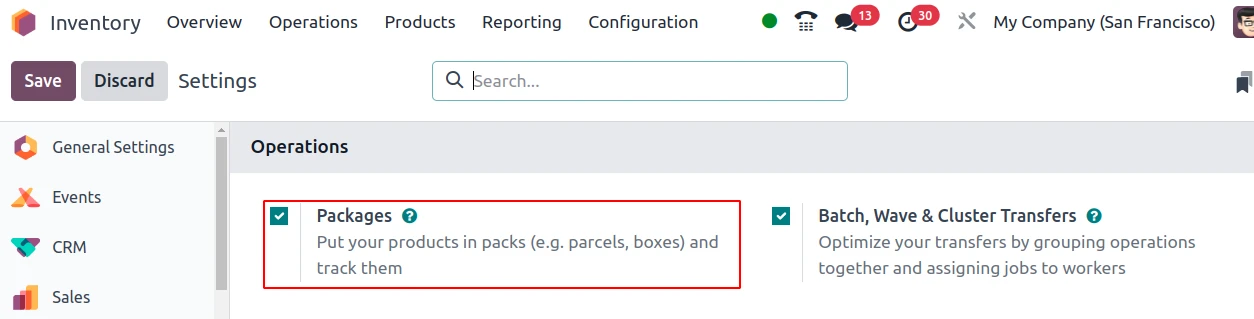
Packages: Packages are physical containers having more than one products, It is commonly used for grouping products to move them in bulk, shipping to Customers and storing items in bulk.
Product Packaging: Multiple units of the same product.
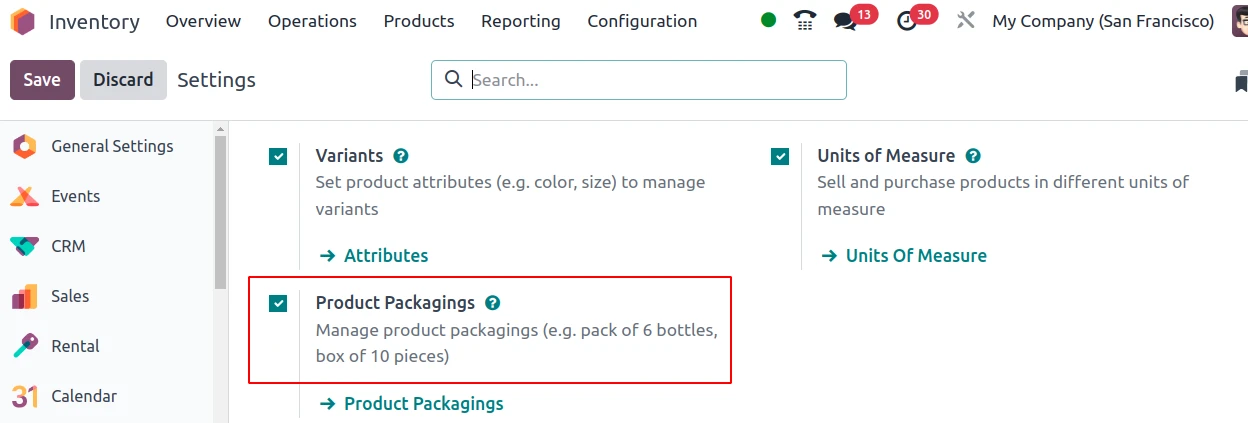
Configurations: Enable the above two configurations from Inventory -> Configuration -> Settings. Under Operations tab you can see packaging option and under Products tab you can see product packaging option.
Create Packages
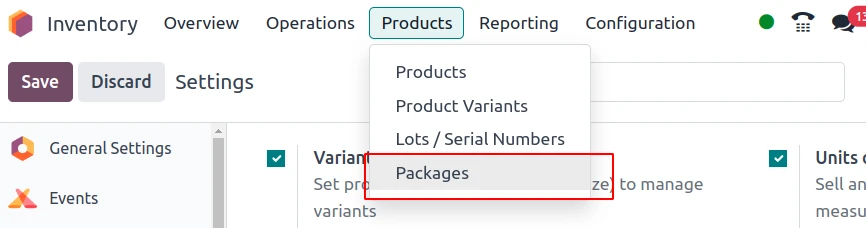
1. Inventory -> Products -> Packaging
Packages can be created from the packaging menu in the inventory app. You can use the NEW button for creating a new package.
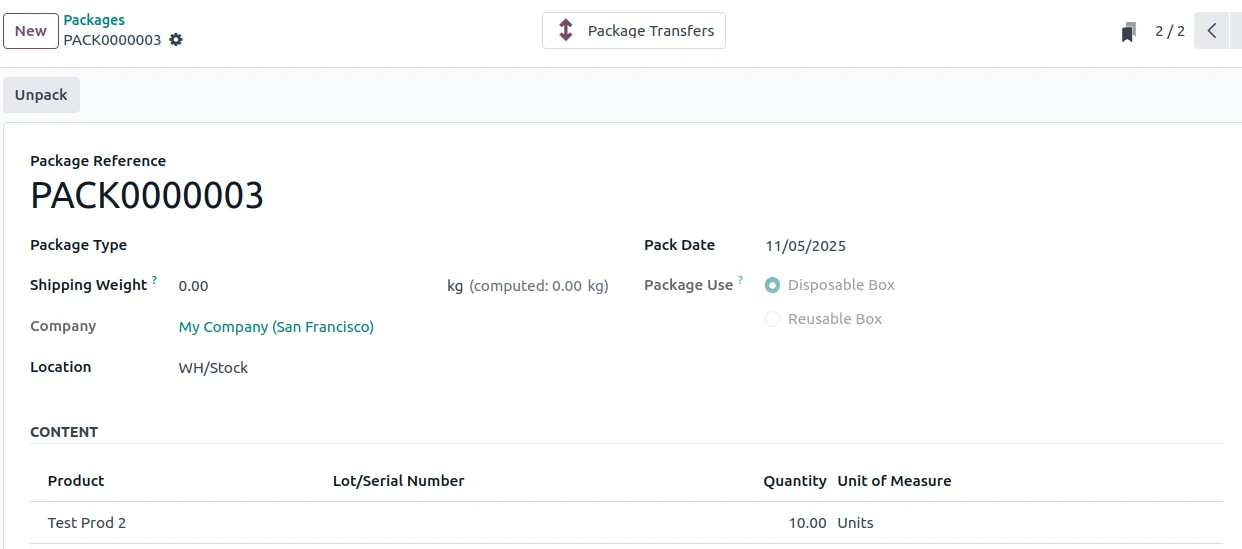
Here you can select the details such as the package type, its shipping weight, company, location, pack date, etc.
- The Package Use can be used for specifying the package as disposable package or reusable package.
- Reusable: Used boxes are emptied afterwards for reuse purpose.
- Disposable: Boxes are not to be reused.
- The Content Tab will show the product details after stock moves.
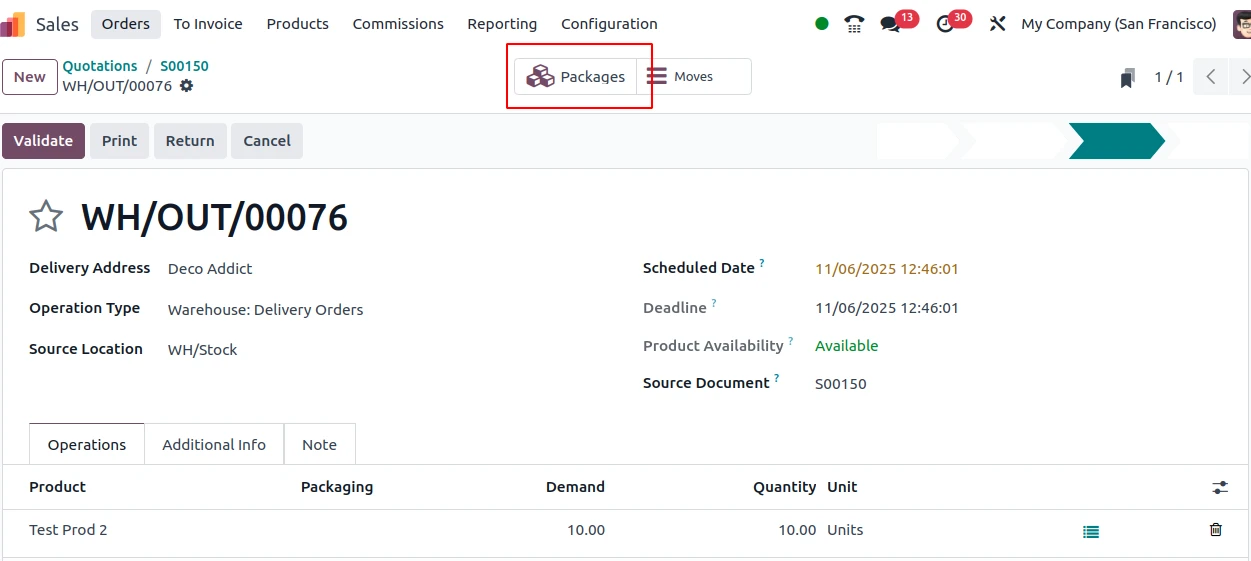
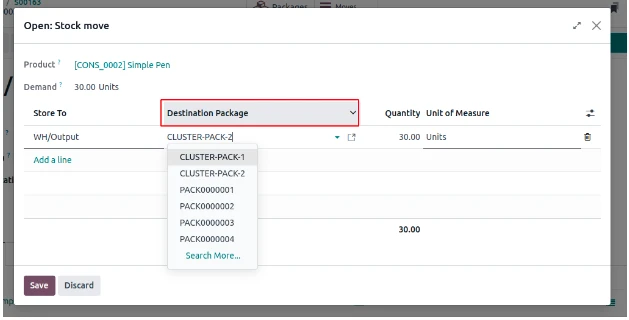
In the delivery order, you can select the packaging in the operations. Afterwards, you can also select the destination package for the lines by clicking on detailed operations and then you can choses whichever package you want as the destination package.
Now after we have selected the destination package and clicked on the save button, we can see the package associated with the delivery order in the smart tab PACKAGES.
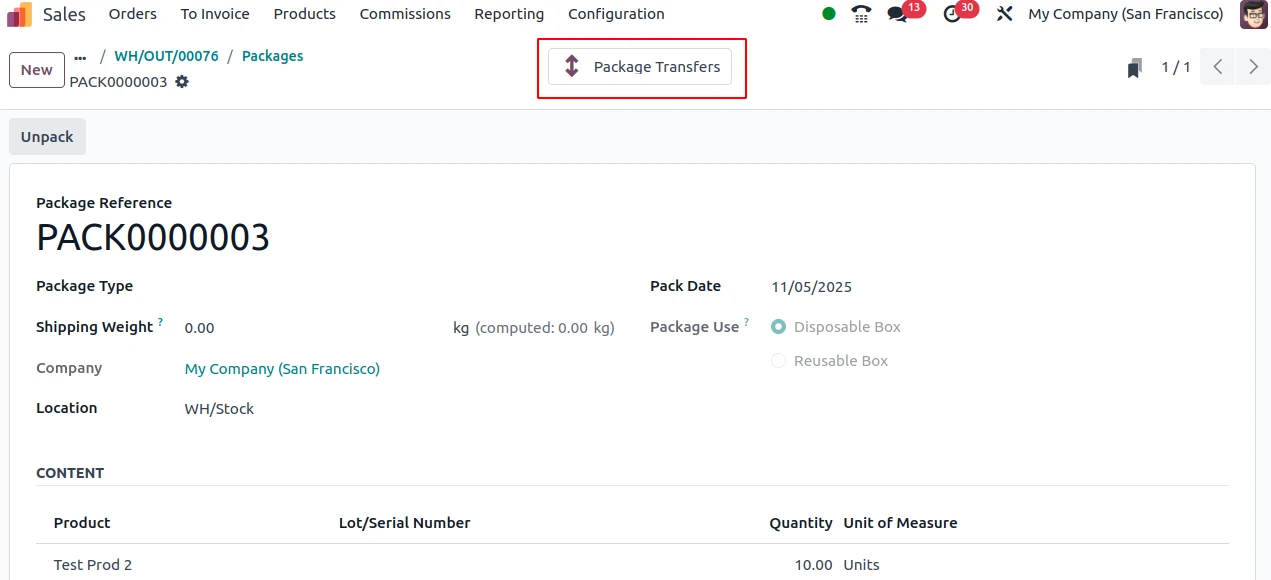
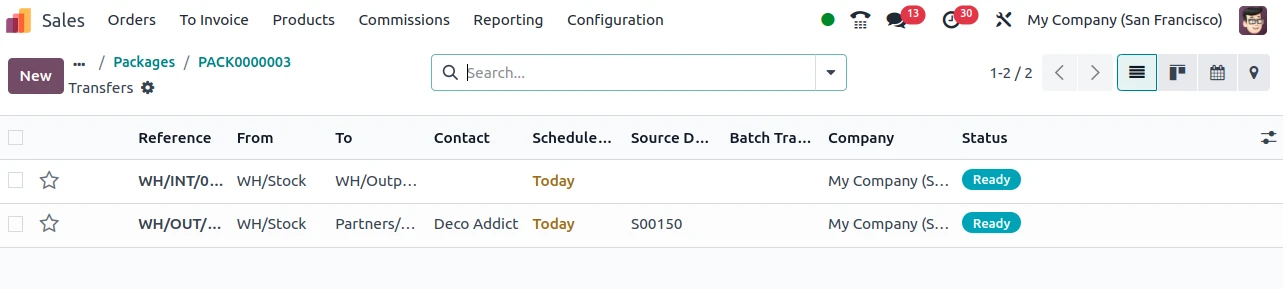
In the package, we can see the Package Transfer Smart button which shows all the transfers associated with this package.
Create Packaging
1.You can see the product packaging menu: Inventory -> Configuration -> Product -> Product Packaging
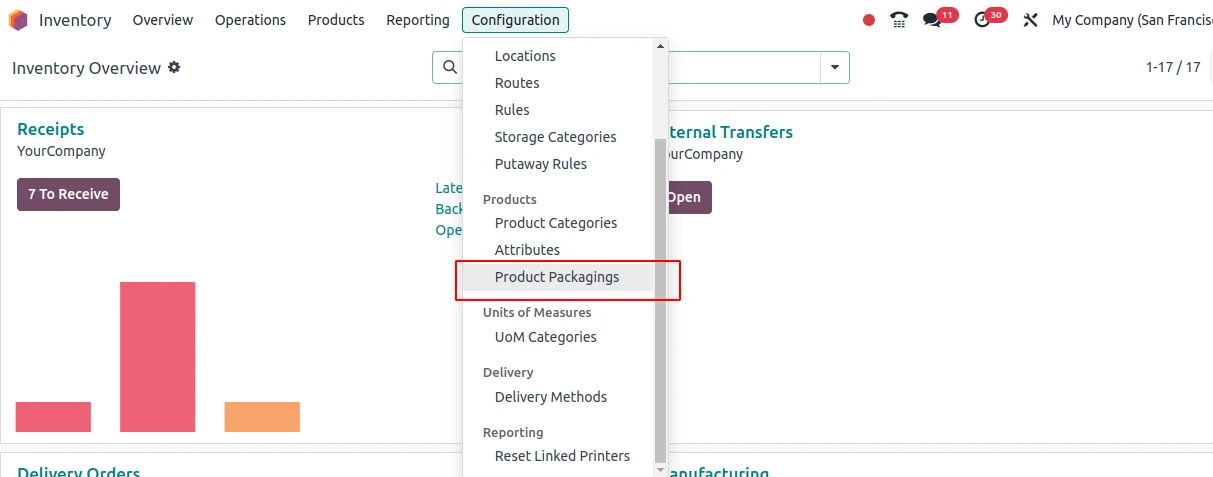
Packaging can be created by using the Product Packaging option in the Configuration menu, which will be available when you enable the product packaging option from the configuration -> settings as mentioned in the above passages.
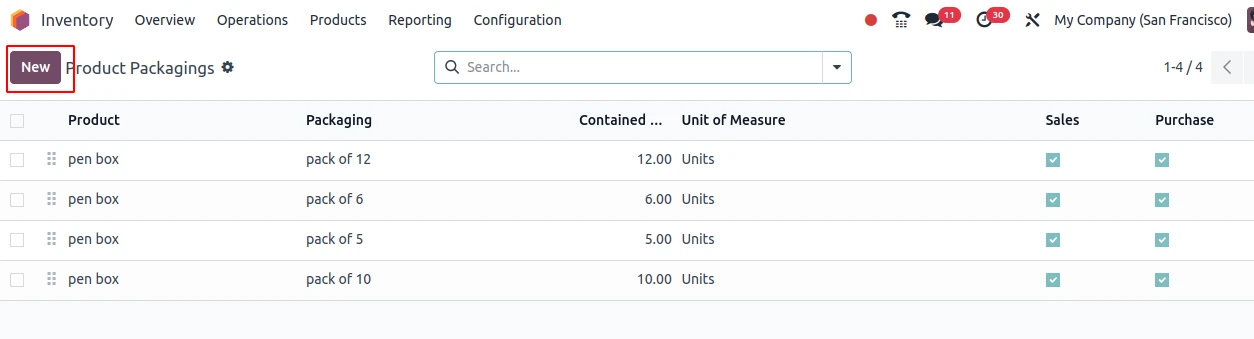
When you click on the menu, you will be redirected to a view which lists all the created product packagings. You can create a new product packaging by using the NEW button.
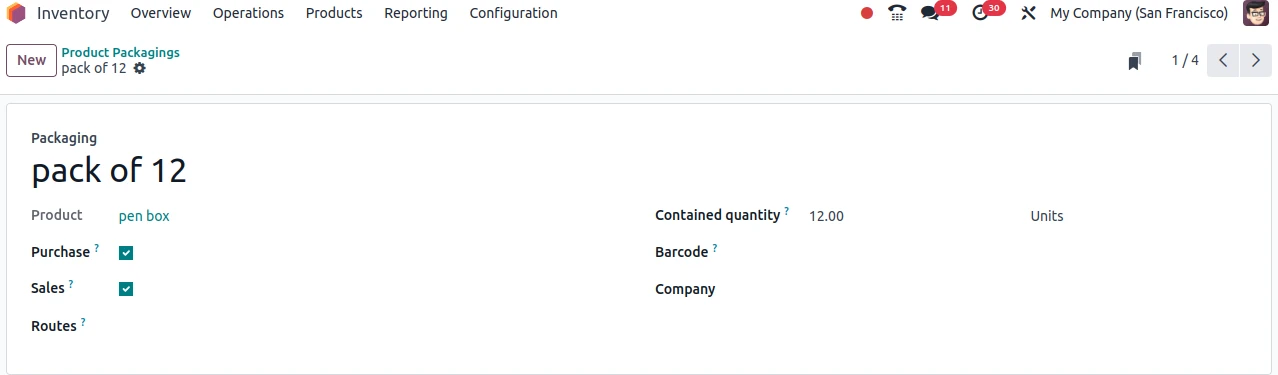
Here you can give the details of the packaging such as the Packaging name, product in the packaging, Package Type, Counted quantity, Barcode, etc.
2. From Product
You can configure packaging directly from products by going to the Inventory Tab in products. You can specify the details such as the package name, type, the quantity, unit of measures, etc.
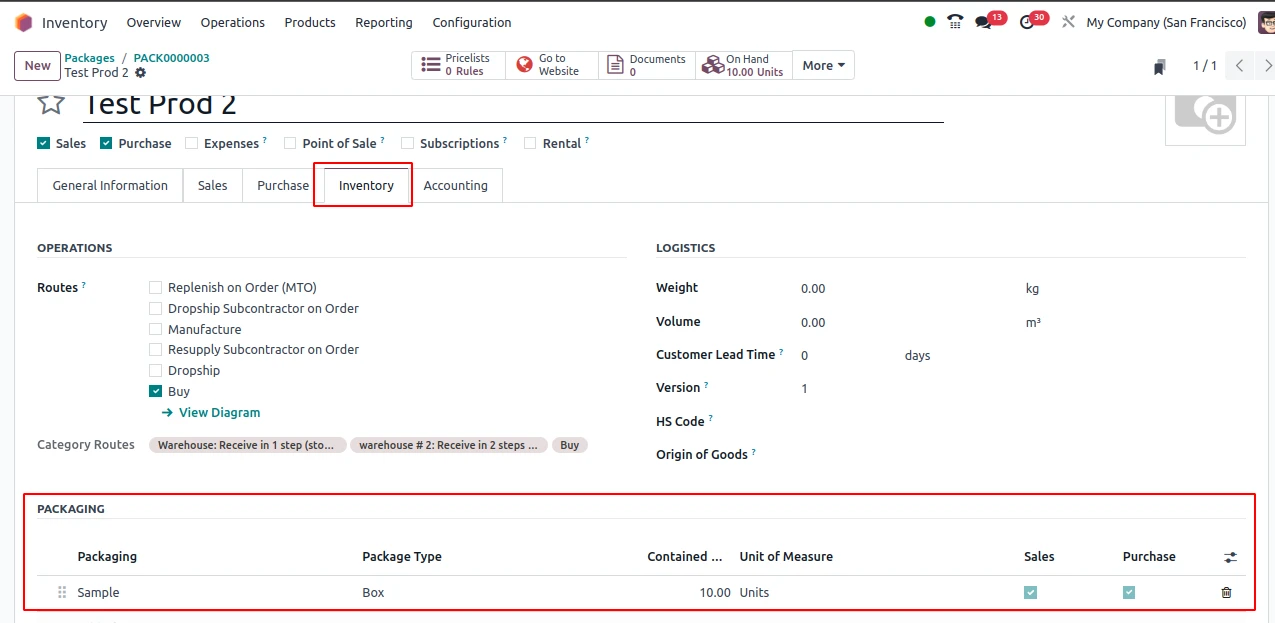
The packaging you have created from the product packaging menu can also be viewed here in the corresponding product.
Now lets take a look on how to apply this packaging to sales.
First of all you need to create a sale order with the product you have created packaging for.
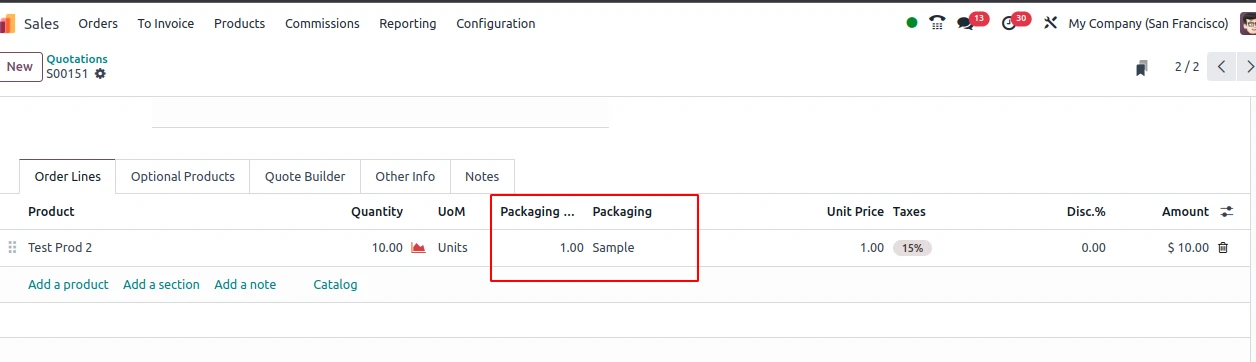
While creating th e sales order, you can specify the packaging that is to be used for this order delivery
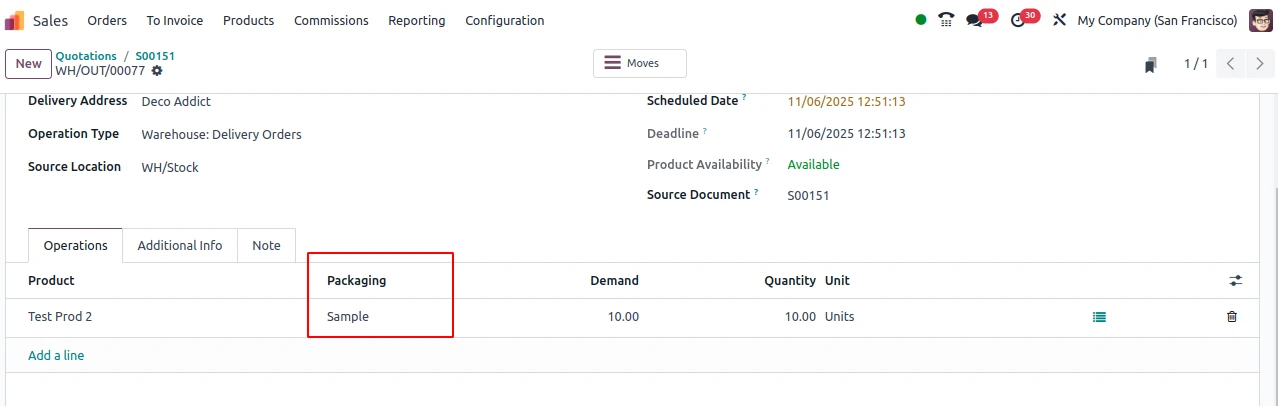
You can see that the packaging has been reflected in the delivery order also.
Cluster Packages
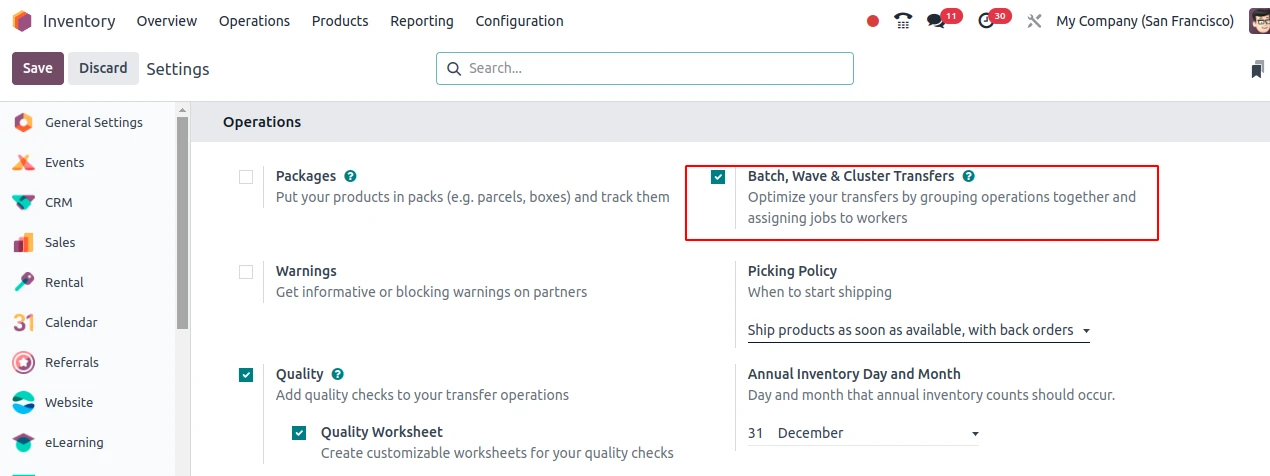
You can use the cluster packaging option for loading a cart with multiple packages each corresponding to specific sale orders, which is later delivered to corresponding storage location and kept with the package of corresponding sale order. For accessing this option, first you need to enable batch transfer option from settings. Inventory -> Configuration -> Settings.
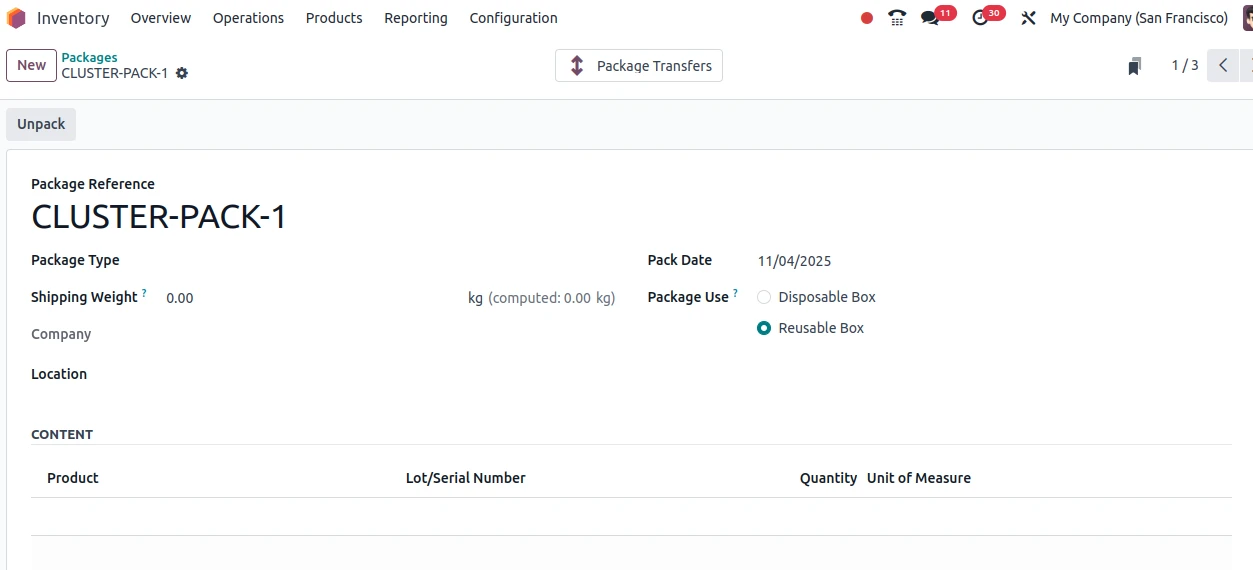
You can create a cluster package from the same menu used for creating packages, i.e., Inventory > Products > Package.
For creating a cluster transfer lets go to the delivery orders list and select few orders which you want to deliver as a cluster.
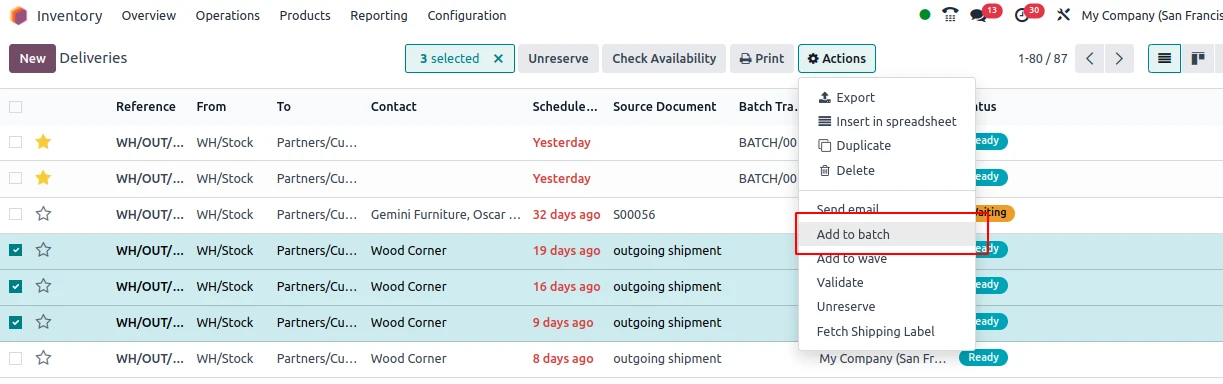
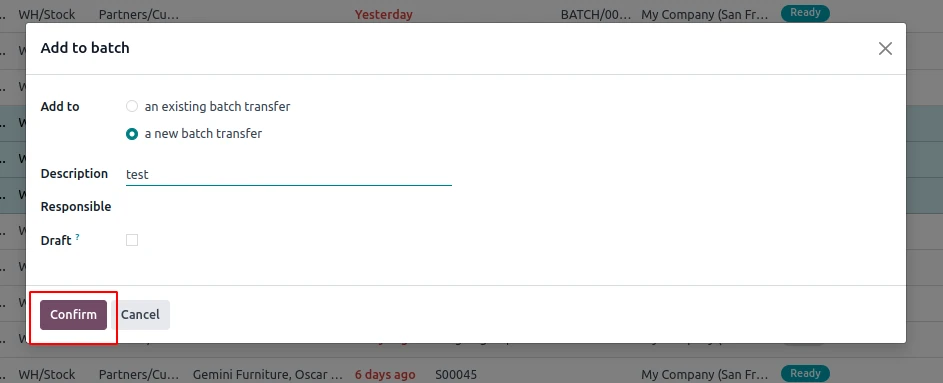
Clicking on Add to Batch will open a wizard, in which we need to fill details such as whether to add to ad existing batch or create a new one, description, responsible user.
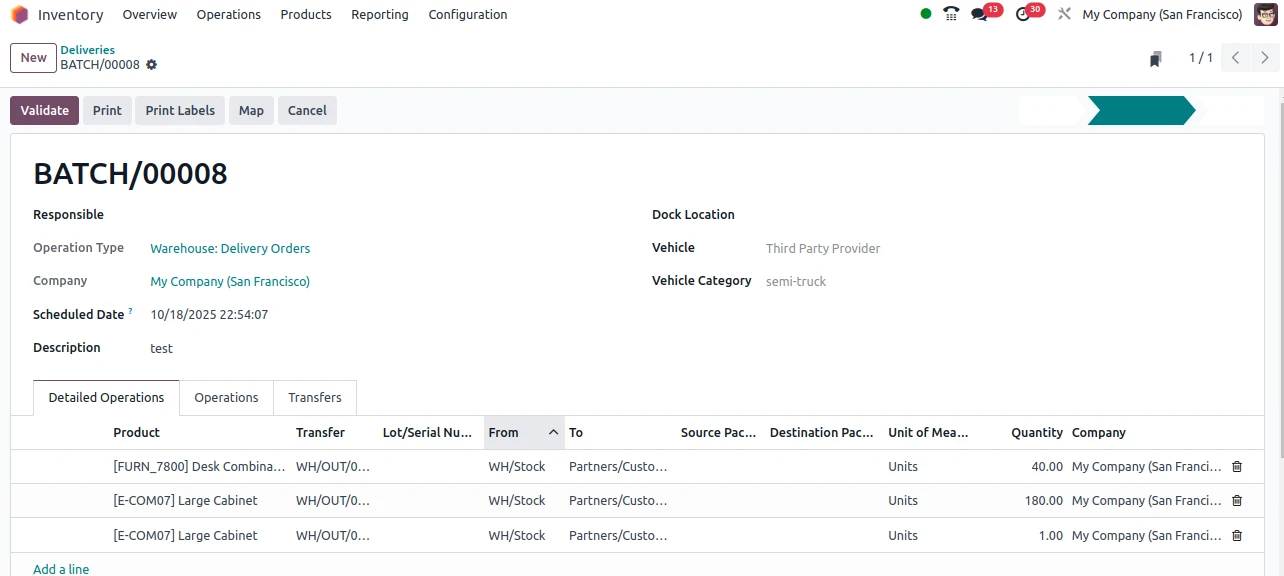
After entering necessary details, click confirm to create batch. You cam see the created batch order along with all the orders coming under the batch.
Extra Configurations
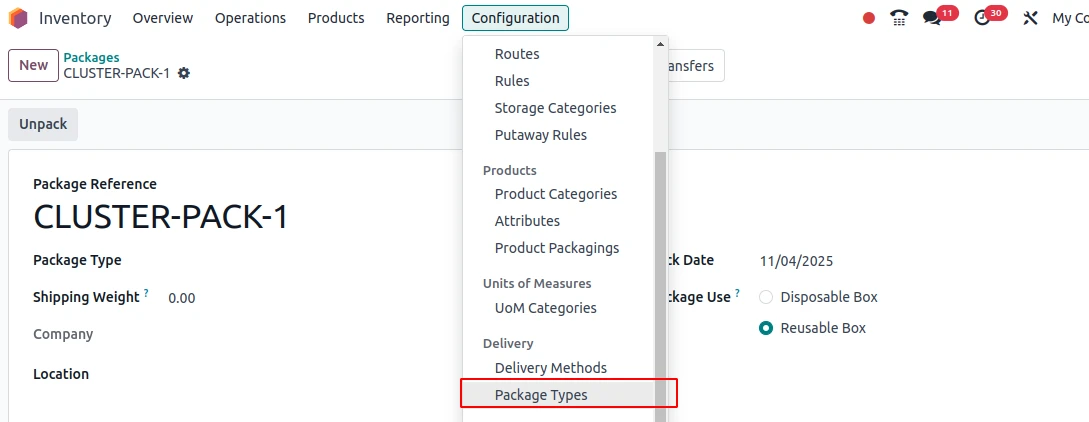
Inventory > Configuration > Package Types
You can see all the created package types under this option.
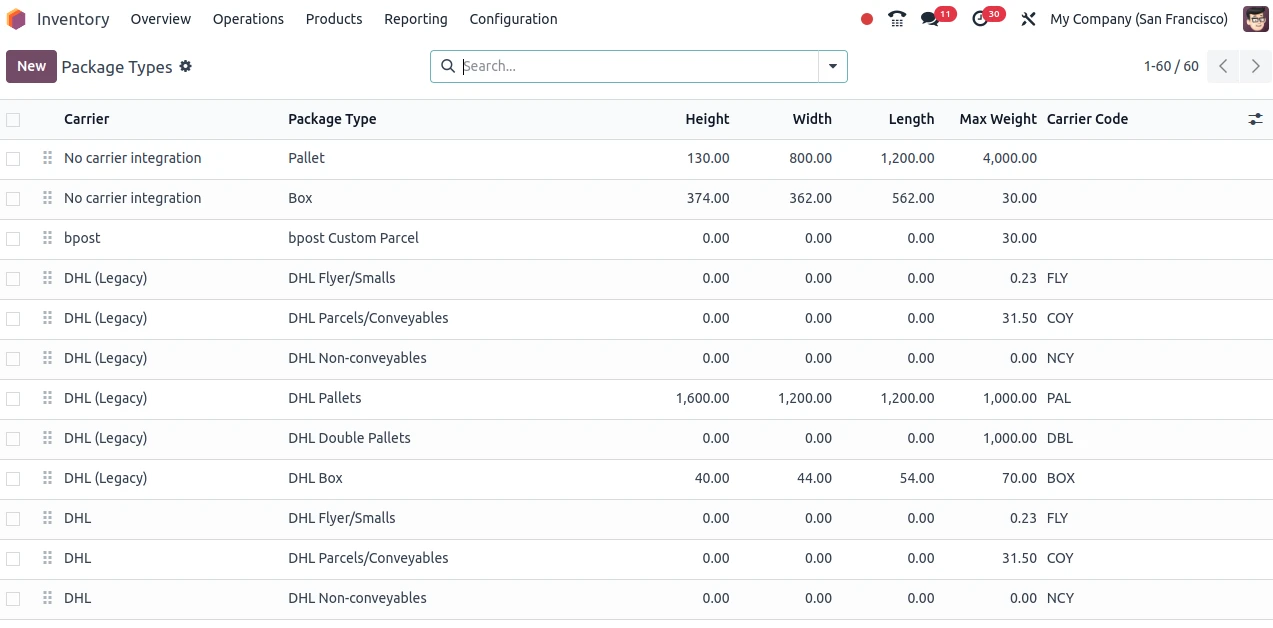
You can create a new package type by clicking on NEW button
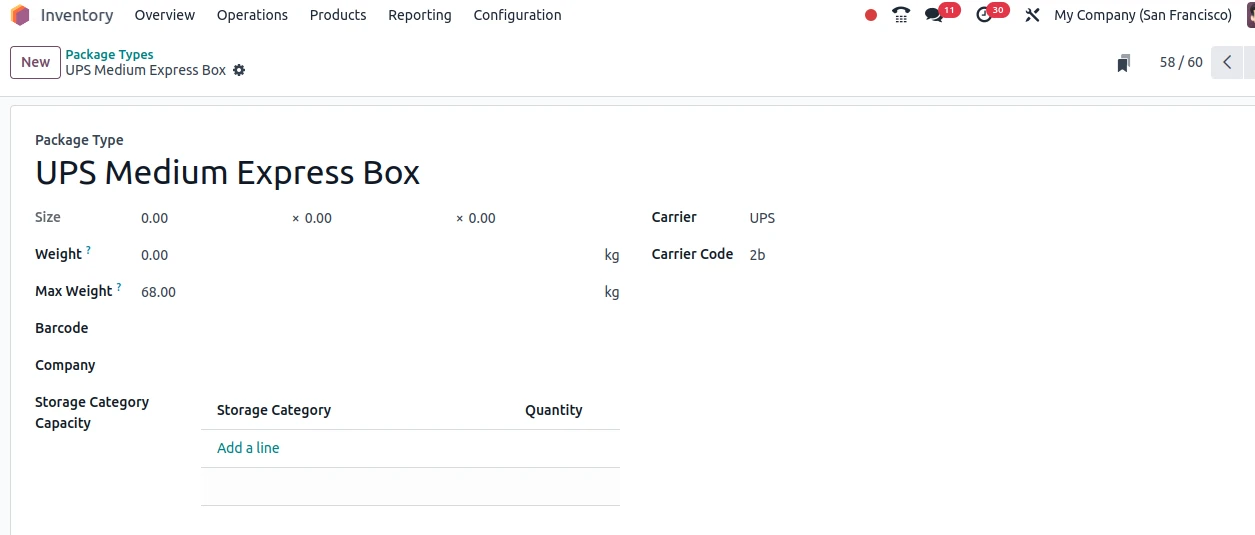
Here you can specify the details such as the package type, its dimensions, the weight than can be held in the type, the maximum weight that can be held in the type, Barcode if any, company, If any carrier is associated you can specify them and you can provide carrier code if any. Alos you can define the storage capacity corresponding to each category.
Final Thoughts on Product Packages
Product Packaging in Odoo is a powerful feature that helps businesses manage how products are packed, stored, and shipped with greater accuracy and efficiency. By defining multiple packaging types—such as boxes, cartons, or pallets—companies can automate quantity calculations, reduce manual errors, and streamline warehouse operations. Odoo’s packaging configuration also improves inventory visibility, speeds up order fulfillment, and ensures consistent handling across sales, purchase, and delivery processes.
With real-time tracking and flexible packaging rules, Odoo enables businesses to optimize logistics costs, minimize product damage, and enhance customer satisfaction. Whether you operate in retail, manufacturing, or distribution, using Product Packaging in Odoo allows you to scale operations while maintaining full control over stock movement and shipping standards.
Looking to implement or customize Product Packaging in Odoo for your business? Our Odoo experts can help you configure smart packaging rules, optimize inventory workflows, and improve delivery accuracy. Contact us today for professional Odoo implementation services and take your warehouse management to the next level.


.jpg )


Leave a comment