

Ever asked yourself how Odoo 18 keeps tabs on something like a dozen eggs, 20 meters of material, or 5 kilograms of sugar? It's thanks to the Unit of Measurement (UoM) feature! This unassuming but powerful tool is essential for keeping your inventory, sales, and purchases up to date. In Odoo 18, UoM makes it so that whether you're purchasing by the case or selling by the individual unit, your inventory levels and your books stay nicely in balance.
In this blog article, we'll dive into the basics of UoM setup and usage in Odoo 18. We will look at how to manage various Unit of Measure categories, define conversion factors, and prevent common mistakes that will give you inventory headaches.
To manage Units of Measurement in Odoo 18, simply go to the Inventory > Configuration > Settings, and under the Products section, you'll find the Units of Measure option.
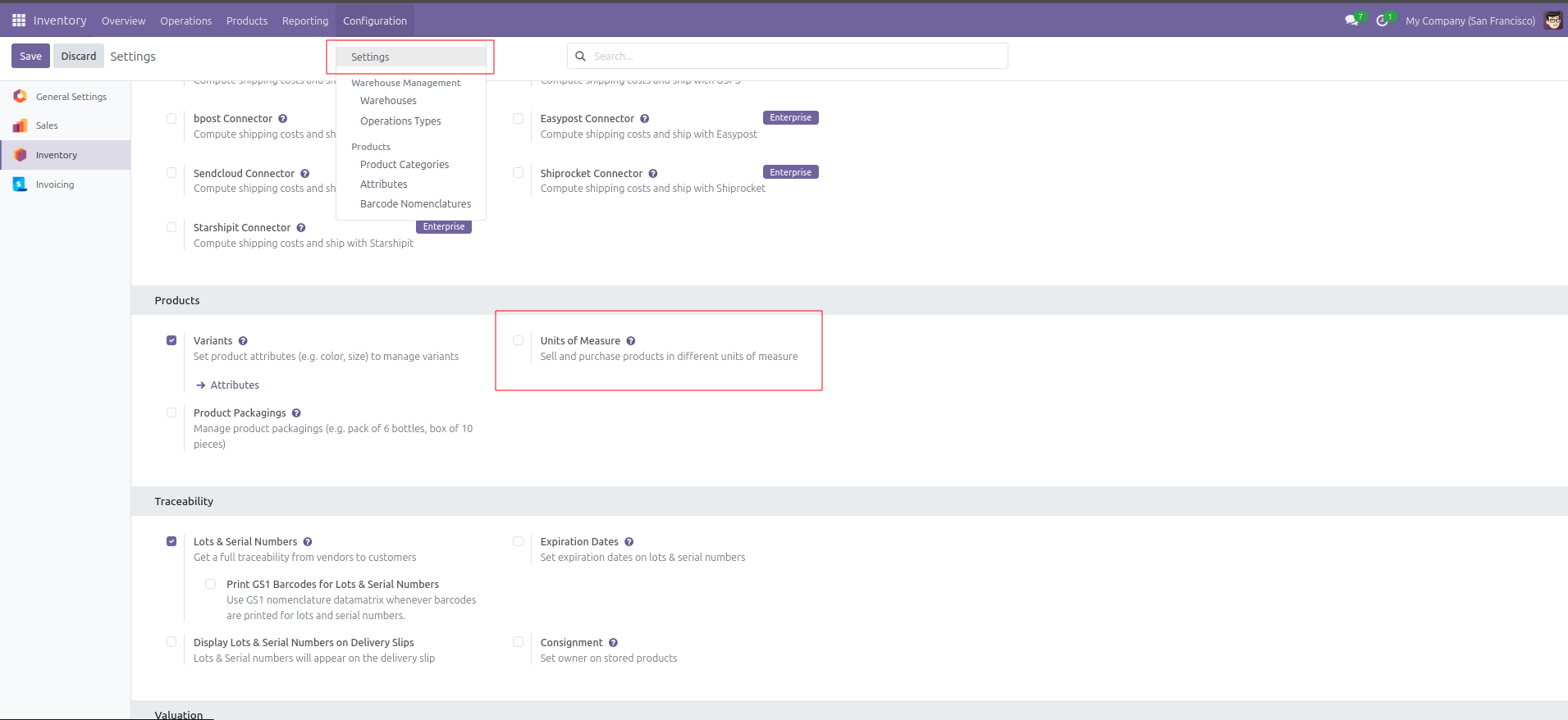
When enabling Unit of Measurement in Settings a menu comes in Inventory > Configuration > UoM Categories
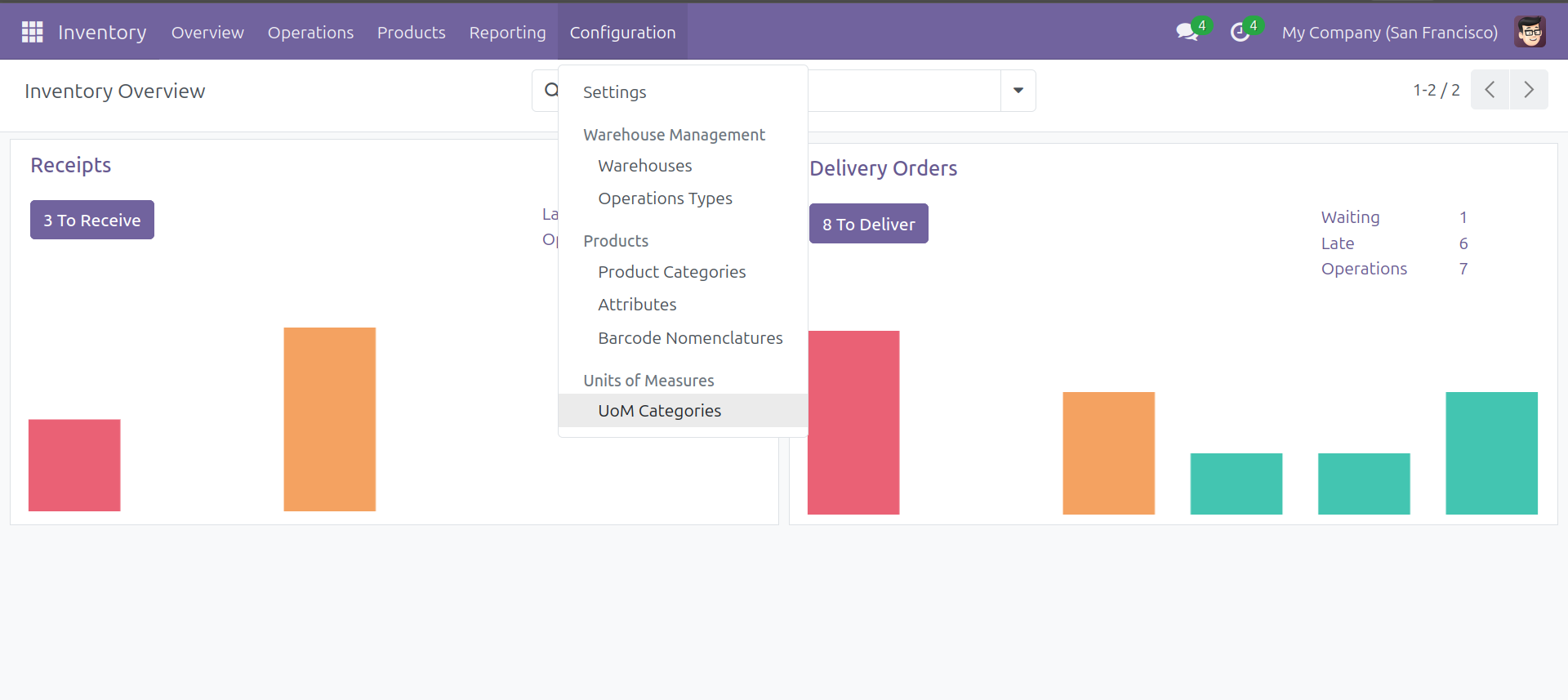
This menu lets you create UoM categories, which can then be used to configure different business scenarios.
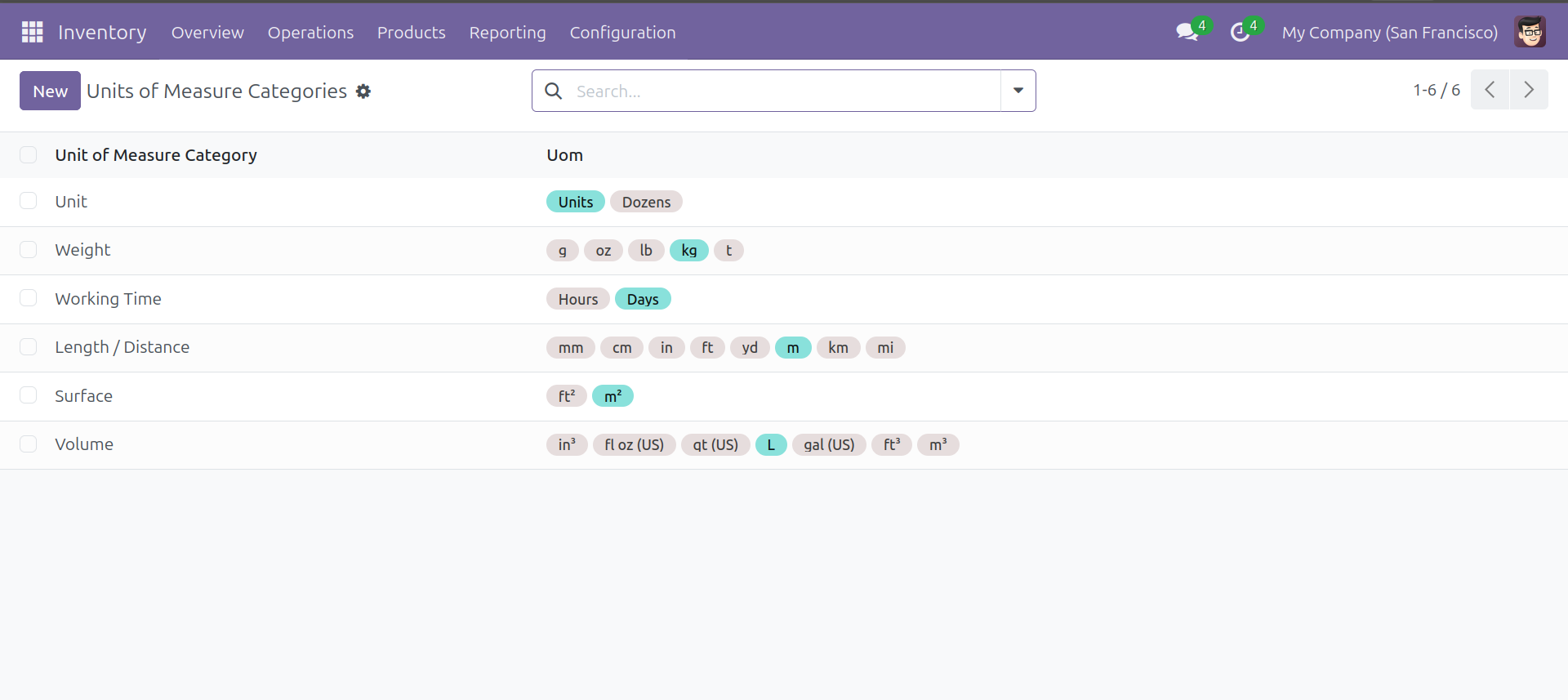
These are the default Unit of Measure categories provided in odoo. Each UoM category has reference units that is show in blue, which the the basic unit of that UoM Category.
Lets understand the complete working of Unit of Measure with the help of an example: Imagine a Product “Sugar “, it is bought as “Tons” from Suppliers ,and will sell in Bags of 25kg. To achieve that first create a UoM category.
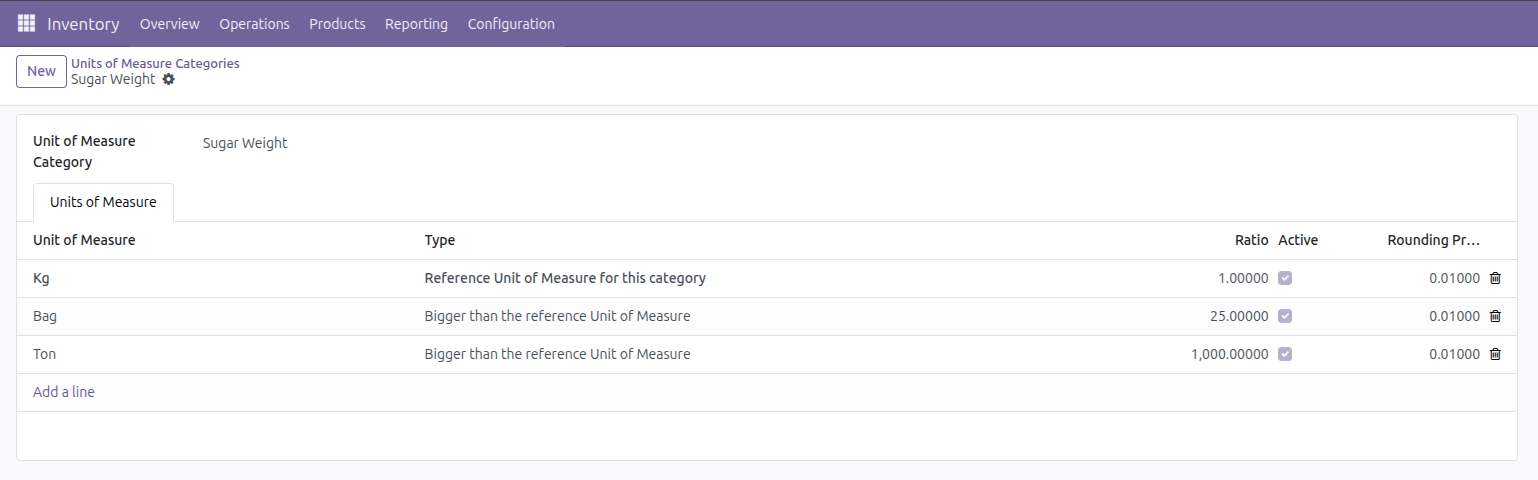
This category is meant to handle different ways of measuring sugar, so that the system can automatically convert between them whenever needed. Here kilogram is set as the Reference Unit of Measure for this Category. That means all other units will be compared and calculated based on kilograms . Two other units Bag and Ton is added , where a Bag is defined as equal to 25 kilograms and Ton is defined as equal to 1000 kilograms.
Now lets create a Product and assign this Unit of Measure category to it. To set the Unit of Measurement of a product go to Product > General Information tab and set the Unit of Measure to the unit in which you sell the product, that unit is also the unit used to keep track of the product’s inventory and internal transfers.
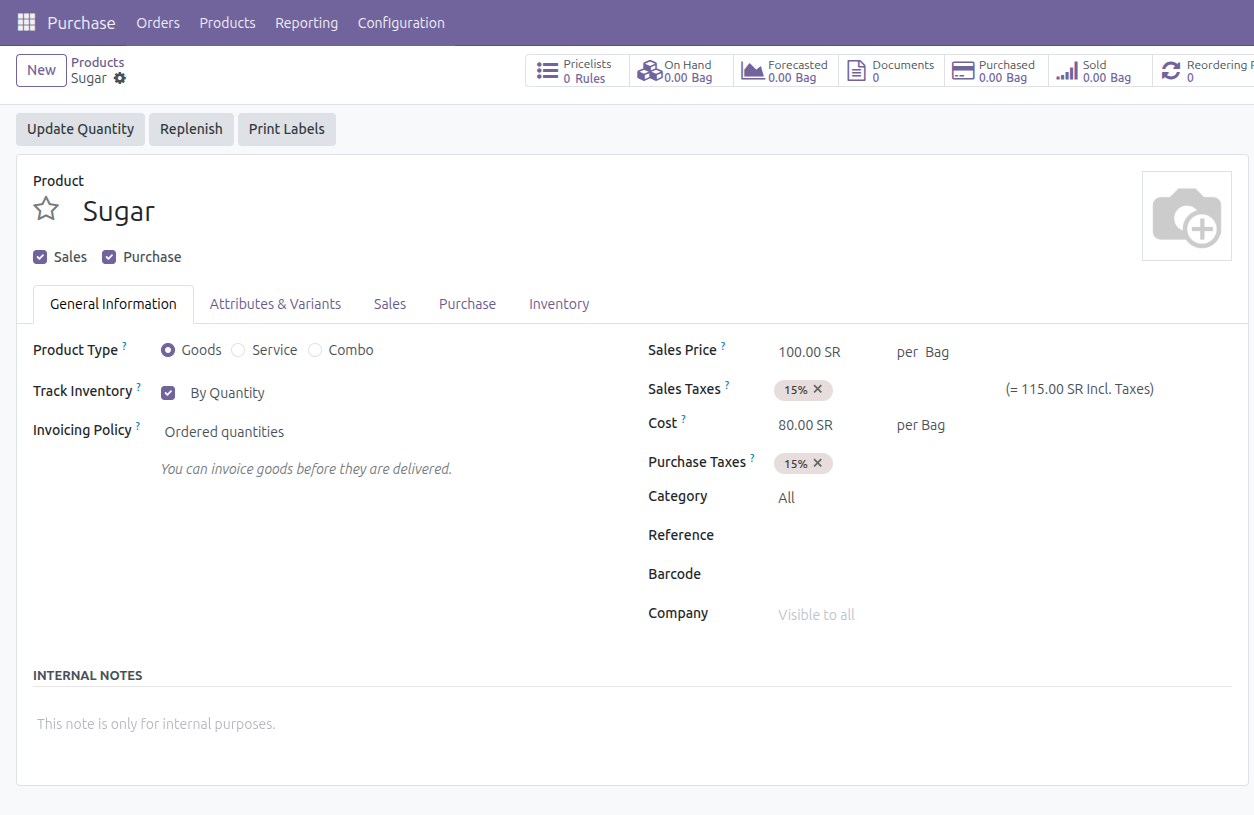
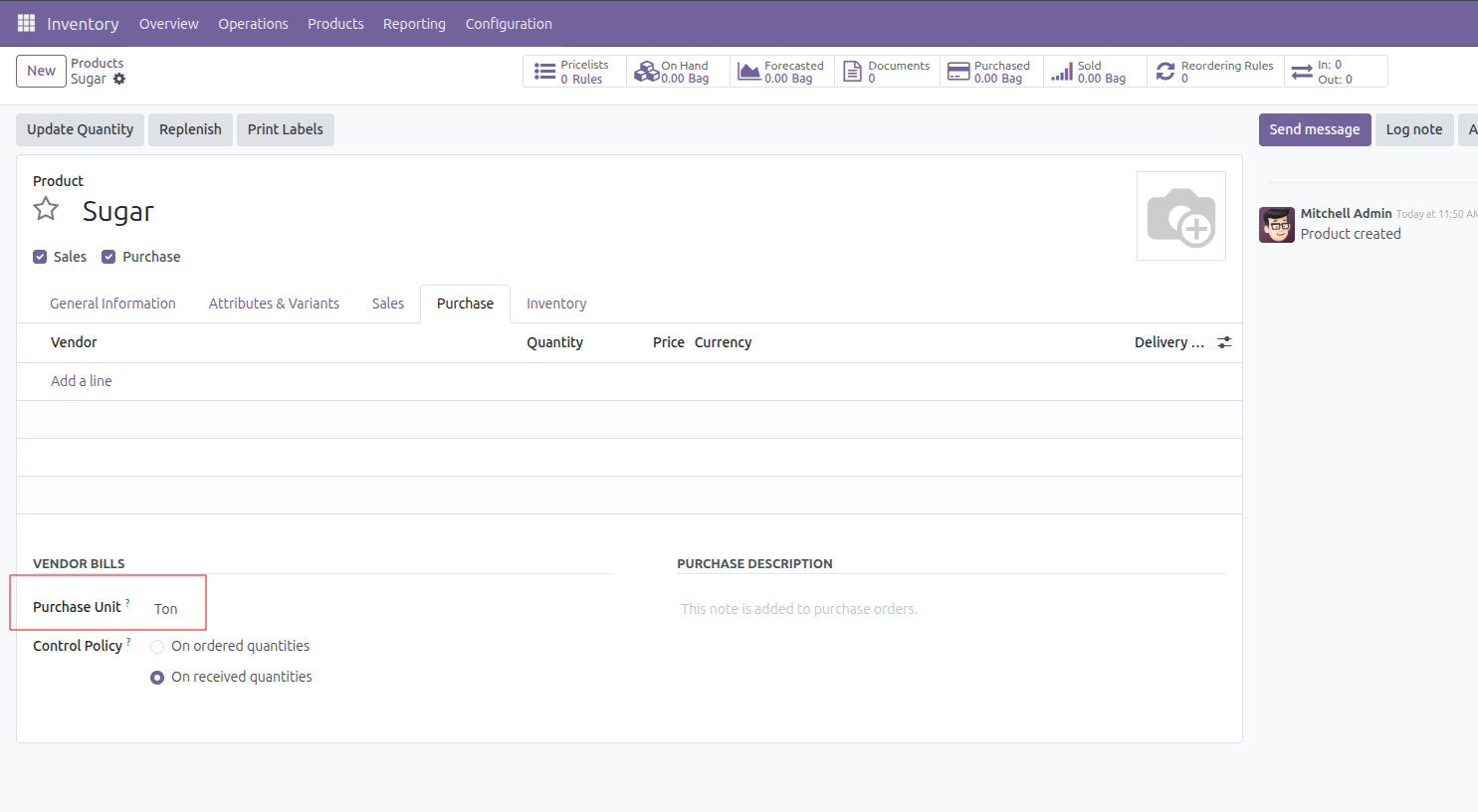
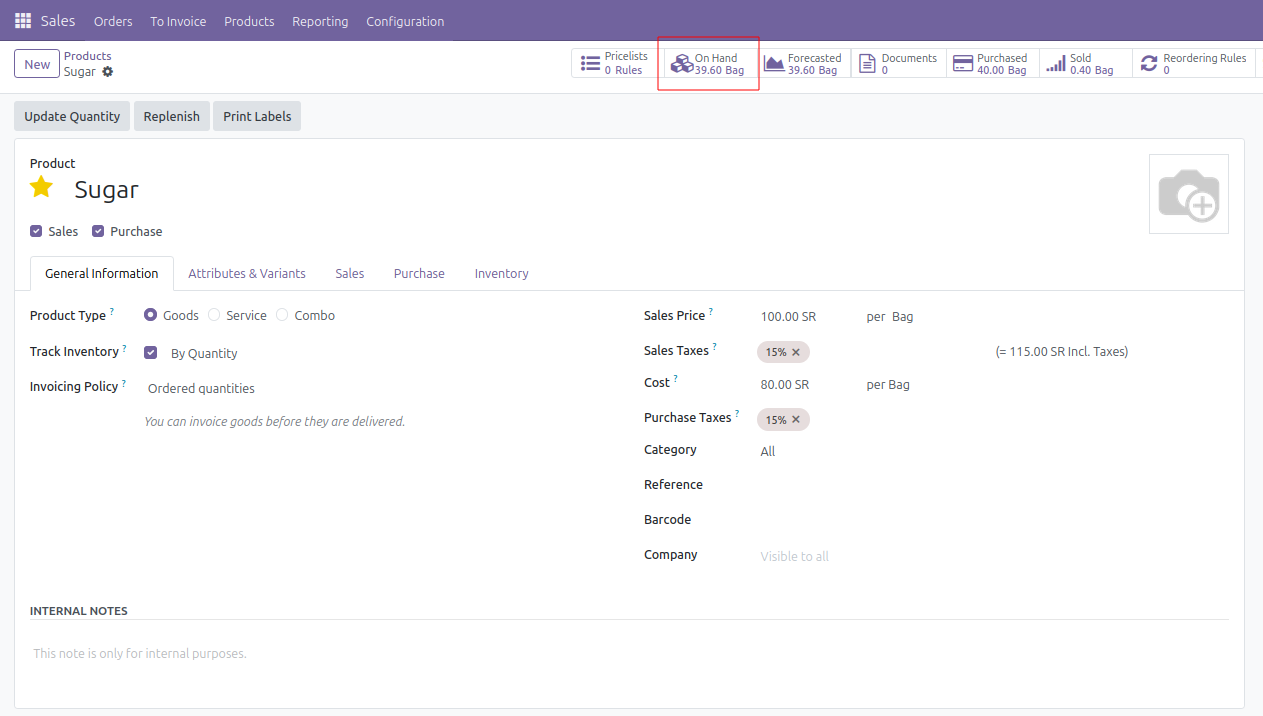
Here the product Sugar is created as storable good and it is enabled for both sales and purchases. The Sale Unit is set as “Bag” and purchase unit as “Ton”. So for selling the system uses Bag as the unit of measure and Ton as Purchase unit.
Now lets create a purchase order for this product.
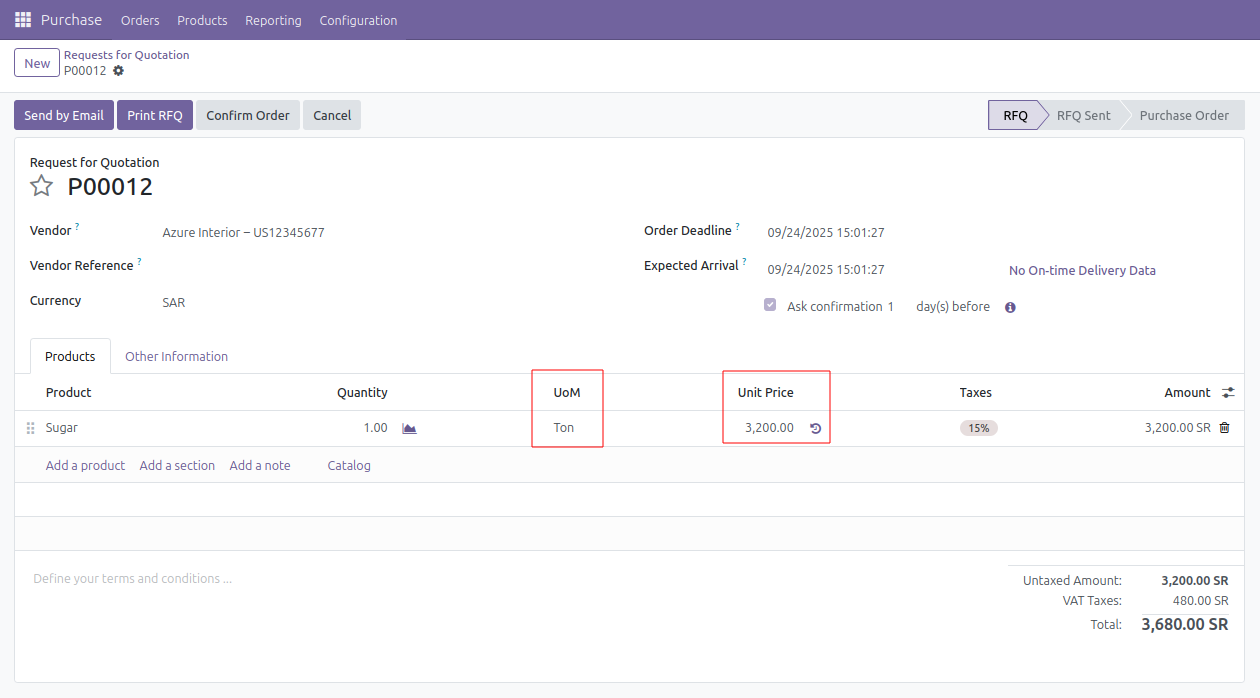
When creating a purchase order, the product will display the unit provided in Purchase UoM as the default unit , in this case Ton. However Odoo doesn’t restrict to always purchase in the default Purchase UoM. Since Ton belongs to a unit of measure category that also includes Bag and Kilogram, you are free to select any of these units while making the purchase. If you choose a different unit here , odoo will automatically performs the necessary conversion in the background to keep your inventory consistent. This means that even if you buy in Tons, Bags, or Kilograms, the system will convert everything into the product’s default unit of measure for stock management, ensuring that quantities are always accurate and comparable.
When we check the receipt of the purchase, the unit of measure shown is the one defined in the product form, not the purchase UoM.
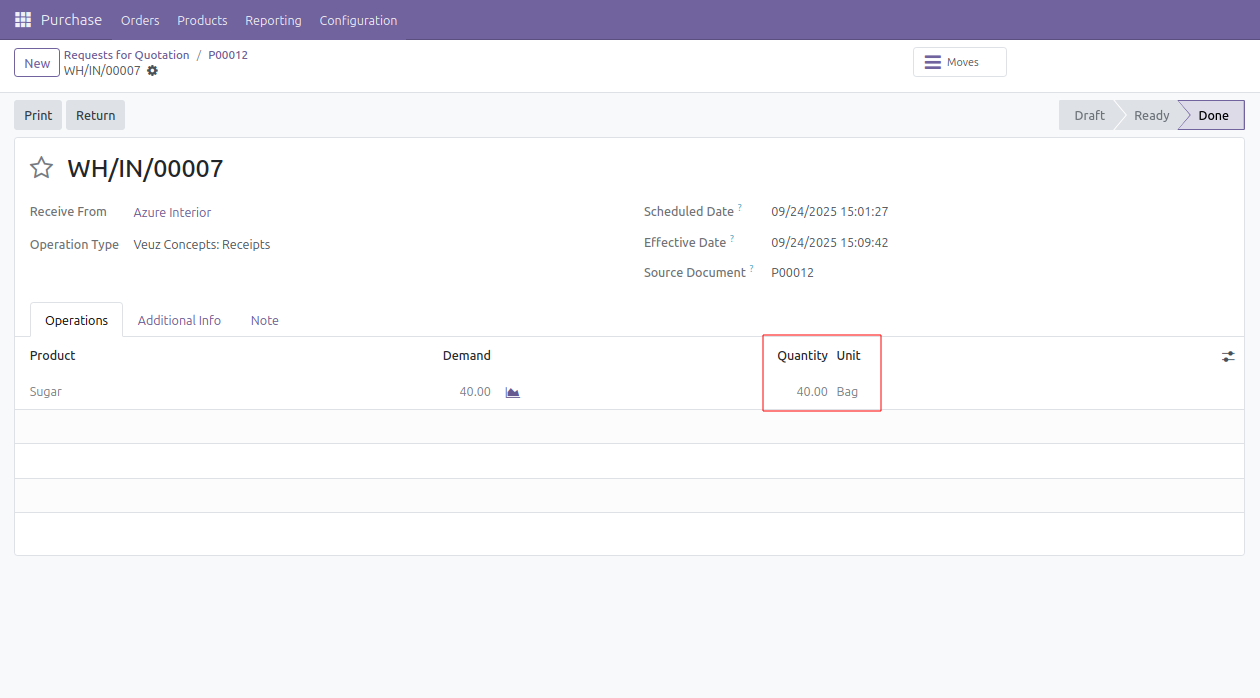
Now when we check the On Hand quantity of the product we can see it as 40 Bag.
This is because the purchase was made in 1 Ton that is equal to 1000kg and since 1 Bag equals 25 kg , Odoo automatically converts the purchased quantity into the product’s default unit of measure, which is Bag. So instead of showing 1000 Kilograms, the system records it as 40 Bags, making the stock easier to read and consistent with the product’s default UoM.
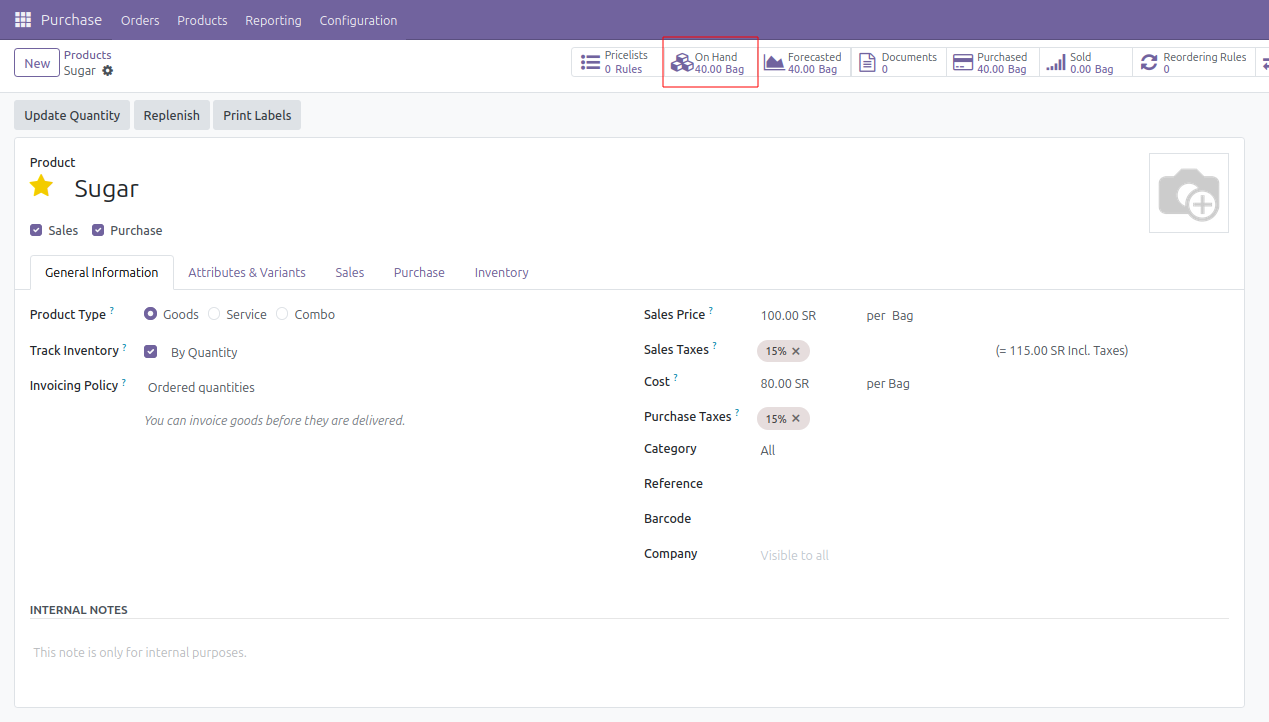
We only bought 1 Ton here. However, 1 Ton equals 40 Bags and 1 Bag equals 25 kg. As a result, 40 Bags are added to the inventory. Here 40 Bags equal 1000 Kg, which means 1000 Kg is stored in the stock.
Most of the time, we purchase products in bulk but may not sell them in bulk. In such cases Odoo’s unit of Measure would be handy.
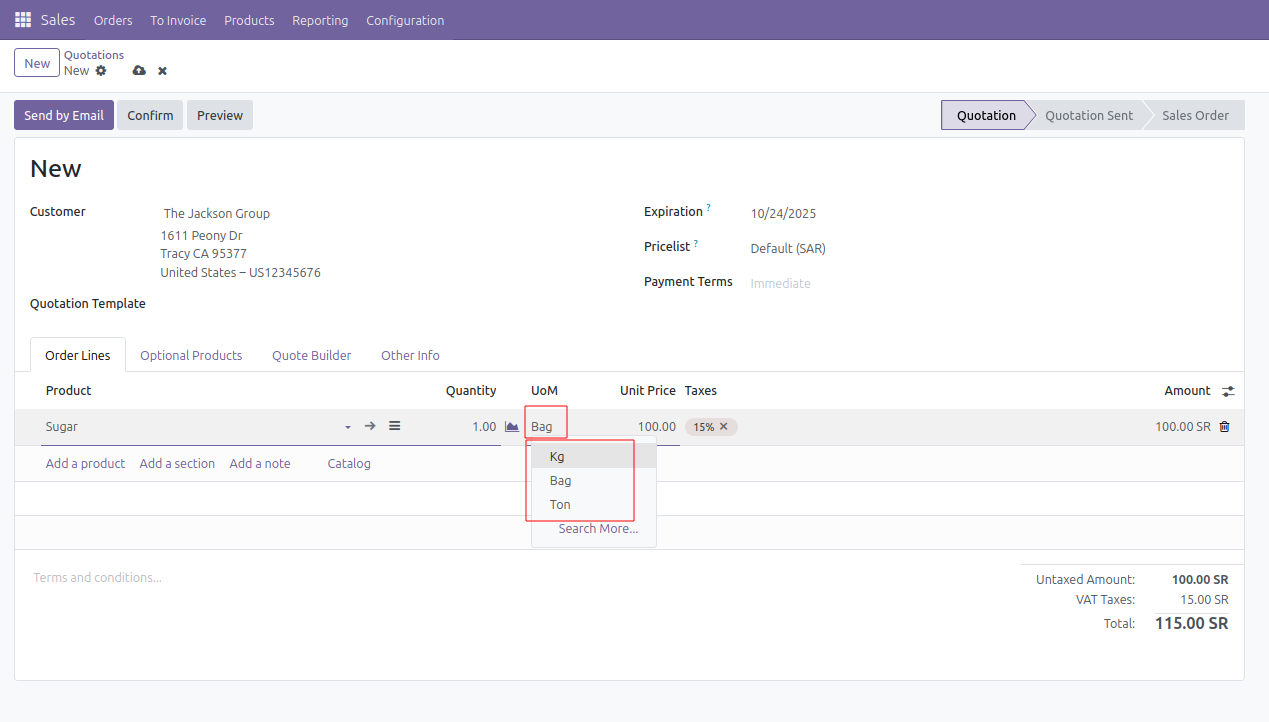
While selling the product the unit Bag comes as default and we are able to choose any unit of that category to sell the product. By default the unit comes as Bag.
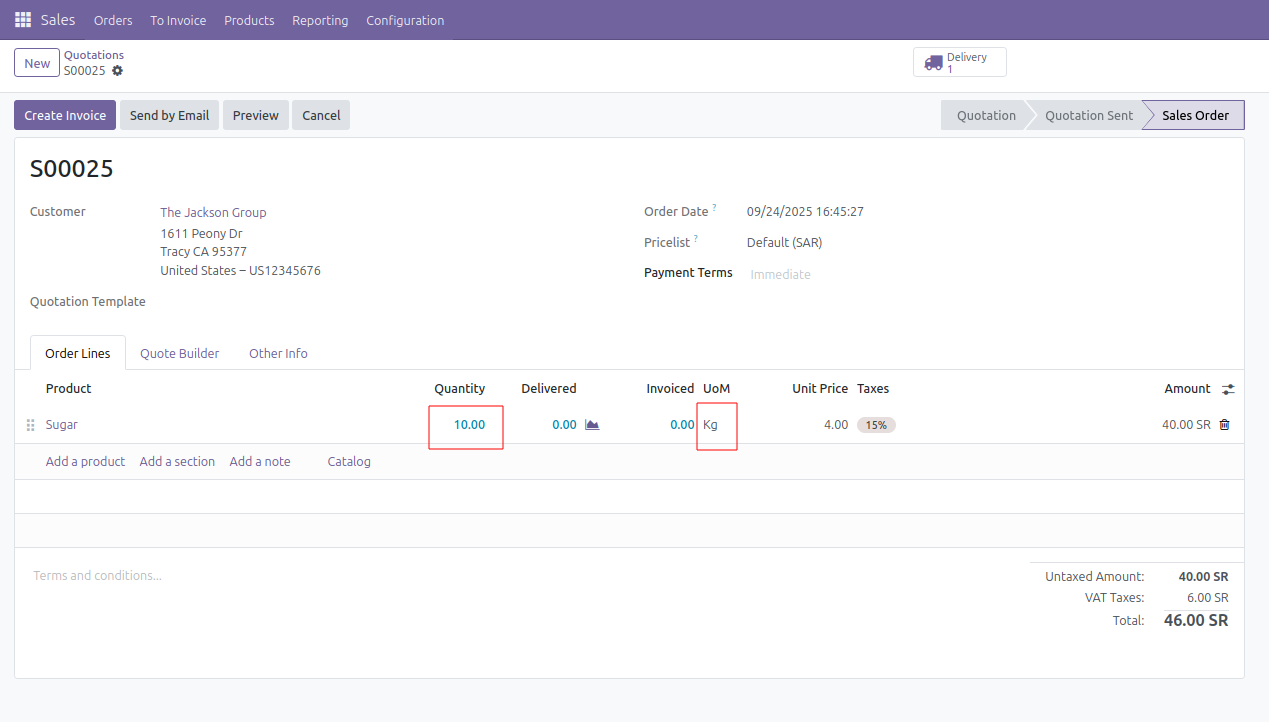
Here we created a sale order with Product Sugar and Unit of Measurement as Kg and the Quantity is 10 Kg.
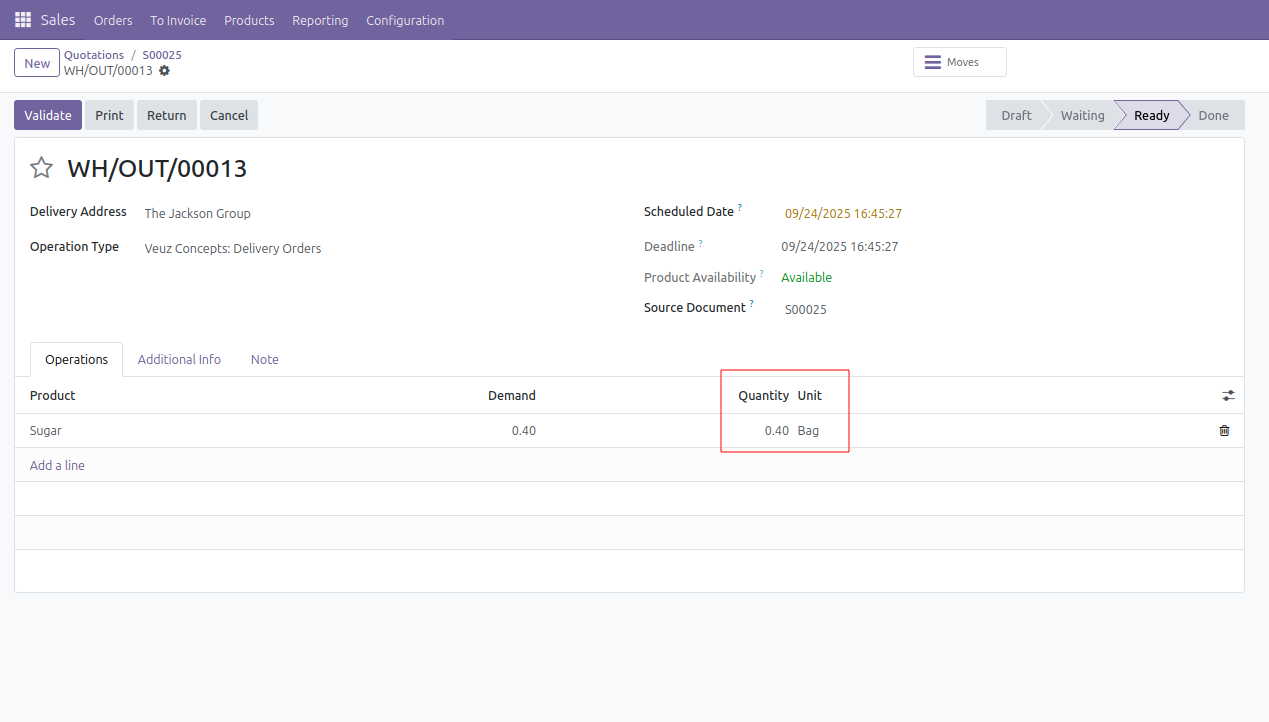
When we check the delivery of the sales order, the unit of measure displayed is the one defined in the product form, not the one specified in the sales order.
Now when we check the On Hand quantity of the product we can see it as 39.60 Bag.
Optimizing Precision with Odoo 18
Being more than just a technical configuration, the Unit of Measure feature in Odoo 18 is a cornerstone to maintain an accurate business workflow. From procurement and inventory to sales and reporting, UoM ensures that every quantity, conversion, and transaction stays perfectly aligned. By setting up the right categories and conversion logic, you eliminate manual errors, simplify stock control, and gain a clearer, real-time view of your business operations.
Ensuring that your business focus on unlocking its full potential with Odoo, we at Veuz help you with expert implementation and ensure that features like Units of Measure are tailored precisely to your business model, be it you are managing multi-unit inventories, complex conversions, or industry-specific workflows. With our deep Odoo expertise, we make sure your system works for you.
If you’re looking to streamline operations and get the most out of Odoo 18, our team at Veuz is here to help you every step of the way from setup to seamless adoption.



.jpg )


Leave a comment